In This Article
Follow BestForAndroid


💡 The short answer
- No single best wayEvery method trades something: cost, readability, or whether the copy can ever go back into WhatsApp. Your Google Drive backup doesn’t count here; only WhatsApp can open it.
- Free and readableWhatsApp’s own Export chat gives you a text file plus media, one conversation at a time. It can’t be restored.
- Fuller copyA desktop tool such as Dr.Fone saves chats and media from Android or iPhone in one go; the full features need a paid licence. Apple Devices backs up a whole iPhone for free, but you can’t browse the chats.
- Raw Android filesA free USB copy saves the Databases and Media folders. Media opens; the chat databases stay encrypted.
WhatsApp holds years of chats, photos, receipts and voice messages, and most people never think about where all of that lives until a phone dies. The Google Account backup is fine for moving to a new phone, but it only works inside WhatsApp’s own restore process. You can’t open it, search it or keep it on your own terms. If you want a copy that sits on your computer, you’ll have to back up WhatsApp chats to your Windows PC yourself.
There’s no single right way to do that, and the honest answer depends on one question: do you want to read these chats later, or restore them into WhatsApp later? The free routes are good at the first and weak at the second. Fuller backups cover more ground, but they cost money or come back as a file you can’t browse. Here’s how the four options compare.
| Method | Cost | What you can open later | The catch |
|---|---|---|---|
| Dr.Fone WhatsApp Transfer (Android or iPhone) | Paid licence for the full backup and export | Saved chats and media in Dr.Fone’s preview, plus exports for reading | Third-party desktop software; restores only through the paths it supports |
| WhatsApp Export chat (Android or iPhone) | Free | A text file and any media you include | One chat at a time; can’t be imported back into WhatsApp |
| USB file transfer (Android) | Free | Media files | The chat databases stay encrypted |
| Apple Devices for Windows (iPhone) | Free | A whole-device backup record | No way to browse individual WhatsApp chats |
How to Back Up WhatsApp Chats from Android to a PC
Android gives you the most choice. Three options, each good at something different.
Option 1: Create a WhatsApp Backup with Dr.Fone
Dr.Fone: WhatsApp Transfer creates a desktop backup of your WhatsApp chats and media that you can then browse and export on the PC. It suits someone with a lot of conversations to save at once, who would rather not export them one by one.
The trade-offs are worth knowing before you start. You’ll need a compatible Windows PC, Dr.Fone, an unlocked Android phone, a data cable and free storage, and the full backup and export features require a paid licence. You’re also giving a third-party app access to your chats, so weigh that the way you would for any software that handles private data.
⚠️ Before you start
- Keep any older backup you still need. Use your own encryption key; the key shown in the screenshots is only an example.
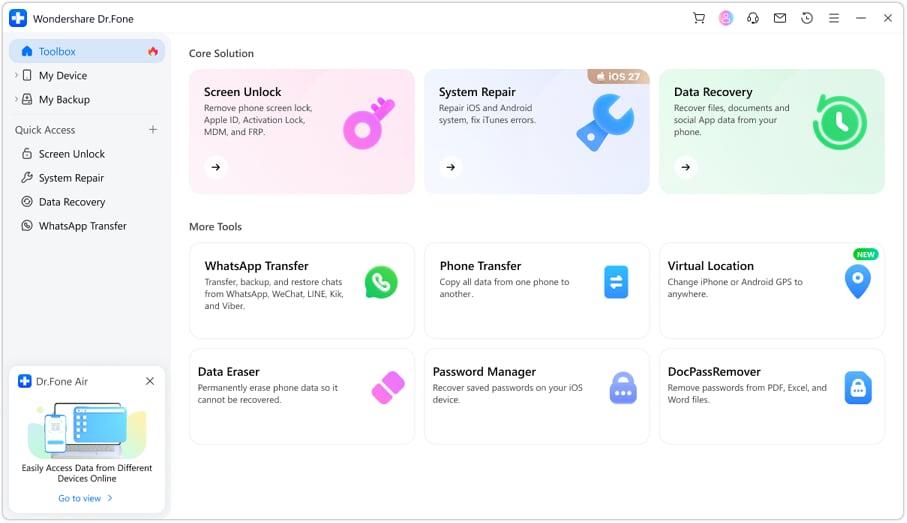
Step 1. Open WhatsApp Transfer. Connect your unlocked Android phone to the PC. In Dr.Fone, choose Toolbox > WhatsApp Transfer.
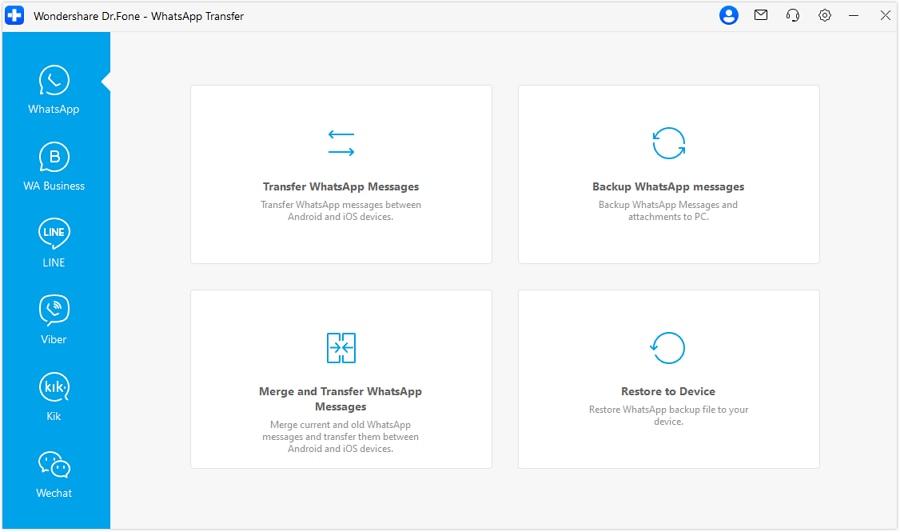
Step 2. Start the backup. Select WhatsApp, then Backup WhatsApp messages.
Step 3. Open encryption settings. When prompted, go to WhatsApp Settings > Chats > Chat backup > End-to-end encrypted backup. Tap Use 64-digit Encryption Key Instead.
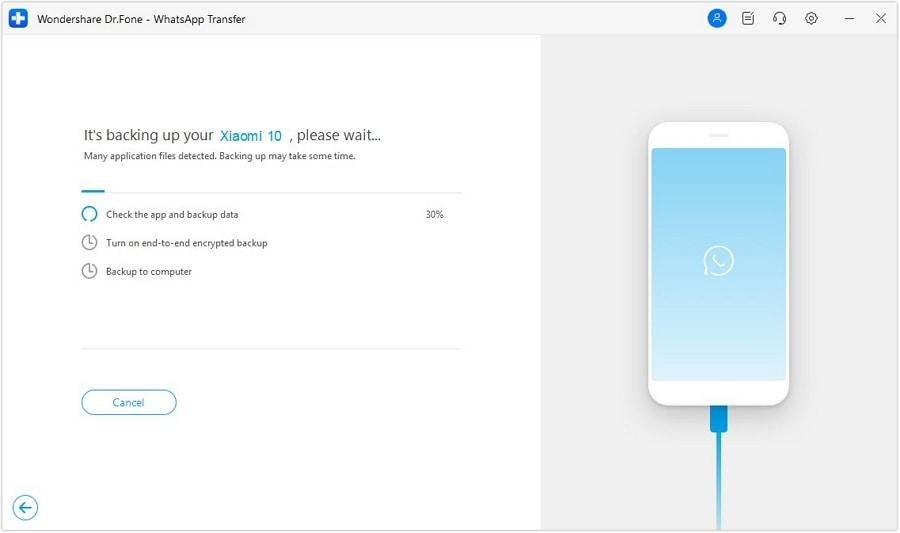
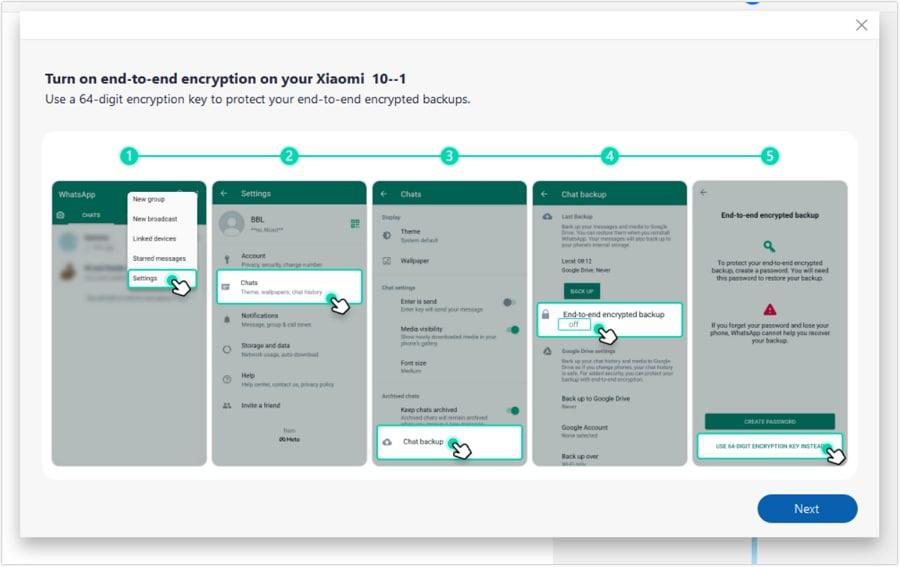
Step 4. Generate and scan the key. Click Next on the PC. On Android, tap Turn On > Generate Your 64-Digit Key. Keep the key visible and click Scan in Dr.Fone.
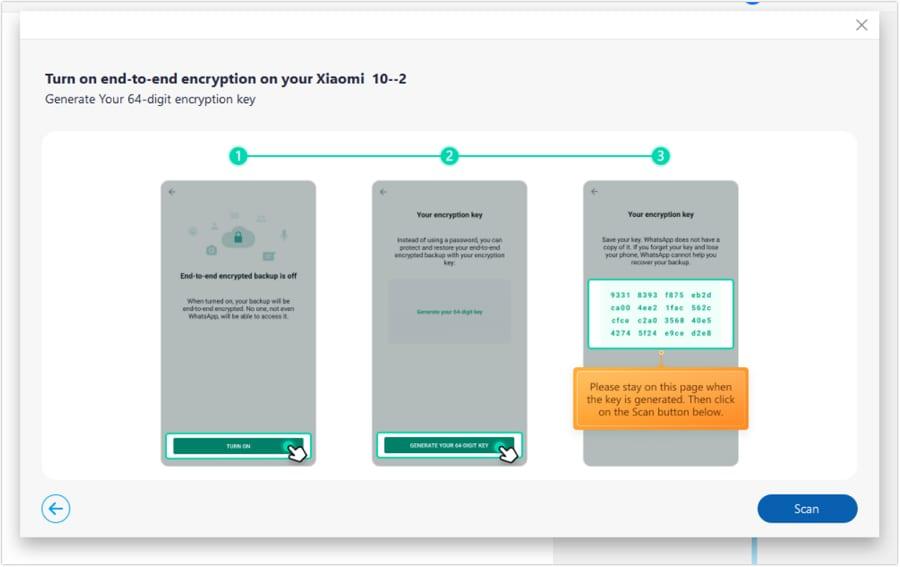
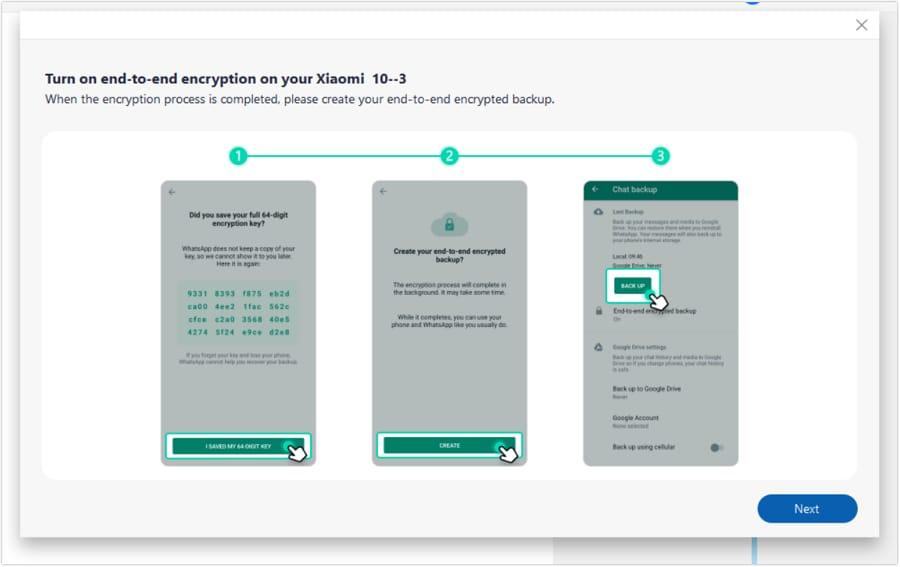
Step 5. Create the encrypted backup. Save your key somewhere private. Tap I Saved My 64-Digit Key, then Create. Tap Back up as shown, wait for the phone backup to finish, then click Next on the PC.
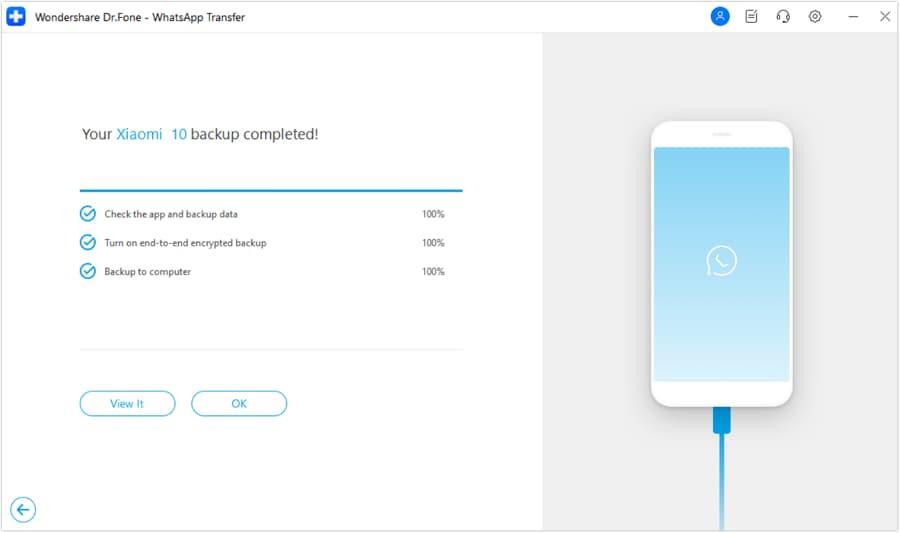
Step 6. View the result. Wait for completion, then click View It. Check a recent chat and an attachment before you delete anything.
Need readable documents? Look at the Dr.Fone backup and the export options in the preview. On both Android and iPhone you can export to PDF, HTML, CSV and Excel: PDF suits printing, HTML the browser, and CSV or Excel a table you want to sort through. Check which options your version offers. An export is for reading; the backup itself is for the restore paths it supports.
Option 2: Export Individual WhatsApp Chats for Free
WhatsApp can export a selected chat as text, with the option to include media. It costs nothing, needs no extra software and produces the most readable copy of the lot, which makes it the obvious starting point if you only care about a handful of conversations.
Step 1. Open the WhatsApp chat on your Android phone.
Step 2. Tap More options (the three-dot menu), then More > Export chat.
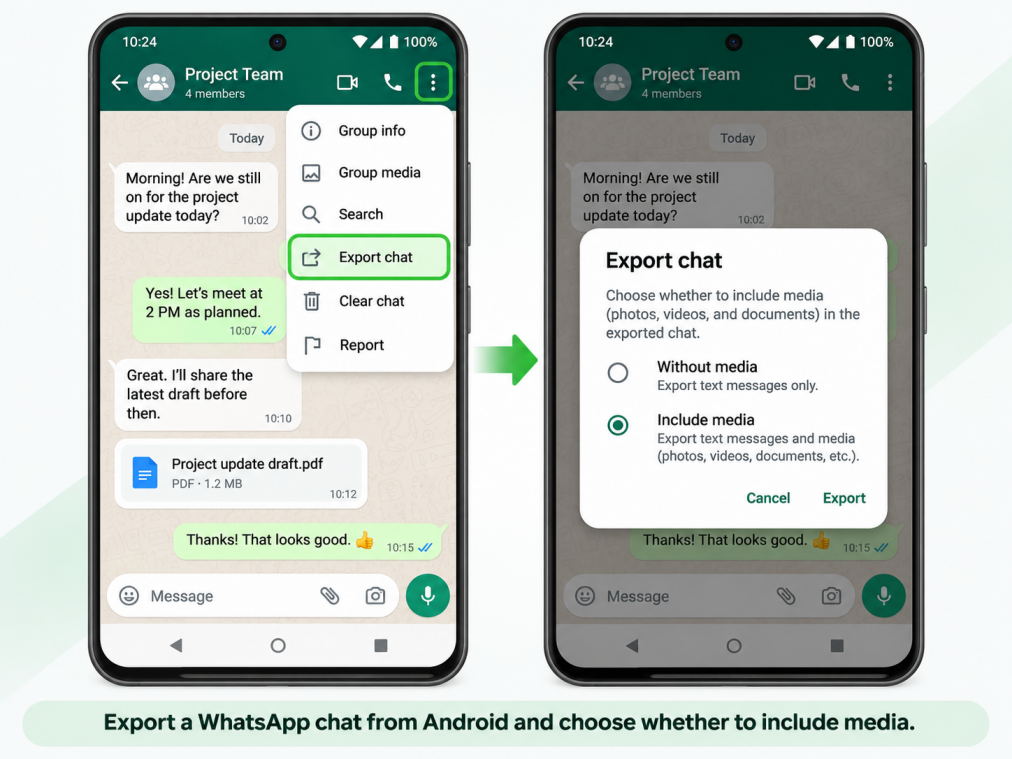
Step 3. Choose Include media if you need the available photos and other attachments, or Without media for a lighter, text-only record.
Step 4. Pick a sharing method you can reach from Windows, such as sending the files to your own email. If you use an online storage service, remember you’re also keeping a copy there.
Step 5. On your PC, download the actual attachments, not just the email or the sharing link. If you got an archive, extract it first, then open the text file in Notepad or another text editor. Check the dates and a sample attachment to make sure they’re what you expect.
An exported chat is readable, but you can’t import that text back into WhatsApp as restored chat history. The export covers only the selected chat, and the sharing service may limit attachments. With dozens of chats to save, doing them one at a time gets tedious fast.
Option 3: Copy WhatsApp Backup Files and Media Manually
The no-software route: copy the accessible WhatsApp files over USB. It’s free and leaves you with every photo and video, but the chat history comes across as encrypted database files, so treat it as a safety copy of the raw files, not something you’ll read.
Step 1. Check the source first. Make sure the messages you’re after are still visible in WhatsApp. If you need a fresh backup snapshot, use WhatsApp’s Chat backup setting. Check any older backup files first, though, since they may hold conversations that are now gone, and a newer backup can replace that older data.
Step 2. Enable file transfer. Unlock the phone, connect it to the PC with a data cable (a standard USB cable will do), tap the USB connection notification and select File Transfer. Then open File Explorer in Windows.
Step 3. Find the WhatsApp folder. A common location on newer Android installs is Internal storage/. Older installs may use Internal storage/WhatsApp. The exact path varies by phone and WhatsApp version. You’ll usually find Databases and Media inside the WhatsApp folder.
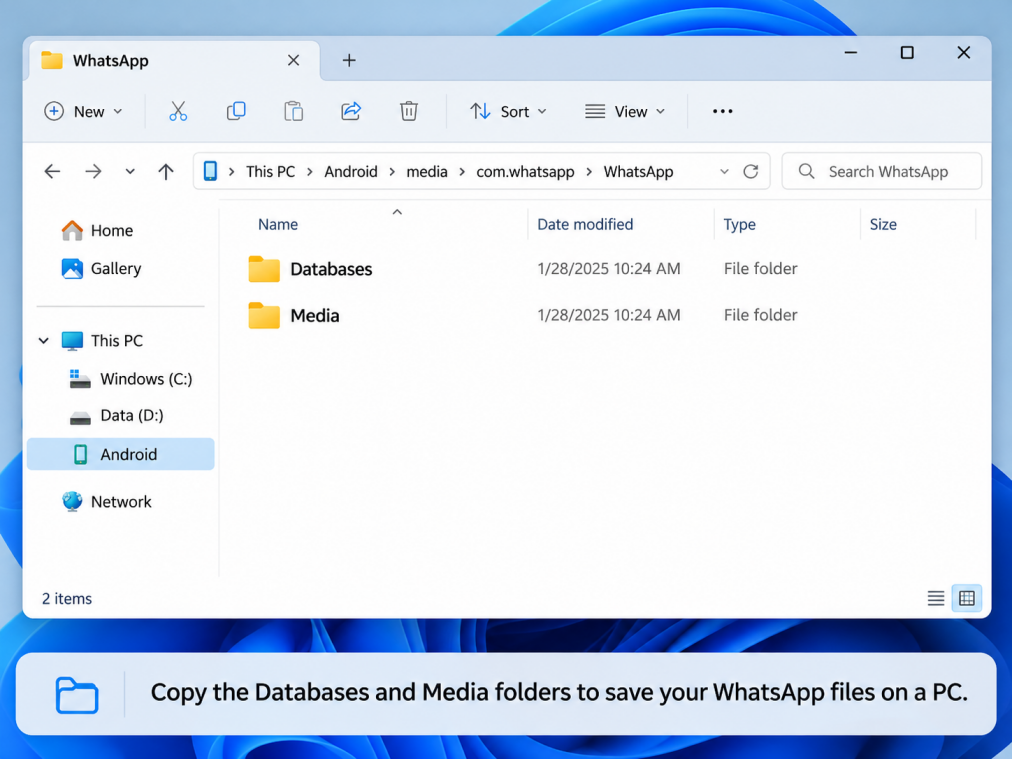
Step 4. Copy, don’t move. Create a dated folder on your PC (for example WhatsApp-Archive-YYYY-MM-DD) and copy the Databases and Media folders into it. If you’re copying the whole WhatsApp folder, keep its structure as it is. Don’t rename the .crypt14 and .crypt15 files to .txt or .zip.
Step 5. Check the copy. Compare the copied folders with those on the phone, including a few filenames, sizes and dates. Open a copied photo or video to confirm the media works. Leave the encrypted database files alone.
If File Explorer can’t see the phone, check the cable and the USB mode. If the folder is inaccessible, switch to a different backup method; the chats themselves are still on the phone. Copied media opens fine, but encrypted chats only open under the right restore conditions. Your originals stay where they were.
How to Back Up WhatsApp Chats from iPhone to a PC
The iPhone has no folder of WhatsApp files to copy, so the options narrow to three: a WhatsApp-specific backup with a desktop tool, a readable chat export, or a whole-phone backup with Apple’s free app.
Create a Local WhatsApp Backup with Dr.Fone
Same tool and the same trade-offs as on Android: one backup of chats and media you can browse on the PC, with a paid licence for the full features. Before you start, connect your unlocked iPhone to the PC and approve Trust This Computer if prompted. These screenshots show the Windows interface.
Step 1. Open WhatsApp Transfer. Launch Dr.Fone and choose Toolbox > WhatsApp Transfer.
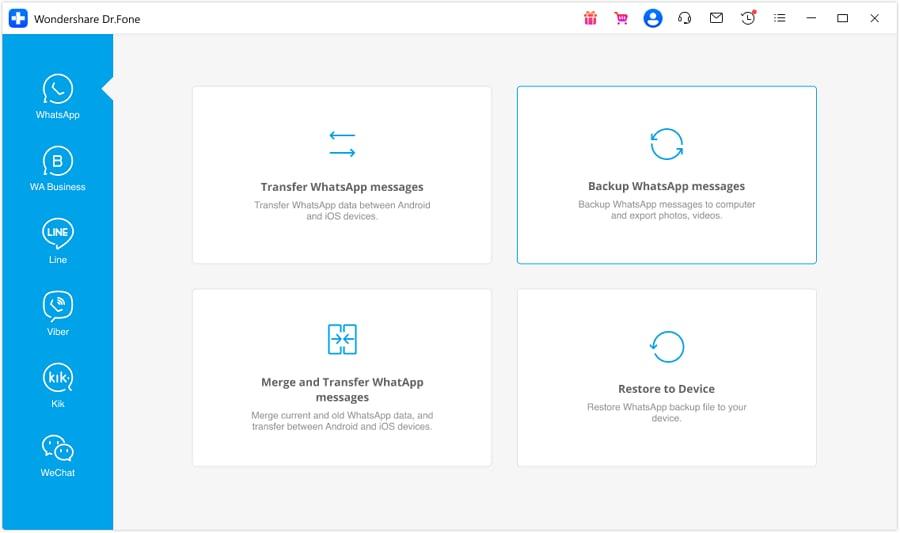
Step 2. Choose the backup function. In the WhatsApp section, select Backup WhatsApp messages.
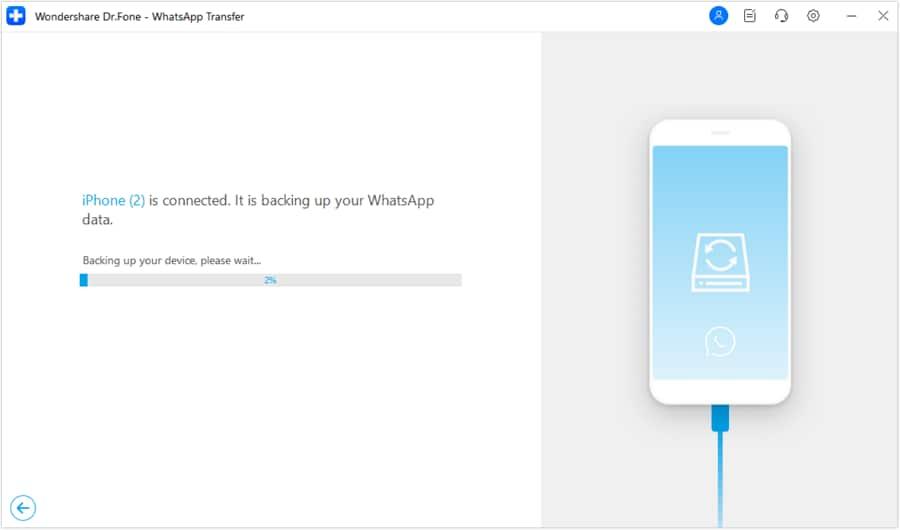
Step 3. Wait for the backup. Keep the iPhone connected while Dr.Fone shows the backup progress.
Step 4. Open the completed backup. When the success message appears, click View It. Check a recent conversation and an attachment in the saved copy.
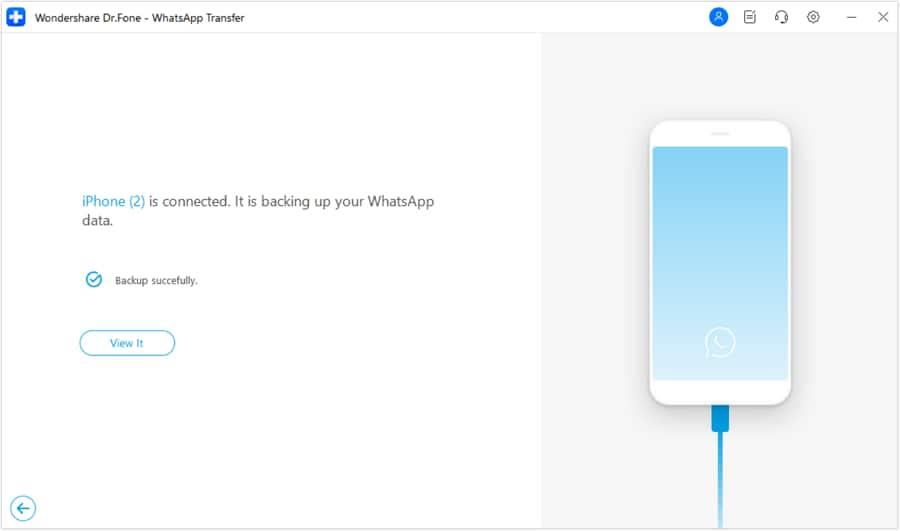
Keep the managed backup if you may need to restore it later, and export readable documents separately. Turning off Find My belongs to the restore procedure, not to these backup steps.
If the iPhone isn’t detected, check the cable and the trust prompt before you retry.
Export Selected iPhone WhatsApp Chats
The free, built-in route works on the iPhone too, with the same limits: one chat at a time, and read-only once it’s on the PC.
- Open a chat in WhatsApp on the iPhone and tap the contact or group name to open its details.
- Choose Export Chat, where your WhatsApp version offers it.
- Choose whether to attach media, and pick a sharing destination you can reach from Windows.
- Download the shared export to the PC. Open the conversation text, and check a photo, document or voice file if you included media.
The result is a readable record, not a restorable WhatsApp package. Menu labels may differ between versions.
Create a Whole-iPhone Backup with Apple Devices
Apple’s Apple Devices app makes a full local iPhone backup on Windows, WhatsApp included, and it’s free. It’s the most complete safety net here, but it isn’t a WhatsApp chat viewer: you get a backup you can restore to an iPhone, not conversations you can open.
- Install or open Apple Devices on your Windows PC, connect the iPhone and allow the trust prompt.
- Select the iPhone in the app’s sidebar and open General.
- Choose Back up all of the data on your iPhone to this computer.
- Optionally choose Encrypt local backup. Save that password safely; you’ll need it to use an encrypted backup.
- Select Back Up Now. Afterwards, open Manage Backups and check for the new backup entry.
This is a whole-device backup, not a folder of WhatsApp chat text files you can browse in File Explorer. If you need to read individual conversations on Windows, a chat export or a WhatsApp-specific preview gets you there more directly.
How to Check If Your WhatsApp PC Backup Actually Worked
Before you change phones or delete anything, check what actually reached your PC.
| Backup method | Check on your Windows PC | What you can reasonably conclude |
|---|---|---|
| Dr.Fone | Open View It or a saved backup with View; inspect an older chat, a recent chat and a media item | Those items are present in the preview |
| Native WhatsApp export | Open the text record, check the date range and open a saved attachment | The selected records are readable on the PC |
| Android USB copy | Check both Databases and Media, file sizes and a media sample | Those accessible files were copied |
| Apple Devices | Open Manage Backups and check the latest backup record | A device backup entry has been created |
Check Chats and Media in a Dr.Fone Backup
Open the saved backup’s preview, either from View It right after the job or by choosing View in the saved-backup list. Compare a conversation from several months ago with a recent one, then open an important photo, voice message or document. If you used an export format, open the exported document in its usual viewer as an extra check. Keep the original managed backup: an exported document does a different job.
Verify Exported TXT Files and Attachments
Open the exported text and look for the oldest and latest messages you expected. A file that opens fine can still be missing older messages or media. Check the sharing option you chose, and make sure you saved the real attached files rather than just a link. If anything is missing, label that export as a partial record and keep it, instead of assuming it holds the whole conversation.
Check Android Backup Folders or iPhone Device Backups
For Android, compare the backed-up folder structure and copied media with the source. A .crypt database file isn’t meant to open in Notepad, so that’s no test of completeness. For an iPhone device backup, check the date and the entry in Manage Backups, and keep the encryption password if you set one.
These checks catch obvious gaps, but they don’t replace a successful restore test. Never erase your only working copy just to try a restore.
What If Your WhatsApp Backup Is Incomplete or Unreadable?
| Problem | First move |
|---|---|
| Older messages or media missing | Compare the phone with the PC copy before you make a new backup. |
| .crypt14 or .crypt15 files won’t open | Expected. Keep them unchanged and open the media instead. |
| Phone broken or locked out | Look for any backup made before the failure: WhatsApp’s cloud backup, a device backup or a desktop tool’s copy. |
Missing Older Messages or Media
First compare the source phone with the PC copy. If the messages are still on the phone, export that conversation again with media included, or use the managed backup route for broader coverage. A share destination may limit the attachments it accepts. If the older messages are missing on the phone too, don’t overwrite an existing older backup with a new, emptier one while you investigate.
Encrypted Android Database Files Won’t Open
That’s normal for .crypt14 and .crypt15 files. Keep the filenames and folder structure as they are, and keep any backup credentials to yourself. You can still open the ordinary copied media files, but reading or restoring the chat database needs a suitable supported method. Don’t upload your private chat database to a random online decryptor.
Your Phone Is Broken or No Longer Accessible
If the phone still unlocks and the WhatsApp data is accessible, back it up while you can. If it won’t start at all, check whether you made a WhatsApp cloud backup, a device backup or a Dr.Fone backup before the failure. A linked WhatsApp Desktop session can give you access to some records, but it’s no substitute for a fresh full chat backup from the phone. A backup tool can’t help if it can’t reach the chats on the phone.
So Which Copy Should You Make?
Start from what you’ll do with it. If you only want to reread a few important conversations, the free Export chat does the job and nothing else gets closer to a document you can open anywhere. If you want media off an Android phone, a USB copy costs nothing. If you want one desktop copy of everything you can browse, a tool like Dr.Fone does that, at the price of a paid licence. On an iPhone, Apple Devices is the free, complete safety net, as long as you don’t expect to read chats in it.
You can also do two: an export of the chats that matter most, plus one fuller backup. Whichever you pick, look through what landed on the PC, and keep your original chats until you’re happy with the copy.
✅ Key takeaways
- A restorable backup and a readable export are different files; decide which you need first.
- Export chat is free and readable, but it can’t be imported back into WhatsApp.
- Copied .crypt14 and .crypt15 databases stay encrypted; only the media opens on a PC.
- Apple Devices backs up the whole iPhone, not a folder of WhatsApp chats.
- Check an old chat, a recent chat and a media file before you delete anything.
Frequently Asked Questions
Can I back up WhatsApp directly from WhatsApp Web or Desktop?
WhatsApp Web and Desktop let you see linked conversations and download individual pieces of media, but they have no built-in full chat backup that you can restore through WhatsApp. For a dependable backup, work from the phone itself or use a computer-based backup method while the chats are still accessible.
Can I restore an exported TXT chat to WhatsApp?
No. WhatsApp’s text export is for reading and storing, not for importing back into WhatsApp as chat history. If you want to restore messages to a phone later, create a separate backup with a supported restore method.
Can I download my Google Drive WhatsApp backup to a PC?
A WhatsApp backup stored in your Google Account isn’t treated like a normal Google Drive document with a Download button. It exists for WhatsApp’s own backup and restore process. If you want readable files on Windows, make an export or a computer backup while your original chats are still there.
Does copying the WhatsApp files to your PC guarantee that you’ll be able to restore them later?
No. It keeps the accessible files, but encrypted databases may need the right account, keys, device state and WhatsApp version for a supported restore. Keep the copied files unchanged, and don’t delete the phone’s originals just because the copy finished.