
In This Article
Follow BestForAndroid


💡 The short answer
- Back up both halvesA WordPress site is files plus a database. A backup that misses either one cannot rebuild the site.
- Store it somewhere elseA copy that lives only on your host can disappear in the same outage or hack that takes the site down.
- Make restoring easyOne-click restore matters more than backup speed. Test it on a staging copy before you need it.
- Free fits small sitesBackupWP’s free plan covers one site up to 2 GB with seven-day retention. A busy WooCommerce store needs automatic, more frequent backups.
Every WordPress site needs a backup plan. Plugin conflicts, failed updates, hacks and hosting outages all happen, and without a recent backup even a small problem can turn into hours of rebuilding, or into content you never get back.
Protecting a site does not have to cost much or take deep technical skill. Tools such as the BackupWP free WordPress backup plugin make full-site backups, keep them in offsite cloud storage and restore them in one click, which puts the basics within reach of small site owners.
Picking a backup tool takes more than finding a plugin that copies your files, though. Where the backup is stored, how you restore it and how long old copies are kept matter just as much. Here is what to check.
What Should a Reliable WordPress Backup Plugin Include?
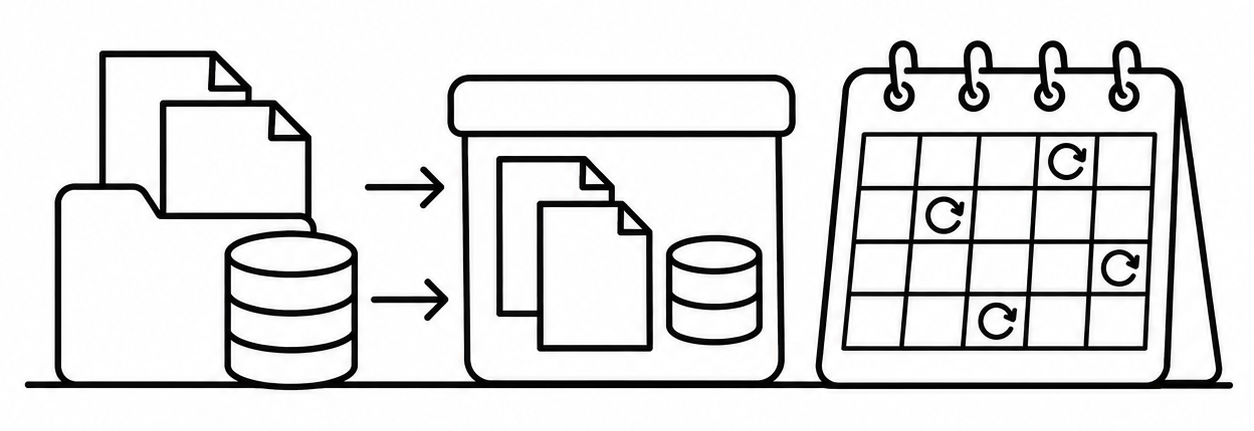
A good backup setup covers every way a site can fail. Use these five checks to judge any plugin, free or paid.
Five things a backup plugin should do
- Back up the whole site. Themes, plugins, uploads and configuration files sit in the file system; posts, pages, comments and users sit in the database. Both have to be restorable together.
- Store copies offsite. Backups kept only on the hosting server can become unreachable during a server failure or a security incident.
- Make restoring simple. Getting a site back should not mean manual FTP uploads and database imports when a guided restore is available.
- Keep several restore points. Malware and database corruption can go unnoticed for days, so you may need a copy older than last night’s.
- Go easy on the server. Backup jobs should not hog CPU, memory and disk, which matters most on shared hosting.
Use the same five checks to compare free and premium tools. A plugin that skips one of them leaves a gap you will only find out about during a restore.
WordPress Backup Requirements vs. BackupWP Capabilities
BackupWP takes a cloud-first approach: backups go straight to its own cloud storage instead of piling up as archives on your host. The table maps its features to the requirements above.
| Website backup requirement | BackupWP capability | What it means for site owners |
|---|---|---|
| Complete website protection | Full website and database backups | Content, files, plugins and settings can all be recovered |
| Protection against hosting failures | Secure offsite cloud storage | Backup copies stay separate from the live hosting environment |
| Simple website recovery | One-click restoration | Restoring a site takes no manual file or database work |
| Website migration | One-click migration | Moving a site between hosts or to staging is simpler |
| Lower hosting resource usage | Cloud-first design with resumable, optimized transfers (vendor claim) | Less local processing and disk space used during backups |
| Free backup option | Free plan for one website up to 2 GB | A starting point with no subscription |
| Access to previous backups | Seven-day retention on the free plan | Short-term restore points for recent changes |
The point to take from this: a backup is only reliable if the whole recovery works, not just the step that creates the file.
A backup stored on the same server gives little protection when that server fails. And a complete backup is still hard to use if restoring it means an afternoon of manual configuration.
Offsite storage and a guided restore tackle both of those problems, and they are the two features worth weighing most when you compare BackupWP with any alternative.
Why Cloud-Based WordPress Backups Matter
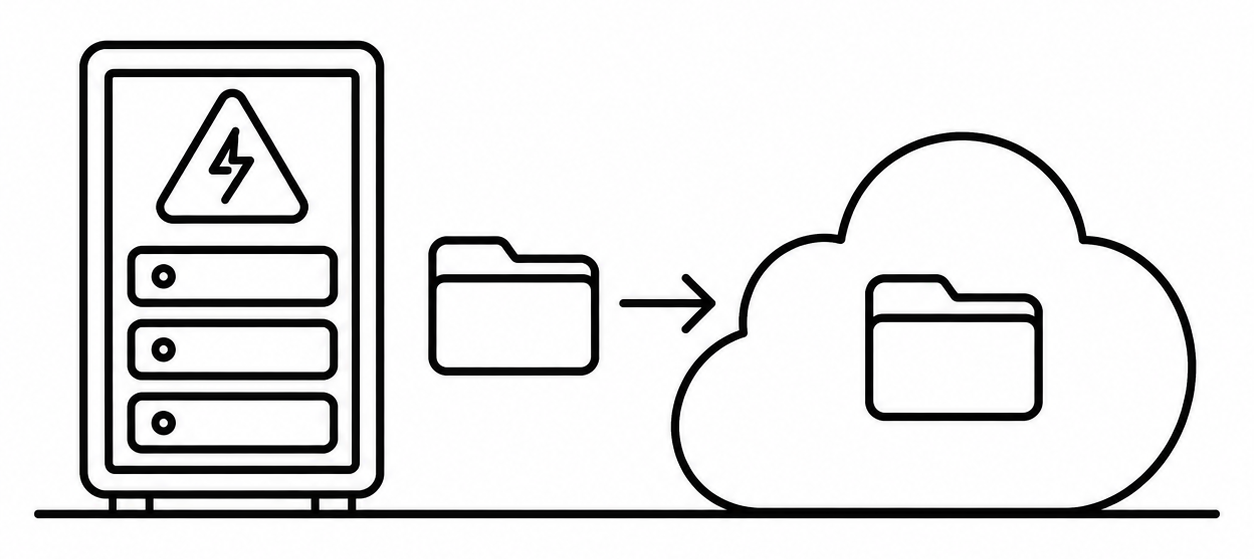
Many backup plugins build a compressed archive directly on the hosting server. On a larger site that means heavy disk activity, extra memory use and CPU load while the job runs.
On shared hosting, that load can push a backup past the host’s time or resource limits, and the job stops halfway with no usable archive.
BackupWP sends data to its cloud in smaller, resumable transfers rather than building one big archive locally. The company says this cuts CPU and memory use on the host; it is a vendor claim.
Offsite storage also guards against a common worst case: losing the site and its locally stored backups at the same moment.
What cloud storage does not do for you
- Check that each backup is complete and not corrupted.
- Lock down who can sign in to the backup account.
- Prove that a restore actually works. Only a test restore does that.
Is a Free WordPress Backup Plugin Enough?
For smaller sites that change only now and then, a free plan can be enough.
A personal portfolio or a small business brochure site rarely needs automated backups every hour. Taking a restore point before each update or redesign covers most of the risk.
BackupWP’s free plan includes on-demand backups, seven-day retention, one website up to 2 GB, offsite cloud storage, and one-click restore and migration. That is a sensible base for basic protection.
Know the limits before you rely on it for a business-critical site. An active WooCommerce store takes orders around the clock, so a backup made by hand yesterday could miss a day of orders. Stores like that need automatic daily or real-time backups and longer retention.
| Plan | Backups | Retention | Storage |
|---|---|---|---|
| Free | On demand | 7 days | 1 site, up to 2 GB |
| Starter | Automatic, daily | 30 days | 30 GB |
| Professional | Automatic, twice a day | 90 days | 60 GB |
| WooCommerce | Real time | 365 days | 100 GB |
Plan details are taken from BackupWP’s website. Check current prices and limits there before you pick a tier.
Recommended WordPress Backup Frequency by Website Type
How often to back up depends on how often the site changes and how much recent work you could stand to lose.
| Website type | Suggested backup frequency | Main consideration |
|---|---|---|
| Personal blog | Weekly, or after important changes | Protecting published content |
| Portfolio website | Before updates and major changes | Preserving design and configuration |
| Small business website | Daily, or after significant updates | Keeping the business online |
| Frequently updated content site | Daily or more often | Protecting recent posts |
| WooCommerce store | Frequent or real time | Avoiding lost orders and customer data |
Treat these as starting points. The right schedule depends on your business, how much data you can afford to lose and how quickly you need to be back online.
WordPress Backup Best Practices

A backup plugin does the copying. These habits make sure the copies will save you. They match WordPress’s own backup documentation, which recommends keeping copies in more than one place.
- Back up before every update. WordPress core updates, new plugins and theme changes should all start from a fresh restore point. WordPress itself advises you to back up the database before every upgrade.
- Keep backups offsite. Copies stored away from your host survive a failure of that one server.
- Test your restores. Restore a backup to a staging site now and then to confirm the files and database come back intact.
- Keep more than one restore point. If malware or a corrupted database goes unnoticed for days, you will need an older copy.
- Review storage and retention as you grow. A growing site can outgrow an entry-level free plan without anyone noticing.
Frequently Asked Questions
Can a free WordPress backup plugin protect an entire website?
Yes. Some free plugins, including BackupWP, back up both the WordPress files and the database. Storage limits, scheduling and retention vary from one provider to the next.
Why is offsite backup storage important?
It keeps backup copies away from the hosting server, so one server failure or breach cannot destroy the live site and its backups together.
Does BackupWP offer free cloud backups?
Yes. The free plan includes secure offsite cloud storage, on-demand backups, seven-day retention and one-click restore for one website up to 2 GB.
How often should I back up a WordPress site?
It depends on how often the site changes. Weekly suits a quiet blog, daily suits a busy content or business site, and an online store should back up at least daily or in real time.
Final Thoughts
✅ What to remember
- Files and databaseA full backup covers both, or the site cannot be rebuilt.
- Offsite copiesKeep at least one copy away from your hosting server.
- Restore drillsA backup you have never restored is a guess.
- Right-size the planFree plans suit small, slow-changing sites; stores need automatic, frequent backups.
Choosing a WordPress backup plugin comes down to four things: what it backs up, where it stores the copies, how easily you can restore them and how well it fits your site.
BackupWP’s free plan shows that full-site cloud backups and one-click restore no longer need a big upfront spend. Whatever tool you choose, pair it with a regular schedule, secure storage and a restore you have actually tested.