In This Article
Follow BestForAndroid


💡 The short answer
- Stop using the phoneNew photos, downloads and app updates can write over deleted files. The less the phone does now, the better your odds.
- Check the trashGoogle Photos and the Samsung Gallery app keep deleted items for 30 days. Looking takes a minute and costs nothing.
- Then the backupsA Google backup covers contacts, call history, texts and settings. WhatsApp keeps a separate backup of its own.
- Then a scanRecovery software such as Dr.Fone reads the phone or a Google Drive backup, previews what it finds and restores only what you pick.
- Usually goneFiles that new data has written over, anything wiped by a factory reset with no backup, and phones with serious storage damage.
You move to a new Android phone, open the gallery, and realize some of your old files never came along. Or you tidy up a folder and notice a week later that one of those photos mattered.
Maybe it is a lost picture, a missing document, an important contact or a deleted WhatsApp conversation. How much of it you can get back depends on the type of data, where it was stored, whether you had a backup and how long ago it was deleted.
This guide takes the main types of Android data one at a time: what usually comes back, what usually does not, and which methods work for each, from the phone’s own trash folders to a recovery application for Android.
What can be recovered
| Data type | Typical examples | Where to look first |
|---|---|---|
| Photos and videos | Camera shots, screenshots, files saved to Downloads or other folders | The Google Photos trash, then your gallery app’s own trash |
| Audio | Voice recordings, music, voice notes | The recorder app, then your file manager’s trash |
| Documents and e-books | PDFs, Word files, spreadsheets, e-books | The Files by Google trash, or the app that saved the file |
| Messages | SMS and MMS, with their attachments | A Google backup made before the deletion |
| Contacts and call logs | Saved numbers, call history | Google Contacts if the phone synced to it, then a Google backup |
| Chat history, shared media, voice messages | WhatsApp’s own backup to Google Drive | |
| Other data | APKs, archives, calendars, reminders, saved Wi-Fi passwords | Your backups and synced accounts, then a recovery scan |
Whether a particular item comes back depends on the phone and the method you use. Accidental deletion is the usual reason people go looking, but files also go missing after a system crash, an operating system error, a backup or sync that never finished, or a phone that started misbehaving. The result depends on the device, the Android version, the type of data, the source you recover from, and whether the deleted data is still there to be found.
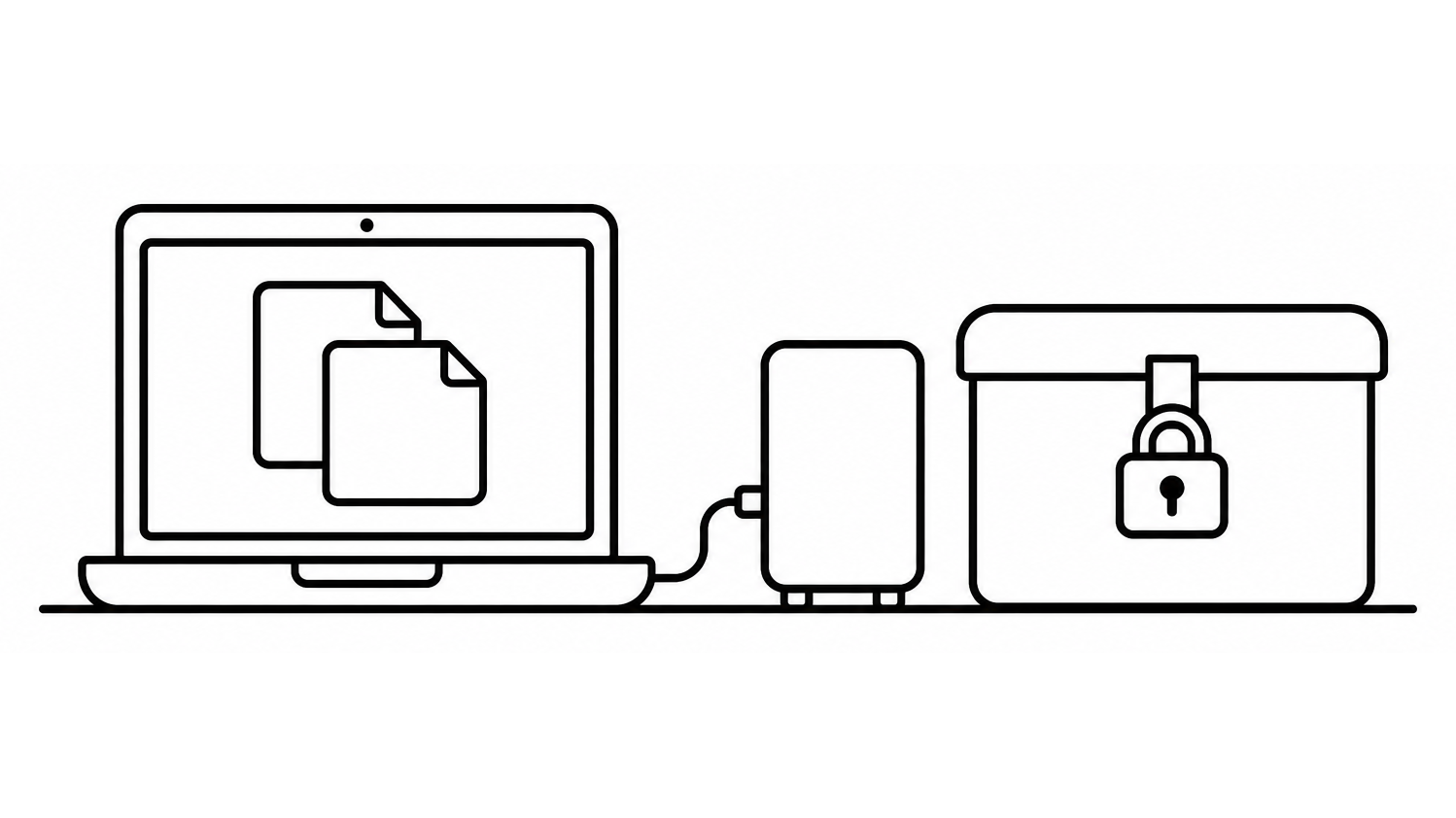
A backup is the biggest help here. If a file made it into a Google Drive backup, you may be able to get it back from there even after it has gone from the phone.
What usually can’t be recovered
When recovery gets hard or impossible
- New files have been written over the deleted ones.
- The phone was factory reset and no other usable copy of the data exists.
- The data was never backed up and is no longer on the device.
- The phone has serious hardware or storage damage.
- The recovery method does not support the device or its Android version.
- The data lives inside an app or service that blocks third-party access to it.
The first item on that list is the one you can still influence. If you think something is missing, stop using the phone as much as you can. New photos, videos, downloads and ordinary app activity all need storage, and any of them can land in the space a deleted file used to occupy.
That is also why it is better to run recovery software from a computer than to install yet another app on the phone you are trying to recover. Every install is more data written to the same storage.
Recovering WhatsApp data
| Source | What you can get back | The limits |
|---|---|---|
| WhatsApp’s own restore | Your chat history and media as of the last backup | It happens when you set WhatsApp up again, with the same phone number. Anything newer than the backup is lost. |
| A scan of the phone | Chats, photos, videos, audio and documents still in storage | Supported phones only, and only until new data writes over them |
| A scan of the Google Drive backup | The items you pick, without reinstalling WhatsApp | Needs recovery software that can read that backup |
If you are trying to work out how to retrieve deleted WhatsApp messages on Android, start with an easier question: is the data still anywhere? Quite often it is. Chats, photos, videos, audio, documents and other WhatsApp data may still be on the phone or in a Google Drive backup.
WhatsApp’s own route is the backup. Its help center explains how to restore your chat history: reinstall the app, verify the same phone number, and tap Restore when WhatsApp finds the backup in your Google account. Read the conditions before you start. Messages sent or received after the last backup are not in it, and the restore only runs during setup.
When there is no usable backup, or you want a few chats back without wiping and reinstalling, recovery software is the other route. Dr.Fone Data Recovery (Android) can scan the phone or a Google Drive backup, preview what it finds and restore only the items you choose. Wondershare says it handles more than 14 file types. As with any scan, what it finds depends on the phone and on whether new data has already replaced what you lost.
Photos, videos, audio and documents
Check these free places first
- Google Photos. Google’s steps for restoring photos and videos from the trash are short: open Collections, then Trash, touch and hold the item and tap Restore. Deleted items stay there for 30 days.
- Samsung Gallery. Samsung explains how to use the Trash feature in the Gallery app, which also keeps deleted pictures and videos for 30 days.
- Files by Google, or whichever file manager you use. Documents, downloads and recordings deleted from there may be sitting in its trash.
- The app that saved the file. Messaging apps, voice recorders and editors often keep their own folder, and sometimes their own copy.
Photos, videos, recordings and documents get saved from all over an Android phone: the camera, file-sharing apps, the Downloads folder, messaging apps, screen capture tools. So a deleted file is not always where you expect it, and sometimes the first place you looked was simply the wrong folder.
If you do turn to recovery software, use its file-type filters rather than scanning blindly. Pick JPG or PNG for images, MP4 for video, MP3 or voice recordings for audio, and PDF, Word or spreadsheet formats for documents. A narrow scan finishes sooner, and the results are much easier to read when they only contain what you are looking for.
Recovering data with Dr.Fone
| What to check | Dr.Fone Data Recovery (Android) |
|---|---|
| Android versions | Android 5.0 and later |
| Devices | More than 6,000, according to Wondershare. Exact support depends on the model and the recovery mode. |
| What it recovers | Photos, videos, audio, documents, contacts, messages, call logs and WhatsApp data |
| Where it reads from | The phone’s storage, Google Drive backups, and phones that are broken |
| Where it runs | A Windows or Mac computer, with the phone connected by USB |
| Root access | The main recovery modes are marked as working without root |
If you deleted pictures, messages or documents and cannot find a backup, Dr.Fone Data Recovery (Android) can check what is still recoverable. It scans a supported Android phone and lists the results so you can choose what to bring back. Besides photos, videos and audio files, it can recover contacts, messages, call logs, documents and WhatsApp data.
It also helps when the usual restore is too blunt. If you can still reach a Google Drive backup, Dr.Fone lets you take selected items out of it instead of restoring the whole thing.
Keep expectations honest, though. Results depend on the phone model, the Android version, the phone’s condition, whether the data was ever backed up and what kind of data was deleted. No tool can promise to bring everything back.
How to recover deleted Android data with Dr.Fone
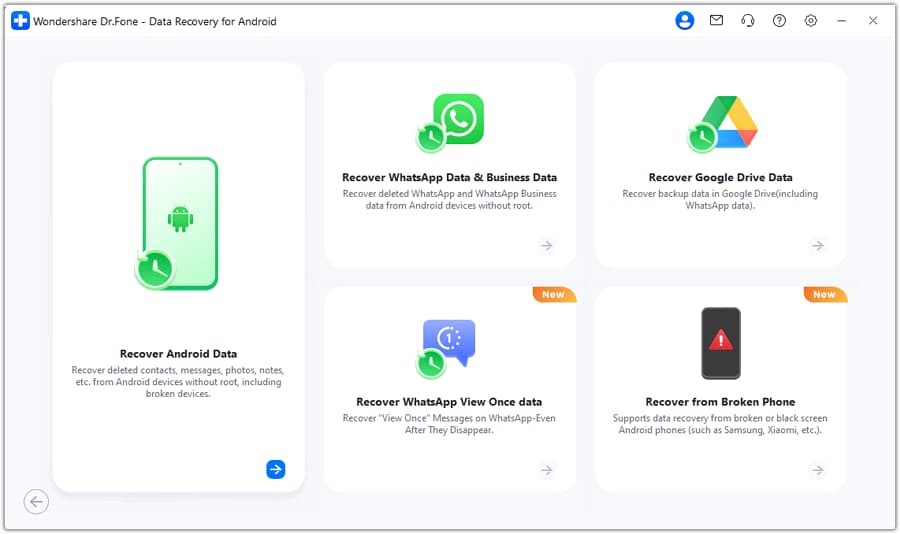
Step 1. Open Wondershare Dr.Fone on your computer. Go to Toolbox, then Data Recovery, choose Android, and select Recover Android Data.
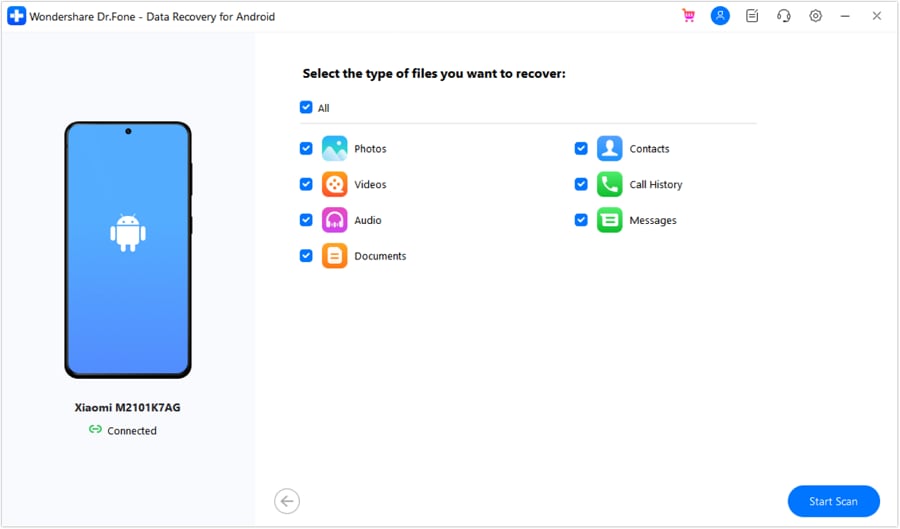
Step 2. Connect the phone to the computer with a USB cable. Once Dr.Fone detects it, tick the file categories you want back and click Start Scan.
Step 3. When the scan finishes, go through the results. A filter at the top can show only deleted items, and the search box helps you find a specific file. Preview what you can, then select the files you want to recover.
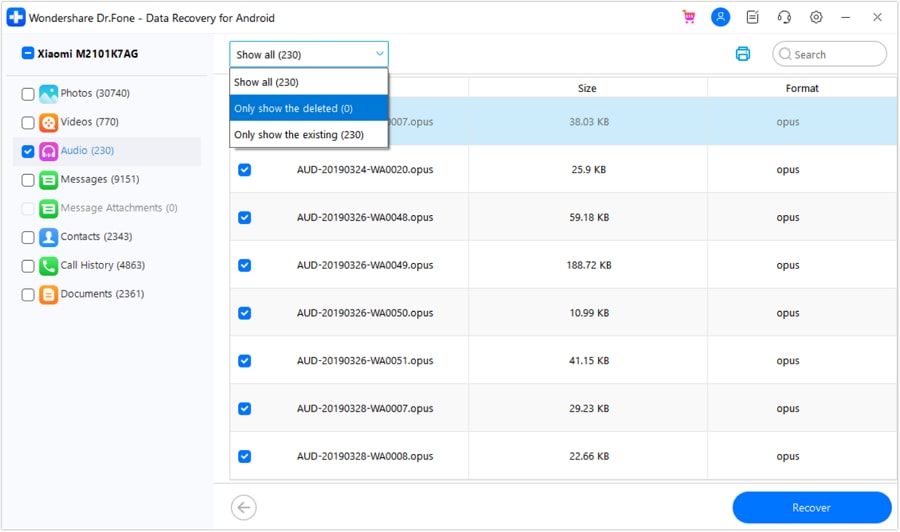
Step 4. Click Recover, choose a folder on your computer for the files, and click Recover again.
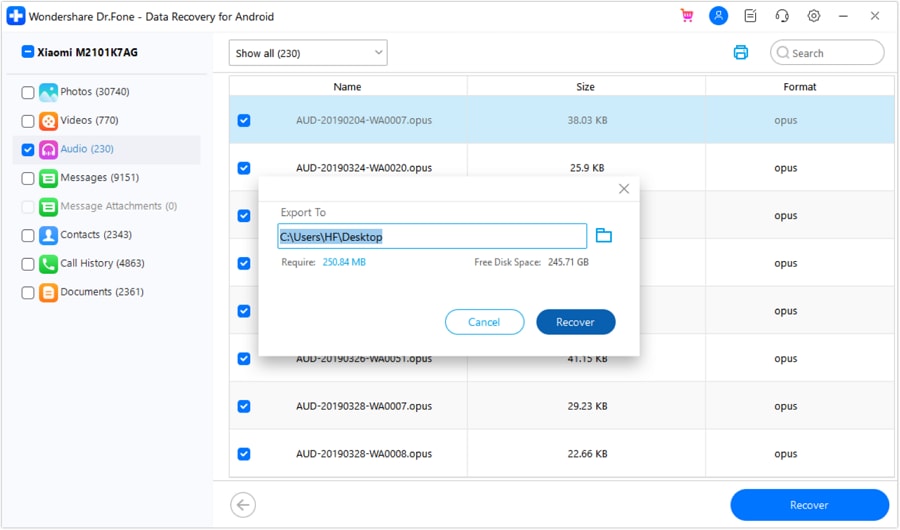
The options you see vary with the device and the recovery mode. Saving to the computer first is the safer order: the files sit where the phone cannot overwrite them, and copying them back is easy once you have checked them.
Start with the free options
Losing part of your Android data is frustrating, but deleted does not always mean gone. Photos, videos, documents, texts, contacts, call records and even WhatsApp messages can often come back, depending on where they were stored and what you did with the phone afterwards.
So check the trash folders first, then your backups. Google’s guide to backing up and restoring an Android phone lists what a backup includes: apps and app data, call history, contacts, device settings, and SMS and MMS messages. Restoring usually happens while you set up a phone, and Google says it can take up to 24 hours.
If those come up empty, Dr.Fone Data Recovery (Android) can scan supported phones and Google Drive backups, show you what is still there and recover only the files you need.
✅ What to remember
- Stop using the phoneEvery new photo, download or update can overwrite what you lost.
- Trash firstGoogle Photos and Samsung Gallery keep deleted items for 30 days.
- Backups are snapshotsThey hold what existed when they ran and nothing newer.
- WhatsApp is separateIt backs up chats through its own settings, so restore them through WhatsApp.
- Scan, preview, recoverRecovery software is the last step, and it works best soon after the deletion.