In This Article
Follow BestForAndroid


Your keyboard reads every word you type, so the emoji app you install is a privacy decision as much as a fun one. We tested ten and sorted the ones worth your trust from the ones worth a second look.
Quick answer
For most people the answer is Gboard. It is already on most Android phones, its emoji search and Emoji Kitchen are the best in the category, and the typing layer runs on-device. Switch only for a specific reason: Microsoft SwiftKey for Copilot drafting, HeliBoard or Florisboard for open-source privacy, Bobble or Facemoji for personal avatar stickers, or the Samsung Keyboard if you own a Galaxy. Treat permission-heavy keyboards like GO Keyboard with caution.
Emoji keyboards are a different category than they were a few years ago. AI keyboards now suggest emoji in context, custom-emoji apps build a cartoon version of your face, and open-source keyboards have caught up enough that privacy no longer means a worse typing experience.
We tested ten emoji-focused keyboards on a Pixel 8, a Galaxy S24, and a OnePlus 12 across messaging, email, and short-form social use. Every pick below names its differentiator in one line. Most are free.
Best option for most people
Install Gboard and stop there unless you have a real reason to switch. It ships on most Android phones, the emoji picker and word search are the strongest in the category, and the typing layer never leaves your device. The list below exists for the readers who do have a reason, whether that is Copilot drafting, strict privacy, or avatar stickers.
Before you install
A keyboard sees everything you type: passwords, card numbers, private messages. Android warns you of exactly this when you enable one. Before you trust a keyboard, open its Play Store data-safety section, check what it collects, and prefer apps that run prediction on-device. We flag the data trade-off on every pick.
Here is how the ten picks compare at a glance, then the full reviews.
| Keyboard | Best for | Standout feature | Runs on-device | Pricing |
|---|---|---|---|---|
| Gboard | Most Android users | Emoji Kitchen, emoji search | Typing layer yes | Free |
| Microsoft SwiftKey | Copilot drafting | AI text generation in any field | Typing layer yes | Free |
| Bobble Keyboard | Avatar emoji and stickers | Selfie-built animated avatar | No | Free, plus optional |
| Facemoji Keyboard | Maximum emoji and themes | 6,000+ emoji, DIY sticker maker | No | Free with ads |
| HeliBoard | Open-source privacy | No internet permission at all | Yes, fully offline | Free |
| Samsung Keyboard | Galaxy owners | S Pen handwriting to text | Mostly yes | Bundled |
| Typewise | Larger thumbs | Hexagonal key layout | Yes | Free with ads |
| Grammarly Keyboard | Polished writing | Grammar and tone suggestions | Typing layer yes | Free, plus optional |
| GO Keyboard | Theme collectors only | Largest theme library | No | Free with ads |
| Florisboard | Material You and FOSS | Modern open-source design | Yes, fully offline | Free |
1. Gboard (Google)

Gboard is the default for a reason. The Emoji Kitchen generates context-aware combination emoji as you type, and the AI suggestions surface options you would never have dug for in the picker. Type “face palm” and emoji search finds the right glyph instantly, across every Unicode emoji.
It is free, ad-free, and bundled on most Pixel and Google-distributed Android phones. The typing layer and prediction run on-device. Some features, such as Smart Compose, make cloud calls, and you can turn those off in Settings. On recent Pixel models, voice typing runs on-device through the Tensor chip.
The honest trade-off: this is still a Google app, so you accept Google’s data posture for the cloud-tied extras. For emoji specifically, nothing else is this complete.
Highlights
- ⭐ Best for: almost every Android user who wants the strongest emoji tools with zero setup.
- ⚠️ Watch out for: customization is modest, and cloud features mean Google’s standard data posture.
- 💰 Pricing: free, no ads.
Key features
- Emoji Kitchen: combines two emoji into a single custom sticker.
- Emoji search: type a word, get the matching glyph from the full Unicode set.
- On-device typing: prediction and autocorrect never leave the phone.
2. Microsoft SwiftKey

Microsoft SwiftKey is the polished alternative to Gboard. Copilot integration lets you trigger an AI draft from inside any text field, which is genuinely useful for replies that would otherwise be a copy-paste shuffle. The emoji history row learns your most-used emoji and keeps the deepest recall pool we tested.
It syncs settings across Android and iOS through a Microsoft account. The typing layer runs on-device, and Microsoft’s data handling improved noticeably after it absorbed SwiftKey. The catch is that some readers simply do not want a Microsoft account tied to their keyboard, and the free tier shows the occasional Copilot upsell.
If you live in Microsoft 365 already, SwiftKey is the natural fit. If you do not, the gap over Gboard is small.
Highlights
- ⭐ Best for: people who want AI drafting and emoji history inside every app.
- ⚠️ Watch out for: it wants a Microsoft account, and Copilot upsell prompts appear on the free tier.
- 💰 Pricing: free. Copilot Pro features need a paid Microsoft subscription.
Key features
- Copilot drafting: generate or rewrite text without leaving the field.
- Emoji history: a learning top row that surfaces your favorites first.
- Cross-device sync: shared settings between Android and iOS.
3. Bobble Keyboard

Bobble Keyboard is built around one trick, and it does it well. You take a selfie, the app builds a stylized cartoon avatar, and that avatar drops into hundreds of animated stickers automatically. If you want personal stickers without learning a design tool, this is the fastest route.
It is free with an optional Bobble+ tier, and the app is still actively updated. The honest catch is data: Bobble’s revenue model leans on analytics, and the free-tier collection footprint is on the higher end for a keyboard. Review the permissions on first launch and decide what you are comfortable with.
Avatar generation is also uneven on darker skin tones. It has improved, but it is still the weakest part of an otherwise fun keyboard.
Highlights
- ⭐ Best for: anyone who wants a personal cartoon avatar in their stickers fast.
- ⚠️ Watch out for: a heavier data-collection footprint, and uneven avatars on darker skin tones.
- 💰 Pricing: free with ads. Bobble+ runs about 2.99 USD per month.
Key features
- Avatar engine: turns a selfie into a reusable cartoon character.
- Animated stickers: short video stickers built around your avatar.
- Sticker pipeline: a steady stream of new packs and content.
4. Facemoji Keyboard

Facemoji Keyboard is the maximalist pick. It bundles more than 6,000 emoji, kaomoji, GIFs, cool fonts, and a DIY sticker maker into one app, plus a library of well over a thousand themes. If your goal is the widest possible expressive toolkit, nothing else on this list comes close.
That breadth has a price. Facemoji is ad-supported, the free experience pushes theme and feature upsells, and it collects usage data to fund the model. None of that is hidden, but it is the opposite of a lean keyboard. Read the data-safety section before you commit.
It replaces Fleksy on this list, which was discontinued and pulled from the Play Store. Facemoji is a better emoji-first fit anyway, as long as you accept the ad-funded model.
Highlights
- ⭐ Best for: emoji and theme collectors who want every expressive option in one keyboard.
- ⚠️ Watch out for: ads, constant upsells, and a usage-data footprint typical of free emoji keyboards.
- 💰 Pricing: free with ads. An optional Pro tier removes ads.
Key features
- Huge emoji set: 6,000-plus emoji, kaomoji, symbols, and GIFs.
- DIY sticker maker: build personal avatar stickers from a photo.
- Theme library: well over a thousand keyboard skins and effects.
A quick read on the list so far
The first four picks split cleanly. Gboard and SwiftKey are the polished defaults. Bobble and Facemoji are the fun, sticker-heavy options that ask you to accept more data collection. The next picks turn toward privacy and platform fit.
5. HeliBoard
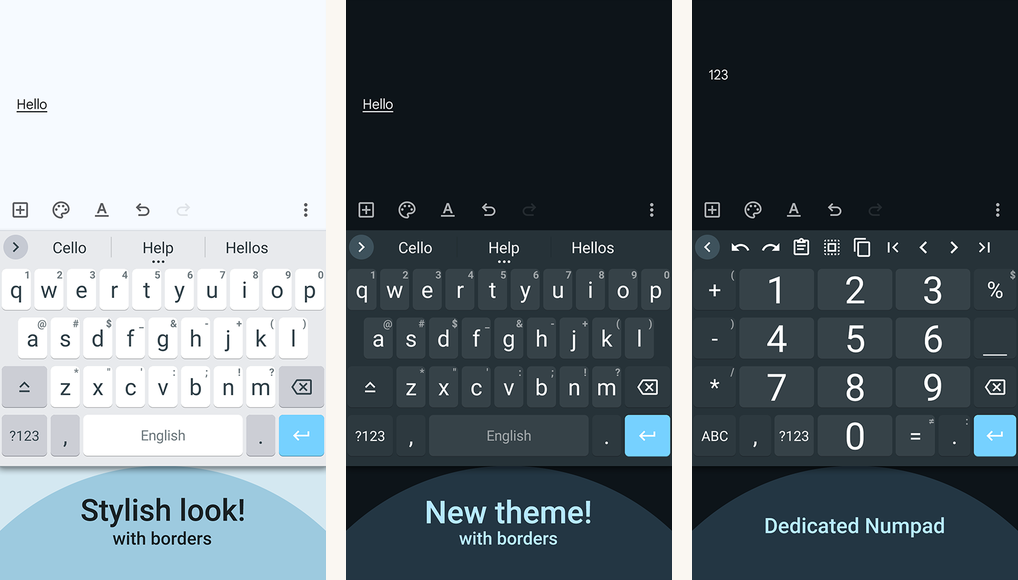
HeliBoard is the open-source privacy pick, and it is the one to install if your keyboard must not phone home. It carries no internet permission at all, so it physically cannot upload your keystrokes. It is the actively maintained successor to OpenBoard, which stopped getting updates and left the F-Droid catalog.
It is fully offline, free, and built on the AOSP keyboard with modern additions: glide typing, multilingual layouts, and full emoji support. Install it from F-Droid for the reproducible build. There are no ads, no accounts, and no in-app purchases.
The trade-off is plain: no AI suggestions, no cloud sticker packs, a smaller theme set. For a reader who values privacy over flash, that is the entire point.
Highlights
- ⭐ Best for: privacy-first users who want a keyboard that genuinely cannot reach the internet.
- ⚠️ Watch out for: no AI features and a limited theme selection.
- 💰 Pricing: free, open-source, donation-supported.
Key features
- No internet permission: keystrokes cannot leave the device, by design.
- Glide typing: gesture input on a fully offline keyboard.
- Reproducible builds: verifiable F-Droid packages under an open license.
6. Samsung Keyboard (One UI)

If you own a Galaxy phone, the Samsung Keyboard is already installed, and you should try it before reaching for a third-party app. Recent One UI updates gave it a redesigned emoji picker, AR Emoji stickers, and S Pen handwriting-to-text that is more accurate than any third-party keyboard we tested.
It is bundled, free, and deeply tied into One UI, so it handles things like clipboard sync and Bixby cleanly. It is also Samsung-only and not separately installable, so it is irrelevant if you do not own a Galaxy.
The honest gap: its AI features arrive slower than Gboard’s. For emoji and stickers it is good. For cutting-edge typing AI, Gboard still leads.
Highlights
- ⭐ Best for: Galaxy owners who want native integration and the best S Pen handwriting.
- ⚠️ Watch out for: it is Samsung-only, and its AI features lag Gboard’s pace.
- 💰 Pricing: free, bundled with Samsung Galaxy phones.
Key features
- S Pen handwriting: high-accuracy handwriting-to-text on Note and Ultra models.
- AR Emoji: personalized animated stickers built into the picker.
- One UI integration: clipboard, Bixby, and system features work without setup.
7. Typewise

Typewise throws out the QWERTY grid for a hexagonal layout that gives each key a larger surface, which cuts mis-taps once your thumbs adjust. Typewise says the design delivers around 80 percent fewer typos and 33 percent faster typing, a figure it draws from replicating a University of Cambridge typing study; its autocorrection was co-developed with ETH Zurich’s Data Analytics Lab. Treat those as vendor numbers, but the larger keys are a real, noticeable help.
It runs prediction on-device, which is a genuine privacy plus, and the emoji picker is standard but well organized. The Pro tier adds extra themes and a built-in translator.
The catch is the learning curve. Expect about two weeks before the hexagonal layout feels natural, and switching back to QWERTY on other devices will feel strange for a while.
Highlights
- ⭐ Best for: people with larger thumbs who are willing to learn a new layout.
- ⚠️ Watch out for: a two-week adjustment period, and the jolt of switching back to QWERTY elsewhere.
- 💰 Pricing: free with ads. Pro runs about 3.99 USD per month.
Key features
- Hexagonal layout: bigger keys that reduce mis-taps after a short adjustment.
- On-device prediction: autocorrect runs locally, not in the cloud.
- Built-in translator: inline translation with the Pro tier.
8. Grammarly Keyboard

The Grammarly Keyboard brings the same grammar and tone suggestions as the desktop and browser apps into every text field on your phone. For long replies, professional email, and anything where polished output matters, it is the keyboard that quietly saves you from a careless mistake.
The free tier is genuinely useful, and Grammarly’s privacy posture is reassuring: it states it does not sell user data, and the typing layer is not shared as raw keystrokes. Premium unlocks tone rewrites and stronger suggestions.
The honest limit for this list: emoji is an afterthought here. Pick Grammarly for writing quality, not for the emoji experience.
Highlights
- ⭐ Best for: writers who want grammar and tone help inside every app.
- ⚠️ Watch out for: emoji is basic, and Premium pricing is on the high side.
- 💰 Pricing: free with limits. Premium runs about 12 USD per month.
Key features
- Grammar checking: live corrections and tone hints in any text field.
- Cross-device: shared dictionary and settings via a Grammarly account.
- Privacy posture: Grammarly states it does not sell user data.
9. GO Keyboard

GO Keyboard has the largest theme and sticker library on the Play Store, and that is the only reason to consider it. The trade-off is serious, and it deserves a plain warning rather than a soft one.
Security researchers at AdGuard documented GO Keyboard sending users’ Google account email, device identifiers, and location to remote servers without consent, and executing code downloaded from those servers, with some plugins flagged as adware. That affected more than 200 million installs. The app remains on the Play Store and its data practices have shifted since, but the record is real and worth knowing before you type a password on it.
Our take: install GO Keyboard only if theme variety genuinely outweighs that record for you, and only after you read every permission it asks for. Most readers should pick something else on this list.
Highlights
- ⭐ Best for: theme collectors who will audit every permission and accept the risk.
- ⚠️ Watch out for: a documented data-collection scandal and an ad-heavy free tier.
- 💰 Pricing: free with ads. A premium tier removes ads for about 2.99 USD per month.
Key features
- Theme library: the largest collection of keyboard skins on Android.
- Animated stickers: a big catalog of sticker and emoji packs.
- Customization community: a long-running fan scene for custom themes.
10. Florisboard
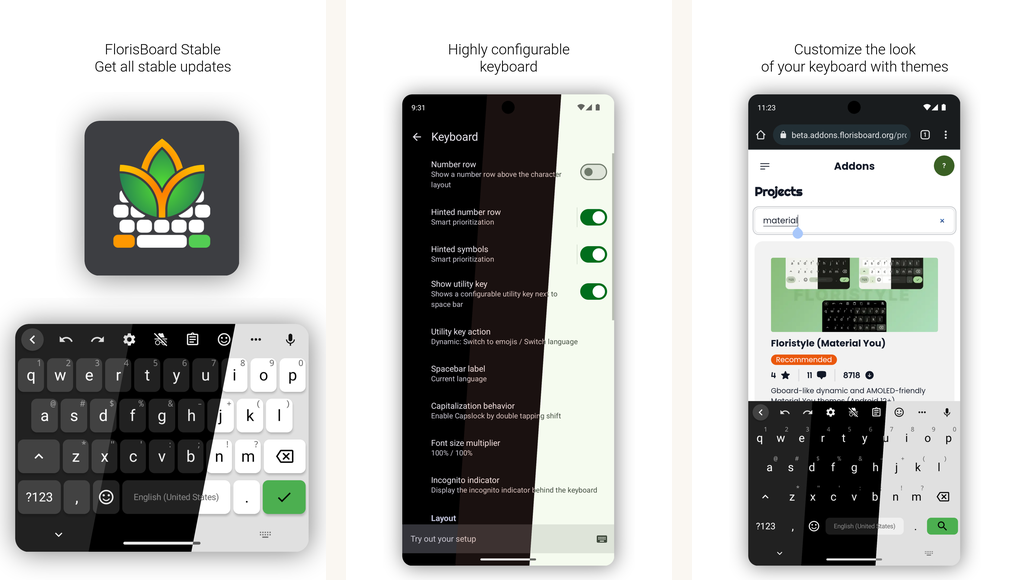
Florisboard is the second open-source contender, and it is the one to pick if HeliBoard’s interface feels too plain. It pairs a modern Material You design with full emoji support and a privacy posture that keeps everything on-device.
It has been in active development for years and installs from F-Droid as a reproducible build. There are no ads, no accounts, and no tracking. For a reader who wants the FOSS guarantee with a contemporary look, it is a strong choice.
One caveat: Florisboard is still officially in beta. It is stable enough for daily use on most modern phones, but you may hit the occasional rough edge, especially on older Android versions.
Highlights
- ⭐ Best for: FOSS users who want a modern Material You keyboard with no tracking.
- ⚠️ Watch out for: still officially in beta, with occasional rough edges on older phones.
- 💰 Pricing: free, open-source, donation-supported.
Key features
- Material You design: a modern, themeable open-source interface.
- On-device only: no tracking, no accounts, no cloud calls.
- Reproducible builds: verifiable F-Droid packages and active development.
How to switch your Android keyboard safely
Trying a new keyboard takes a minute, and Android deliberately makes you confirm the risk before a keyboard can read your typing. That confirmation step is a feature, not a nuisance. Here is the safe order.
Install from a trusted source
Use the Play Store or F-Droid. Avoid sideloaded keyboard APKs from unknown sites; a keyboard is the worst possible app to get from a sketchy source.
Read the data-safety section first
On the Play Store listing, open Data safety and check what the app collects and shares. Prefer keyboards that run prediction on-device.
Enable it in Settings
Go to Settings, then System, then Languages and input, then On-screen keyboard, and turn the new keyboard on. Android shows a warning that the keyboard can collect what you type. Read it.
Set it as default and test
Tap any text field, use the keyboard switcher to select it, and type for a few days before you delete your old one. Menus vary slightly by Android skin.
One honest caveat about switching: your learned-word prediction does not transfer. Most keyboards can export a personal dictionary, but the prediction model itself is retrained from scratch, so give a new keyboard a week before you judge its autocorrect.
Common mistakes to avoid
| Mistake | Why it matters | Better move |
|---|---|---|
| Installing a keyboard from a random APK site | A malicious keyboard can capture passwords and card numbers | Stick to the Play Store or F-Droid only |
| Ignoring the Android “can collect what you type” warning | It is telling you exactly what access you are granting | Read it, then check the Play Store data-safety section |
| Chasing themes on a permission-heavy keyboard | Cosmetic apps have a track record of data overreach | Decide if the look is worth the data trade-off |
| Judging autocorrect on day one | The prediction model has not learned your habits yet | Give any new keyboard a week before deciding |
| Deleting your old keyboard immediately | You lose your fallback and your learned dictionary | Keep both installed until the new one feels right |
The verdict
For almost everyone, Gboard is the right keyboard, and recent updates only widened its lead. Emoji Kitchen, word-search emoji, and an on-device typing layer make it the safe, strong default for the broadest reader.
The verdict
Bottom line: install Gboard and stop, unless one of these reasons applies to you.
For AI drafting: Microsoft SwiftKey, if you are comfortable with a Microsoft account.
For strict privacy: HeliBoard, or Florisboard if you want a more modern look. Both keep everything on-device.
For personal stickers: Bobble for a selfie avatar, Facemoji for the widest emoji and theme set, both with a heavier data footprint.
What to skip: GO Keyboard, unless theme variety truly outweighs its documented data-collection history.
Questions people actually ask
- Is the default Gboard really better than third-party emoji keyboards?
For most people, yes. Gboard’s emoji picker, word search, and AI suggestions are the strongest baseline. The reasons to switch are specific: Copilot drafting with SwiftKey, privacy with HeliBoard or Florisboard, avatar stickers with Bobble or Facemoji, or S Pen handwriting on a Galaxy. - Does Gboard upload my keystrokes to Google?
Gboard’s prediction and autocorrect run on-device. Some features, such as Smart Compose and cloud voice typing, do make cloud calls, and you can disable them in Settings. On recent Pixel models, voice typing runs on-device through the Tensor chip. - Are free emoji keyboards safe to use?
Most well-known ones are, but a keyboard sees everything you type, so the bar is higher. Install only from the Play Store or F-Droid, read the data-safety section, and be cautious with permission-heavy apps. GO Keyboard was caught collecting user data without consent by security researchers, which is why it sits last on this list. - Will switching keyboards lose my saved learned words?
The learned-word prediction model does not transfer. Most keyboards, including Gboard and SwiftKey, can export your personal dictionary, but the prediction itself retrains from scratch. Plan for about a week of retraining when you switch. - Can I keep two keyboards installed and switch between them?
Yes. Android lets you enable several keyboards at once and switch with the keyboard-switcher icon. That is handy for keeping a privacy keyboard for sensitive fields and a fun one for chats. - What about iOS-style emoji on Android?
Some apps reskin emoji to an iOS look. Using Apple’s emoji glyphs on Android sits in a copyright gray area that Apple has not pushed on, and most such apps stay on the Play Store. For a fuller picture of what emoji actually mean, see our guide to the hidden meanings behind the most-used emoji.
How we tested
How we tested
We used each keyboard for at least two weeks on a Pixel 8, a Galaxy S24, and a OnePlus 12, across messaging, email, and short-form social posts. Emoji-picker speed was measured as the time to insert a known emoji from the picker. We cross-referenced each app’s data posture against its Play Store data-safety entry and, for the open-source picks, the public source repository. Pricing reflects current USD store-page rates and can change.
If you want to go deeper on input apps, our roundups of the best all-round Android keyboard apps and keyboards with bigger keys for easier typing cover the ground beyond emoji. And if a cartoon avatar is what you are really after, our walkthrough on getting Bitmoji working on Android picks up where Bobble leaves off.