In This Article
You scroll past a Reel, and the song or voiceover playing in the background is exactly what you needed to hear right now. The problem is that Instagram does not give you a simple way to save just the sound. You either lose the moment or end up screen recording a video just to keep a few seconds of audio. Tools like Instagram downloader solve this directly by pulling the audio track out of a public post and handing you a clean MP3 file. Here is how the process works, and what is worth knowing before you start saving Instagram sound as a habit.
Why save Instagram audio?
There are more everyday reasons for this than people expect. Maybe a creator’s voiceover explains something clearly and you want to reference it later without hunting through your feed again. Maybe a Reel’s soundtrack is the reason it went viral, and you want to study why it works.
Where this actually comes up
- A trending sound fits a project you are already editing, and you want it without exporting the whole video.
- You want a copy of audio you posted yourself for a portfolio, separate from the clip it shipped inside.
- You are learning a language, and a short spoken clip is far easier to replay at your own pace as audio than as a video you keep opening and pausing.
- Interviews, spoken announcements and podcast style snippets are quicker to revisit as a standalone file than as a post you have to keep scrubbing through.
How to download Instagram audio to MP3, step by step
Snapgram can serve as an Instagram reels downloader for both video and audio extraction. You can use it to save a public Reel as a video file or extract its audio and convert it to MP3, all through your browser without creating an account, logging in, or installing additional software.
The process works entirely through a browser, with no account, login, or software required:
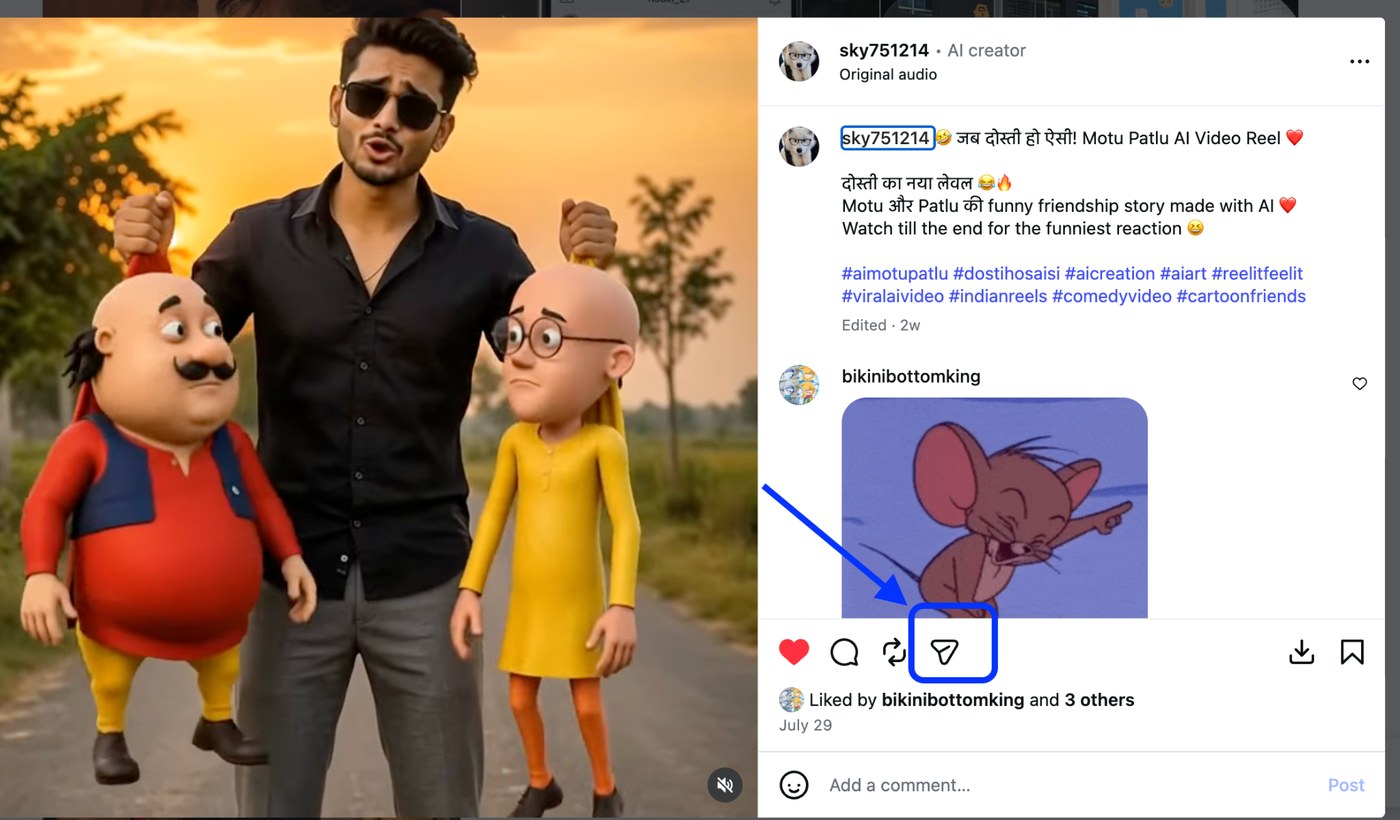
- Open Instagram and copy the link to the public Reel, video, or post whose audio you want.
- Paste the link into the Instagram audio downloader and let it process the content.
- Preview the extracted audio, then download it as a standalone MP3 file to your phone or computer.
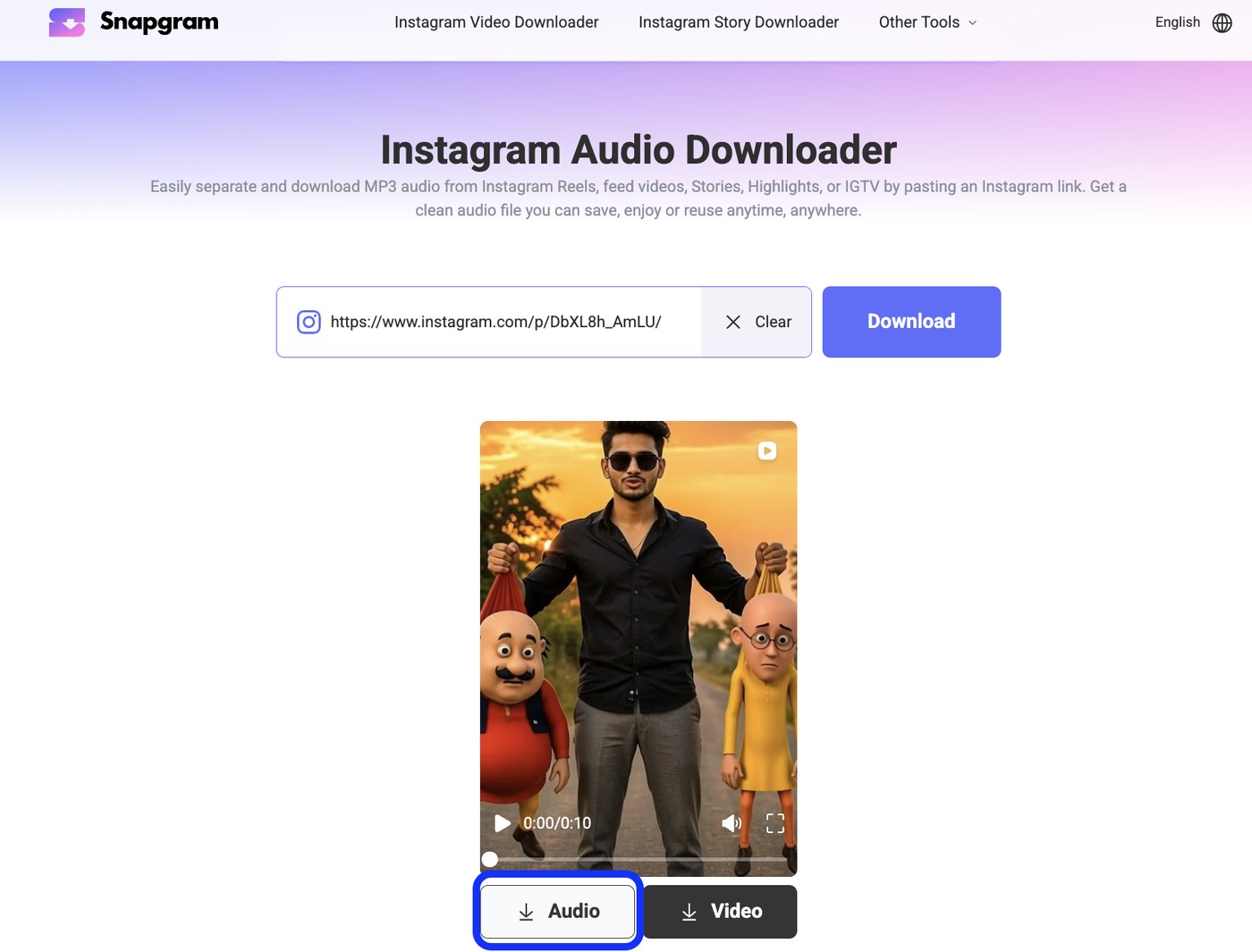
This is essentially what people mean when they search for an Instagram to mp3 converter. Instead of saving the full video and converting it separately, the tool pulls only the audio track in one step, so you skip the extra file conversion entirely. There is no need to open a separate video editor, trim out the visual portion, or run the file through another app afterward.
What Instagram content can you extract audio from?
Most Instagram audio extraction tools work across the main formats Instagram supports: Reels, feed videos, Stories, Highlights, and IGTV style posts. As long as the content is public and includes an audio track, the same link and paste process applies. Photos and image only carousels obviously will not have anything to extract, since there is no sound attached to them in the first place.
| Instagram content | Audio extracts? | What to watch for |
|---|---|---|
| Reels | Yes | The cleanest source. Music and voiceover both come through. |
| Feed videos | Yes | Quality holds up about as well as a Reel. |
| Stories, still live | Yes | Only inside the 24 hour window, and only while the account is public. |
| Highlights | Yes | Saved Stories past the 24 hour window, as long as the Highlight itself is public. |
| IGTV style long posts | Yes | Bigger files, so give the extraction a few extra seconds. |
| Photos and image carousels | No | There is no audio track attached in the first place. |
| Anything on a private account | No | Instagram’s servers will not release it to a third party request. |
Highlights are worth calling out separately, since they often contain Stories a creator considered important enough to keep past the usual 24 hour window. If one of those saved Stories has a voiceover, an announcement, or a piece of music you want, it can usually be pulled the same way as a regular Story or Reel, as long as the Highlight itself is public.
A quick note on Instagram audio copyright
Saving a song or sound clip from Instagram for personal listening is one thing. Reusing it somewhere else is another. Most music used in Reels is licensed for use inside Instagram only, through agreements Meta holds with labels and rights holders, not for reposting on other platforms or for commercial projects. If you plan to use extracted audio in anything you publish, check the rights first, or stick to voiceovers and spoken content you have permission to reuse, such as your own posts or ones you have creator consent for.
This distinction matters more than most people assume. Downloading a track for your own private listening on a commute is very different from dropping that same clip into a video you upload to another platform, even if the intent feels harmless. When in doubt, treat licensed music the same way you would treat any copyrighted song, and reserve extraction mainly for spoken content, your own uploads, or material you have explicit permission to reuse.
Two sides of the same clip
- Listening on your commute, quoting a voiceover in your notes, or keeping a copy of audio you posted yourself: all fine.
- Dropping a licensed Reel track into a video you upload elsewhere, or into anything commercial: that is the part the licence never covered.
What Instagram audio quality to expect
Extracted audio can come out at a bitrate as high as 320 kbps, which is on par with a typical purchased MP3 track, though the actual result depends heavily on the original upload. A song clip recorded straight from a phone microphone will never sound as clean as one pulled from a studio recorded track, since the tool can only work with what Instagram’s servers already have. In general, feed videos and Reels tend to preserve audio quality better than Stories, which are often compressed more aggressively for faster loading.
If the source clip already sounds thin or distorted inside the Instagram app itself, extracting the audio will not fix that. The MP3 file will faithfully reflect whatever quality was uploaded in the first place, so it is worth previewing the audio before downloading to confirm it sounds the way you expect.
A quick sanity check
Play the clip inside Instagram first with the volume up. If it sounds thin there, the MP3 will sound thin too, because the extractor is reading the same file Instagram is already serving you.
A 30 second Reel usually finishes extracting in under 10 seconds on a normal connection. If a tool sits on a progress bar much longer than that, the post is probably private, or the link came from the wrong screen.
FAQs
Do I need an Instagram account to use an Instagram audio downloader?
No. The link based process works without logging in or creating any kind of account.
Can I extract audio from a private IG account’s posts?
No. These tools only work on public content, since that is the only content Instagram’s servers will release to a third party request.
Will the file have a watermark or added branding?
A properly built audio downloader delivers a clean MP3 or M4A with no added watermark, since audio does not carry visual branding the way video does.
Does this work the same on mobile and desktop?
Yes. Since Snapgram runs in a browser, the same paste and download steps apply whether you are on a phone, tablet, or computer.
What to remember before you save
Before you close the tab
- Copy the link from a public post, paste it into the extractor, and take Audio rather than Video.
- Private accounts and expired Stories will not extract, whichever tool you try.
- Check the licence before you reuse a Reel track anywhere outside Instagram.
If you keep running into moments where you want the sound and not the clip, an Instagram to MP3 converter like Snapgram beats screen recording and converting the file yourself. Paste the link, preview the track, save the MP3. Keep the copyright basics in mind before reusing anything beyond personal listening, and the rest is a two minute job.