In This Article
Android gives you two realistic routes to saving a video off Pinterest or TikTok. You can pull the underlying file with a downloader, or you can record the screen while it plays. They are not equivalent. One hands you the file the creator uploaded; the other hands you a recording of your own display, which is a different thing with different limitations.
This covers both. A Pinterest video download through a browser is the quickest path for most people, though there is a case for an app if you save often, and a case for the screen recorder when nothing else works.
Use a Pinterest and TikTok downloader on your Android phone
A downloader reads the address of a post, works out which media file sits behind it, and returns that file to your device. Two of the three below run as web pages in Chrome or whatever browser you already use, so there is nothing to install before you start. The third is a full Android app, which puts downloading directly into the share menu.
Download Pinterest videos with Pinpea
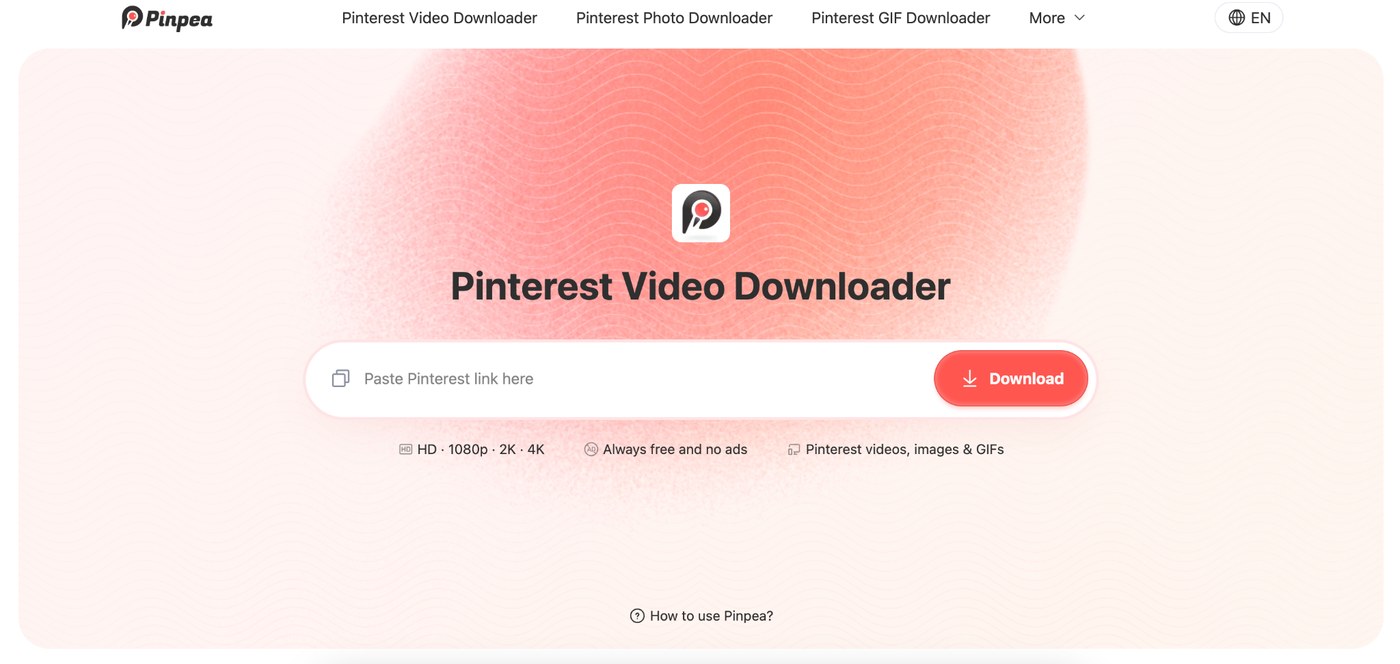
Of the two platforms, Pinterest is the stricter one. Tap whatever you like: no download appears, and the save button only files a reference inside your own account. Pinpea exists to produce the file that reference points at. Feed it a Pin address and the media comes back as a real download.
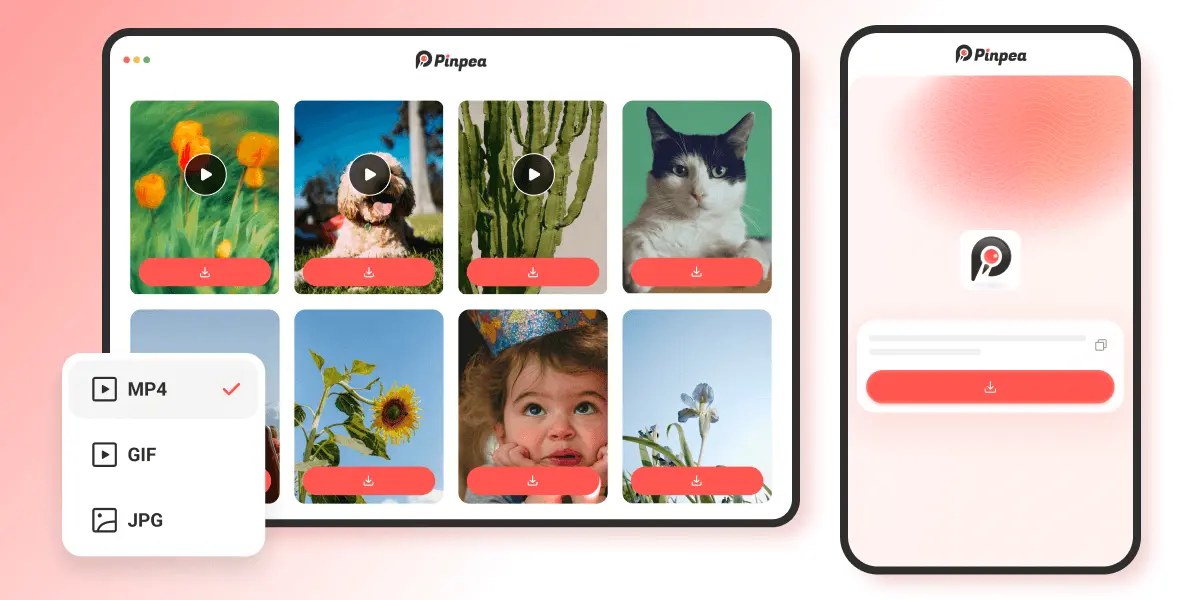
What Pinpea handles:
- Video comes back as MP4 at the resolution it was uploaded in
- Stills return as JPG at full size, not capped to your screen
- Animated Pins save as GIF rather than as a muted video clip
- Standard Pins, Idea Pins and Story Pins all read from the same box
- Both pin.it short links and full URLs resolve, so the app’s share output needs no editing
- Board links return up to 16 images, which suits smaller boards
- No account, no pop-ups, and nothing added to the file
On Android the steps are short:
- From the Pin, hit the share arrow and choose Copy link.
- Load pinpea.com in Chrome and drop the link into the field.
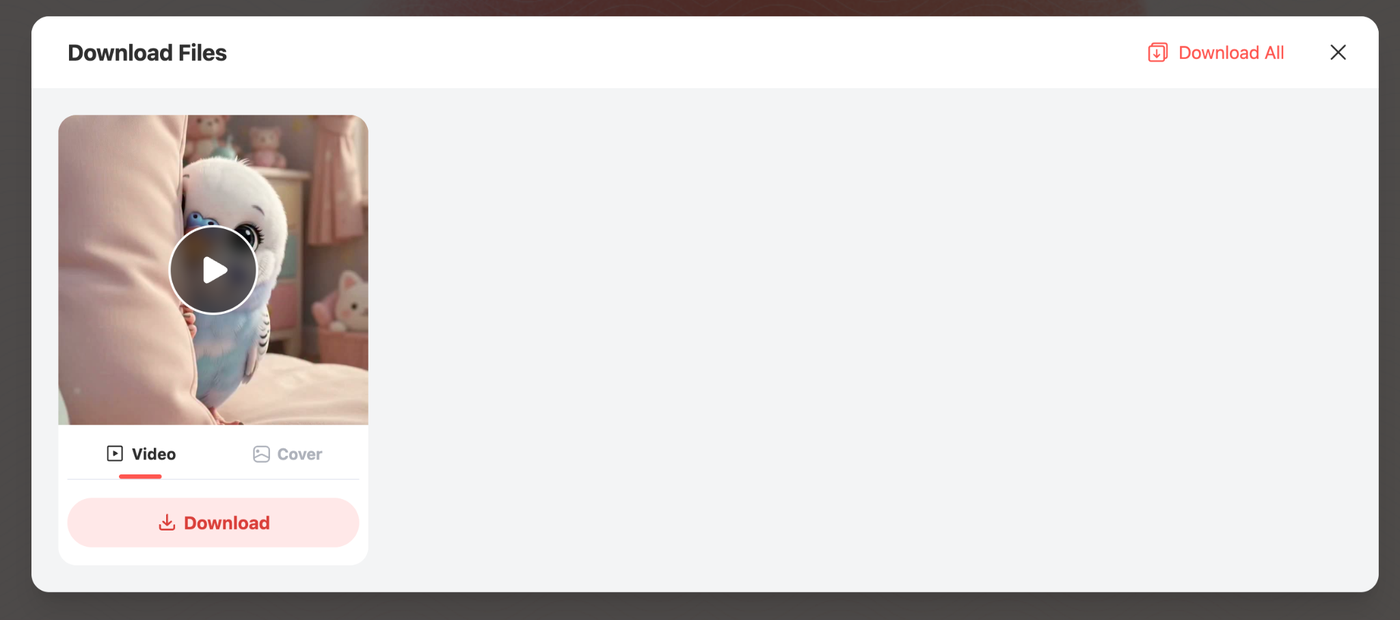
- Choose a format and save. Android files it in your gallery like any other download.
Two things worth knowing
- Public Pins only. Private boards, secret boards and anything requiring a login stay out of reach, which is true of every downloader rather than a limitation of this one.
- Worth doing once: open the Chrome menu and choose Add to Home screen. Pinpea then sits on your launcher next to your apps and opens in one tap, without taking up the storage an installed app would.
Download TikTok videos with SSSTikTok
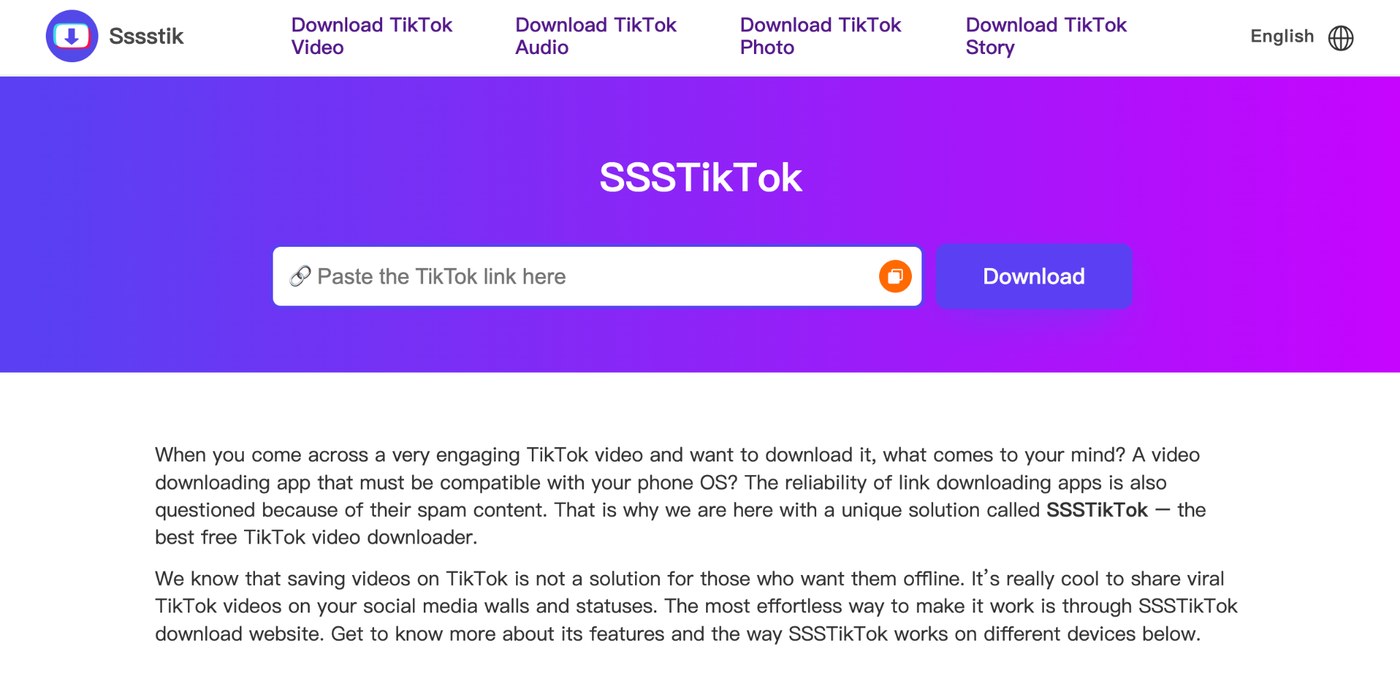
TikTok flips the problem around. The download button is there, but what arrives has your handle and the platform logo baked into the frame, moving position as it plays so that trimming the edges achieves nothing. SSSTikTok goes back to the source file and hands over the clip unbranded.
What you get:
- Clean MP4 at the HD the post was published in, with no re-encoding
- Audio available separately as MP3 when the sound is what you wanted
- Photo posts and slideshows are covered, not only video
- No registration, no install, no cap on how many you take
Three steps, same as above:
- Hit Share on the post and pick Copy link.
- Load sssstik.com and drop the link in.
- Take the MP4, or the MP3 if you only wanted the sound.
Save videos from both platforms with the Snaptube app
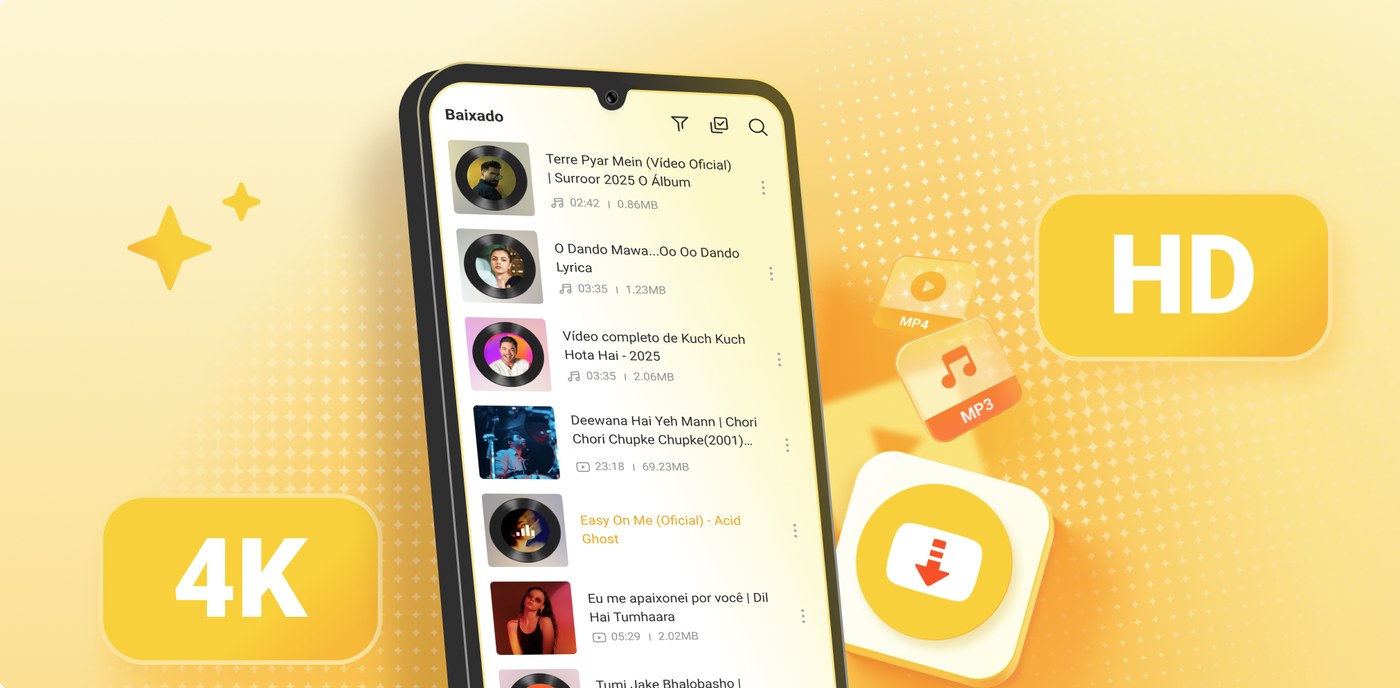
If you save several times a week, the copy and paste routine starts to wear thin. Snaptube removes that step entirely, and it reaches a good deal further than the two platforms this article is about.
The app covers over a hundred sites. Pinterest and TikTok are on the list, along with Instagram, Facebook, X, Vimeo, Dailymotion, Kwai and SoundCloud, so one app handles wherever the link happens to come from. Video saves as MP4 at anything from 144p up to 4K, depending on what the source offers, and audio comes out as MP3 or M4A when the sound is the point.
Once it is installed it appears in the Android share sheet, and that changes how downloading feels. You are scrolling Pinterest, something is worth keeping, so you tap Share and pick Snaptube. The download runs in the background while you carry on scrolling. Same on Instagram, same on TikTok. Nothing is copied, no browser tab opens, and you never leave the app you were already in.
Three more things it does that the browser tools do not:
- Queue a whole playlist or collection in one go instead of link by link
- Play saved files in its own built-in player, no separate app needed
- Resume a paused or interrupted download rather than starting it again
One caveat the browser tools do not carry: Snaptube is not distributed through Google Play, so installing it means allowing an install from an unknown source. Grab it from the official Snaptube site rather than an APK mirror, and leave Play Protect switched on so the file gets scanned before it runs.
Record Pinterest and TikTok videos with the Android screen recorder
Every current version of Android includes a screen recorder in the quick settings panel, usually next to the screenshot button. Pull down the shade, tap Screen record, choose whether to capture audio, and it starts after a countdown. Play the video, stop the recording, and the file goes to your gallery. If the tile is missing from your shade, Google’s own instructions for screen recording cover where it hides on each Android skin.
It works on anything visible on screen, which is its main advantage. No links to copy, no site to visit, and it covers content no downloader can reach.
What a recording actually costs you
- Resolution is capped by your display. A 1080p clip on a 1080p phone comes out at 1080p at best, and usually worse once the recorder compresses it.
- Anything the platform has stamped onto the video gets recorded along with it.
- So does the status bar, the gesture bar, and any notification that arrives mid-recording.
- You catch roughly 2 seconds of dead air at each end and have to trim it.
- Battery and thermals take a hit on longer captures.
For a quick reference clip that nobody else will see, it is fine. For anything you plan to send to someone or work from, it is the wrong tool.
Choose between a downloader and screen recording
The question is what you need the file for. A downloader gives you the original: full resolution, no interface elements, nothing recorded that you did not want. Use it whenever the link is public and the quality matters, which covers most cases.
| Compared on | Downloader or app | Screen recorder |
|---|---|---|
| What you end up with | The source file the creator uploaded | A recording of your own display |
| Resolution | Whatever the post was uploaded in | Capped by your screen, then compressed again |
| Frame rate | Source rate, up to 60 fps where the post has it | Whatever the recorder keeps up with |
| Platform branding | Stripped by SSSTikTok, never added by Pinpea | Recorded along with everything else |
| Needs a public link | Yes | No |
| Works behind a login | No | Yes |
| Audio on its own | MP3 on request | Only what the capture happens to pick up |
| Cleanup afterwards | None | Trim both ends, crop out the status bar |
Screen recording earns its place in the gaps. Content behind a login, a livestream, something in an app that shares no link at all. It is also the only method that needs no third party involved, which some people prefer regardless of the quality cost.
Between the two downloaders and the app, the split is about frequency. Occasional saves are easiest in the browser, since there is nothing to install and nothing to maintain. Regular saves are easier in an app, because the share menu removes the copy and paste step.
Download Pinterest and TikTok videos responsibly
A download moves a file. It does not transfer ownership of what is in it. Nobody objects to a copy sitting in your gallery for reference or for something you are working on. Passing it off as your own footage is where the objection starts, and audiences catch that faster than they used to.
Anything going out publicly should name the person who made it, or point back to where it came from. A message asking permission takes 10 seconds and usually gets a yes.
Where the line sits
- Credit is not a licence. Naming the creator is the polite minimum. It does not hand you permission to monetise their clip.
- Commentary and criticism are treated very differently from a straight re-upload. If you are leaning on fair use, read what it actually covers first, because it is a defence you have to argue rather than a blanket permission.
Which route to start with
Route by route
- Pinterest gives you nothing to download, so Pinpea produces the file.
- TikTok gives you a branded file, so SSSTikTok returns the clean one.
- Both platforms, often, means Snaptube, so you never leave the app you were already in.
- None of the above means the Android screen recorder, on the understanding that you are recording your screen rather than saving a file.
Start with the browser tools, since they cost nothing to try. Add Snaptube when you find yourself saving often enough that tapping Share beats copying links.
If you only save the occasional Pin, you never need to install anything at all.