In This Article
WhatsApp group contacts to Android, in short
- The routeLink your Android WhatsApp account to WhatsApp Web, run a group export extension in Chrome, and download the members as XLSX, CSV or VCF.
- The fileVCF if the numbers are going into an Android address book, XLSX if you want to inspect the list first, CSV if it is feeding a CRM.
- The importMove the VCF to the phone, open Contacts, and import it into a named account rather than the device.
- The catchNone of it is automatic, and a number being visible inside a group is not permission to market to it.
WhatsApp has no button that saves every member of a group to your phone. Open a profile, add the number, go back, repeat. That is fine for a group of eight and unworkable for a group of 200.
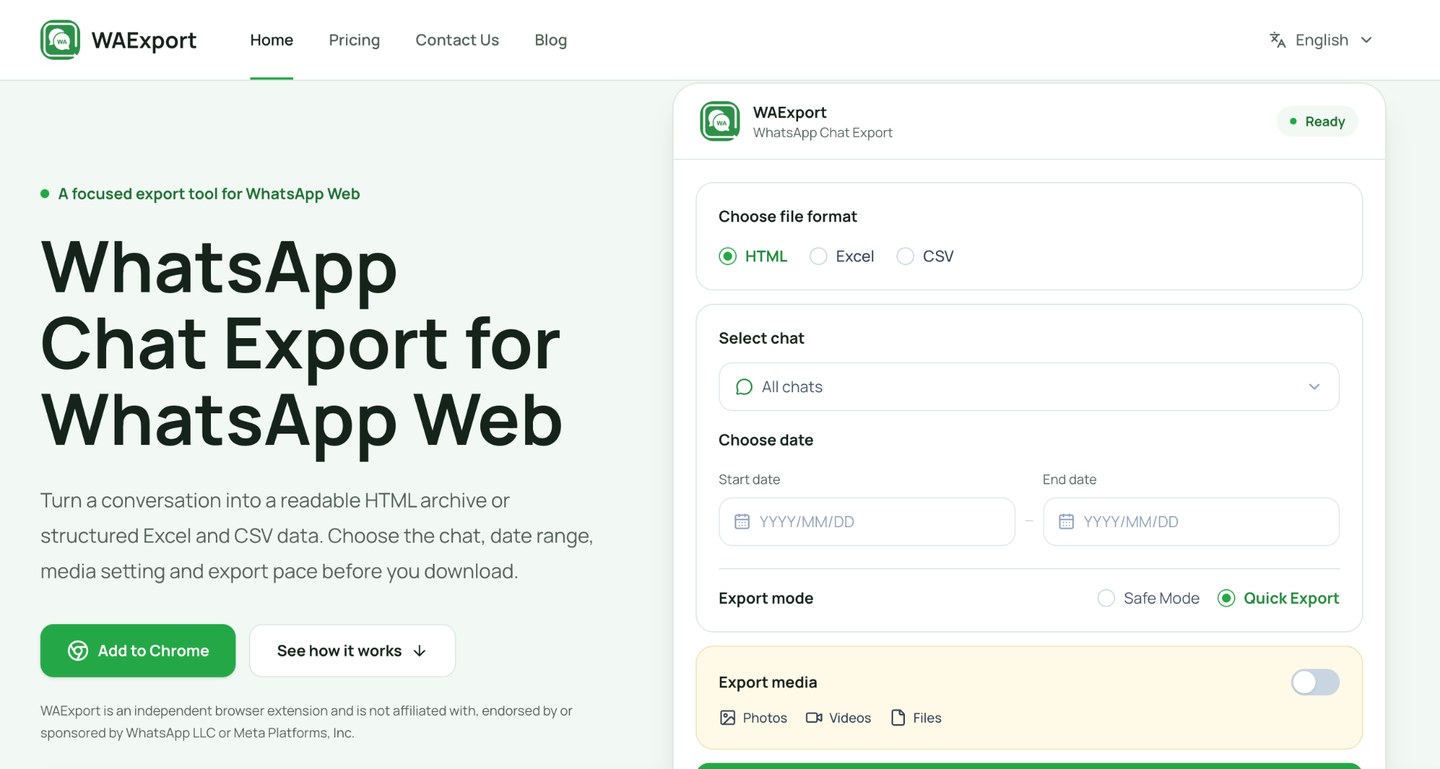
A WhatsApp Group Number Export takes a different route. You connect an Android WhatsApp account to WhatsApp Web, then export selected group members from a desktop browser as Excel, CSV or VCF files. The VCF is the one that matters here, because it is the file an Android Contacts app can read directly.
One thing to settle before any of it. Run this only on groups you have a real reason to manage. A visible number is not consent to send marketing messages, and everything below assumes you already have the relationship that makes contact appropriate.
The quick answer
The whole job runs on four things: an Android phone holding the WhatsApp account, a desktop copy of Chrome, a group contact export extension, and somewhere sensible to put the file afterwards. The phone stays linked and keeps the session alive. The browser does the actual work. Membership of every group you plan to export is the other requirement, though administrator rights are not, and the contacts need somewhere to land at the end: a Google account, or the phone itself.
What this process can and cannot do
The export organises group member information into Excel, CSV or VCF, and it retains fields such as country code, phone number, display name, saved name, source group and contact status wherever WhatsApp exposes them. The list of things it does not do is longer, and worth reading before you start rather than after.
| What people ask | Answer | Detail |
|---|---|---|
| Organise members into a file | Yes | Excel, CSV or VCF, carrying country code, number, display name, saved name, source group and contact status where those are available. |
| Recover deleted contacts | No | The export reads what the group shows you now. It is not a backup of anything already gone. |
| Reveal hidden numbers | No | If a member’s number is not visible to you inside the group, it is not in the file either. |
| Restore chat history | No | Messages and media are out of scope. WhatsApp’s own chat backup covers that. |
| Guarantee every number is live | No | Numbers in groups go dead, get recycled and stop being reachable. Expect some fallout in any large list. |
| Import to Android on its own | No | The VCF still has to be transferred to the phone and opened through a compatible Contacts app. |
Before you export WhatsApp group contacts
Five minutes of decisions here is the difference between a usable contact list and 4,000 rows nobody will ever open.
Settle these first
- The phone is linked to WhatsApp Web and the groups you want are visible in it.
- You know which groups you are exporting, and why each one is on the list.
- You have chosen between all members and unsaved numbers only.
- You have decided whether group administrators belong in the file.
- You know where the download will live once it exists.
Connect your Android account to WhatsApp Web
Open WhatsApp on Android, tap the three dot menu, and select Linked devices. Choose Link a device, then scan the QR code shown at web.whatsapp.com on the computer.
Once the link is live, confirm the groups you care about actually appear in WhatsApp Web before going further. While you are on that screen, read the rest of the list. Anything linked that you do not recognise should be unlinked now rather than noticed later.
Decide which groups you actually need
Exporting every group you happen to be in is the easiest mistake to make, mostly because the extension turns it into a single click.
Pick the groups attached to a defined task: a customer community the business runs, an event group, a supplier network, an internal organisation list. Personal groups and anything you joined by accident stay outside the export.
When you do combine several groups, preserve the source group field. It is the only thing that later explains where a number came from, and without it two unrelated communities merge into one undifferentiated list.
Choose the right contact filters
The extension asks two questions before it exports anything, and both deserve a deliberate answer.
First, all members or only numbers not already saved in the WhatsApp account’s contacts. Unsaved only is the right setting when you are topping up an existing address book, because it stops you re-importing hundreds of people you already have.
Second, whether to exclude group administrators. Useful when admins are stored separately already, or when they should not appear in whatever list you are building.
Use the narrowest settings the task allows. A smaller export is faster to review and less of a liability if it ends up somewhere it should not be.
How to export WhatsApp group contacts
The download itself happens in WhatsApp Web rather than inside the Android app. The phone’s only job is to hold the linked session open.
The export, step by step
- Open WhatsApp Web in Chrome and confirm it is the account you meant to link.
- Launch the extension beside it and let it read the group list.
- Pick the groups, then set the member filter and the admin toggle.
- Choose XLSX, CSV or VCF and start the export.
- Open the downloaded file and check the numbers, names, country codes and group labels before doing anything else with it.
Install and open the Chrome extension
Install the WhatsApp group contacts extractor in Chrome, open WhatsApp Web, and launch the extension beside it.
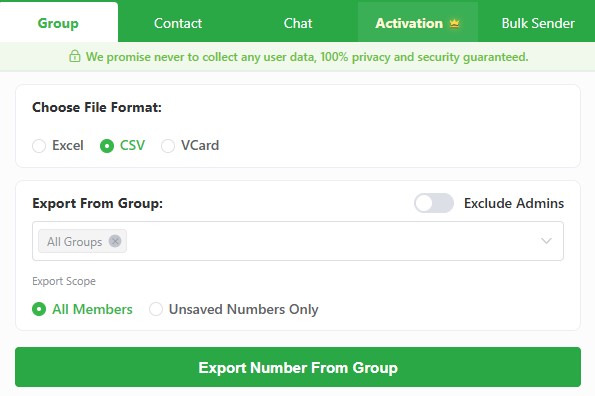
Review the permissions before you accept them. An extension that can read WhatsApp Web can read every conversation in it, which is worth a moment’s thought even when the tool is a legitimate one. Then check that the connected account and the selected groups are the ones you intended.
WAExport generates the Excel, CSV or VCF file locally in the browser instead of uploading it to its servers, which is the right architecture for data of this kind. It does not make the file safe once it is sitting in a Downloads folder.
The free plan caps you at 30 group member records a day. A 300 member group is therefore a paid job or a very patient one, and it is better to work that out before you start than halfway through.
Select one or multiple WhatsApp groups
One group, a hand picked set, or all of them. The scope control works the same way in each case.
Exporting several groups into one file saves time and costs clarity. If the source group column is missing from the output, duplicate numbers across two communities become indistinguishable, and you lose the context that made the contact worth keeping.
Run the first export against your smallest group. Checking the field layout on 20 rows takes a minute. Finding a mapping problem after 2,000 rows takes an afternoon.
Export all members or unsaved numbers only
Select All Group Members when you want the complete record of who is in a group. Select Unsaved Numbers Only when the point is to find the members missing from your address book.
Enable Exclude Admins if administrators should stay out of the result. Then choose Excel, CSV or VCF and start the export.
Open the file straight away. A truncated export, a missing country code column, or names that arrived as bare numbers are all far easier to fix now than after 400 contacts have landed in a phone.
Choose the best download format
The three formats are not interchangeable. Each one assumes a different next step, and picking the wrong one usually means running the export again.
| Format | Best for | What you get | Watch out for |
|---|---|---|---|
| VCF | Android and Google Contacts | vCard records a Contacts app imports directly, with no conversion step. | Hundreds of entries land on one confirmation tap, duplicates included. |
| XLSX | Reviewing before you commit | A sortable sheet carrying group, country, saved status and every other field the export held. | Nothing imports into a phone from here without converting it first. |
| CSV | CRMs, databases, other tools | Plain structured rows that almost any business system will accept. | Column names and number formats have to match what the destination expects. |
VCF for Android contacts
VCF, also known as vCard, is the format Android contact apps read natively. Each record is a small block of plain text holding a name, one or more numbers, and whatever other fields the exporter filled in. The file is simply those blocks stacked end to end.
That is why a VCF can go straight into a phone only address book or a connected Google account with nothing in between.
It is also why a VCF is worth opening in a text editor first. A large one adds hundreds of entries in a single confirmation, and Android offers no per contact review on the way in.
Excel for reviewing and sorting
XLSX is the format to pick when you are not yet certain what you have.
Sort by source group, filter by country, flag the rows with no name attached, and delete the ones that were never going to be useful. Spotting a duplicate in a spreadsheet takes a formula. Spotting it after it is in your phone takes a merge dialog and a lot of tapping.
The usual pattern is two passes. Export to XLSX, clean it, then export again to VCF once you know which groups and filters produce the list you actually wanted.
CSV for other business tools
CSV is the format for everything that is not a phone. CRM platforms, help desks, marketing tools and databases nearly all accept it.
Check the destination’s required column names and phone number format first. Most systems expect international form, with the country code and a leading plus, and will quietly mangle anything else. Import ten rows as a test before you import ten thousand.
How to import a VCF file to Android
The exact menu wording varies by phone brand and Android version, but the sequence is the same everywhere: get the file onto the phone, open Contacts, import, then verify.
Worth doing first: back up the contacts you already have. If a bulk import merges the wrong records, an export taken five minutes earlier is the difference between an undo and a manual cleanup.
Importing the file
- Move the VCF to the phone over USB, or through cloud storage you control. Not a public link, and not an unsecured channel.
- Save it somewhere findable. The Downloads folder is fine.
- Open the Contacts app and look for Fix and manage, Manage contacts, or Import and export contacts.
- Choose the import from file option, pick the VCF, then choose the destination account.
- Wait for the count to settle, then search for three or four names you recognise.
Transfer the VCF file to your phone
A USB cable, or a cloud folder that is not shared with anyone else. A contact file is personal data for every person named in it, and a link you paste into a chat to save yourself two minutes is a link that outlives the conversation.
Import it through the Contacts app
Inside Contacts, the option sits under Fix and manage on recent Pixel builds and under Manage contacts or Import and export contacts elsewhere. Google’s own walkthrough for importing contacts from a file covers both the phone and the desktop route if your menu does not match.
Then the question that actually matters: device, SIM, or Google account. A Google account syncs across devices and survives the handset. Device only storage stays on that phone and disappears with it. SIM storage is tiny and truncates long names, so it is rarely the right home for a bulk import.
Check Google account sync
If the contacts went into a Google account, open Android Settings, find that account, and confirm contact synchronisation is switched on. An import that lands in an account with sync disabled looks perfectly successful and shows up nowhere else.
Give it a minute to finish, then search for several imported names and numbers. Keep the VCF until that check passes.
Clean up the imported contacts
An import is not finished when the progress bar ends. Several hundred new entries have just landed next to contacts you have curated for years, and that mixture needs a pass before you rely on it.
The post import pass
- DuplicatesReview the merge suggestions one at a time. Two people can share a name.
- Country codesEvery international number should still carry its plus and its country code.
- NamesAdd a name only where you know the person. A group name is not an identity.
- SourceKeep the group context in a label, or keep the original spreadsheet as the reference copy.
Remove duplicate entries
Android and Google Contacts both offer to merge what they believe are duplicates. Accepting all of them in one tap is how two different people with the same common name become a single contact with two numbers, and nobody notices for a year.
Work through the suggestions instead. The ones that go wrong involve a shared surname, a company name in the name field, or a contact with no name at all.
Check country codes and names
International numbers only work when they keep the country code and the leading plus. If the export dropped it, the number will dial from inside one country and fail from everywhere else, which is a fault you discover at the worst possible moment.
On names, add one only where the identity is known. Guessing from a group name or a profile image gives you 200 contacts called something like Supplier Group 3, which is worse than no name at all.
Preserve the original group source
Android Contacts does not retain every field a spreadsheet had. If the source group matters, add it as a label or a note at import time, or keep the Excel or CSV file as the reference copy and treat the phone as a view of it rather than the record itself.
Privacy and responsible use
This is the section people skip, and it is the one with actual consequences attached.
Do not assume group membership equals consent
Being in a WhatsApp group means somebody was added to a WhatsApp group. It does not mean they agreed to hear from you privately, and it certainly does not mean they opted into a campaign.
WhatsApp’s own business messaging rules require opt in before commercial messages. Under the GDPR a phone number is personal data, and the obligations attach the moment you hold it rather than the moment you use it. Contact people where a relationship, permission and a lawful purpose already exist.
Before you message anyone on that list
- Can you name the relationship? Customer, supplier, attendee, colleague. If you cannot, do not send the message.
- Would the person recognise where you got their number? If explaining it would be awkward, that is your answer.
- Is there a working opt out in the message, and does anyone read the replies?
Protect the exported file
Keep the Excel, CSV or VCF somewhere access controlled. Not the shared Downloads folder on a machine three people use, not an unrestricted cloud link, and not an email attachment that will sit in a mailbox indefinitely.
Delete files you no longer need
Once the import is confirmed, remove the working copies. Keep the original only where there is a reason you could state out loud and a storage method that is genuinely secure. Every extra copy is a separate thing that can leak.
Common questions
Can I export contacts from several groups at once?
Yes. WAExport supports a single group, several selected groups, or all groups. Preserve the source group information when you combine communities, or you will not be able to tell them apart afterwards.
Can I export only unsaved WhatsApp numbers?
Yes. Select Unsaved Numbers Only before downloading the file. It is the right setting when you are adding to an address book rather than rebuilding one.
Do I need to be a group administrator?
No. A regular member can export the group member data the group already shows them. Admin rights change nothing about what is available.
Does WAExport work directly as an Android app?
No. It is a Chrome extension used with WhatsApp Web. The Android phone supplies the linked WhatsApp account, and the VCF it produces is what goes back to the phone.
How many numbers can I export for free?
The free plan allows 30 group member records a day. Anything larger is either a paid plan or several days of small exports.
Will the export include members who hid their number?
No. The extension only sees what the group shows you, so a member whose number is not visible to you will not appear in the file.
Final checklist
Before you call it done
- The right groups and filters were selected, and you can say why each one was included.
- The export fields look correct: numbers, names, country codes and source group.
- Duplicates were reviewed one by one rather than merged in bulk.
- The VCF landed in the account you intended, and synchronisation is switched on for it.
- You have searched for several imported contacts and found them on the phone.
- Working copies of the file are deleted, and anything you kept sits somewhere access controlled.
Do that once, properly, and the list you end up with is worth having. Skip it and all you have done is move a mess out of WhatsApp and into your phone.