In This Article
TikTok and Pinterest both handle downloads a little differently, and not every video comes with a handy save button. In this guide, we’ll walk through the easiest ways to download videos from both apps to your Android phone, what to do when the built-in option isn’t available and a few other things worth knowing before you save or reuse someone else’s content.
Android gives you two realistic routes to saving a video off Pinterest or TikTok. You can pull the underlying file with a downloader, or you can record the screen while it plays. They are not equivalent. One hands you the file the creator uploaded; the other hands you a recording of your own display, which is a different thing with different limitations.
This covers both. A Pinterest video download through a browser is the quickest path for most people, though there is a case for an app if you save often, and a case for the screen recorder when nothing else works.
Use a Pinterest and TikTok downloader on your Android phone
Sometimes you just want the video. Not the app around it, not the comments, not the endless scroll that somehow eats 20 minutes of your life, just the clip.
That’s where a downloader comes in. You paste in the link to a Pinterest or TikTok post, and it tracks down the actual video file behind the page so you can save it straight to your phone.
Two of the options below work entirely in your browser, which means there’s nothing to install and no extra app cluttering up your home screen. The third is a dedicated Android app, and it’s a little more convenient if you do this often: it plugs directly into Android’s share menu, so saving a video can be just a couple of taps.
#1. Download Pinterest videos with Pinpea
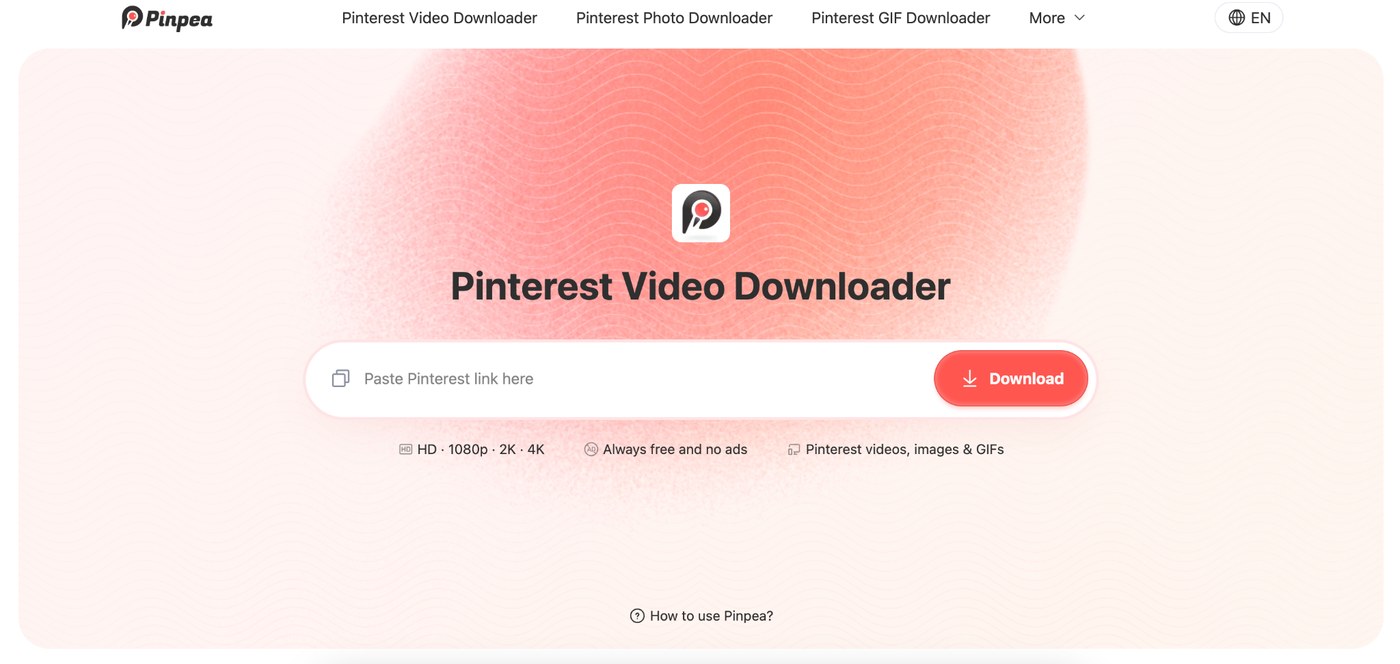
Of the two platforms, Pinterest is the stricter one. Tap whatever you like: no download appears, and the save button only files a reference inside your own account. Pinpea exists to produce the file that reference points at. Feed it a Pin address and the media comes back as a real download.
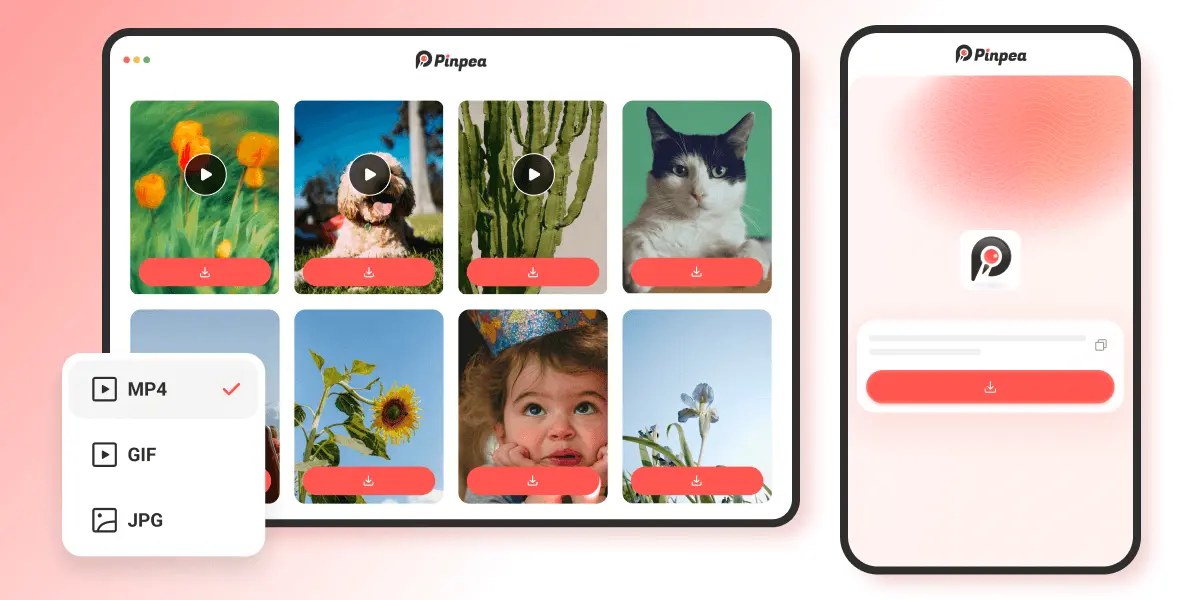
What Pinpea does handles:
- Video comes back as MP4 at the resolution it was uploaded in
- Stills return as JPG at full size, not capped to your screen
- Animated Pins save as GIF rather than as a muted video clip
- Standard Pins, Idea Pins and Story Pins all read from the same box
- Both pin.it short links and full URLs resolve, so the app’s share output needs no editing
- Board links return up to 16 images, which suits smaller boards
- No account, no pop-ups, and nothing added to the file
On Android the steps are short:
- From the Pin, hit the share arrow and just Copy link.
- Load pinpea.com in Chrome or other browser and drop the link into the field.
- Choose a format and save. Android files it in your gallery like any other download.
#2. Download TikTok videos with SSSTikTok
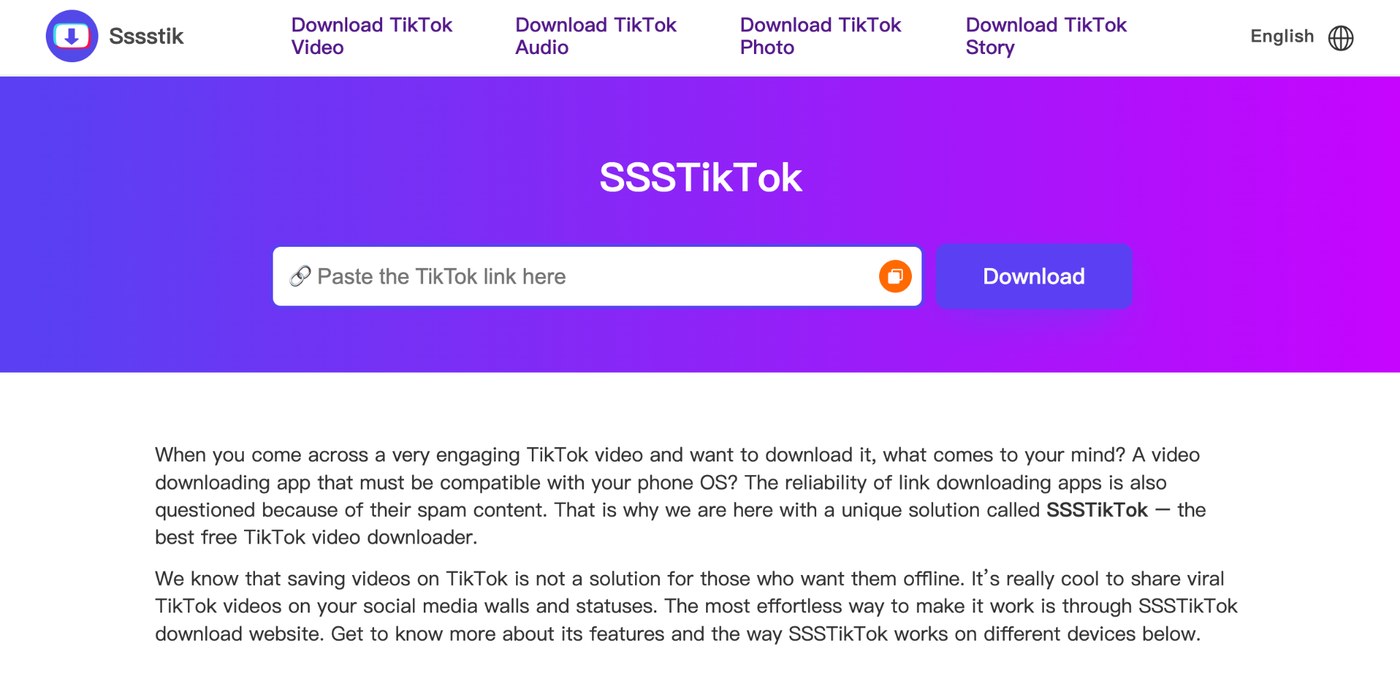
TikTok flips the problem around. The download button is there, but what arrives has your handle and the platform logo baked into the frame, moving position as it plays so that trimming the edges achieves nothing. SSSTikTok goes back to the source file and hands over the clip unbranded.
What you do get:
- Clean MP4 at the HD the post was published in, with no re-encoding
- Audio available separately as MP3 when the sound is what you wanted
- Photo posts and slideshows are covered, not only video
- No registration, no install, no cap on how many you take
Three steps, almost same as above:
- Just tap share on the post and pick Copy link.
- Load sssstik.com and drop the link in.
- Take the MP4, or the MP3 if you only wanted the sound.
3. Save videos from both platforms with the Snaptube app
If you save several times a week, the copy and paste routine starts to wear thin. Snaptube removes that step entirely, and it reaches a good deal further than the two platforms this article is about.
The app covers over a hundred sites. Pinterest and TikTok are on the list, along with Instagram, Facebook, X, Vimeo, Dailymotion, Kwai and SoundCloud, so one app handles wherever the link happens to come from. Video saves as MP4 at anything from 144p up to 4K, depending on what the source offers, and audio comes out as MP3 or M4A when the sound is the point.
Once it is installed it appears in the Android share sheet, and that changes how downloading feels. You are scrolling Pinterest, something is worth keeping, so you tap Share and pick Snaptube. The download runs in the background while you carry on scrolling. Same on Instagram, same on TikTok. Nothing is copied, no browser tab opens, and you never leave the app you were already in.
Three more things it does that the browser tools do not:
- Queue a whole playlist or collection in one go instead of link by link
- Play saved files in its own built-in player, no separate app needed
- Resume a paused or interrupted download rather than starting it again
One caveat the browser tools do not carry: Snaptube is not distributed through Googleplay, so installing it means allowing an install from an unknown source. Grab it from the official Snaptube site rather than an APK mirror, and leave Play Protect switched on so the file gets scanned before it runs.
Download Pinterest and TikTok videos with Android’s screen recorder
When everything else fails, there is always the wonderfully low-tech option: just record your screen. Android has a screen recorder built right into Quick Settings on most current phones.
Pull down the notification shade, tap Screen record, decide whether you want audio included, and hit start. After the countdown, play the TikTok or Pinterest video, stop recording when it’s finished, and you’ll find the resulting clip in your gallery.
If you don’t see the Screen record button, you may need to add it to your Quick Settings panel. Google’s own screen-recording instructions can help you track it down. The appeal is understandable: if you can see it on your screen, you can record it. There’s no URL to copy, no downloader site to wrestle with, and it can capture videos that other tools simply can’t get to.
But screen recording comes with issues
Convenient? Absolutely Yes!!! Clean? Unfortunately Not always!!! Yes. Your recording can only look as good as your phone’s display allows. If you’re watching a 1080p video on a 1080p screen, 1080p is the ceiling and the recorder’s own compression may knock the quality down further.
Then there’s everything else on your screen. Watermarks and other elements baked into the video are coming along for the ride. Your status bar and gesture bar may show up too, and one badly timed notification can become an unexpected guest appearance. You’ll also usually end up with a second or two of awkward footage at the beginning and end while you start and stop the recorder, so expect to do a little trimming afterward. Longer recordings can also put a noticeable dent in your battery and warm up your phone.
For a clip you just want to keep around for yourself, none of this is a huge deal. But if you want a clean video to share, edit, or work with later, screen recording is less of a solution and more of a last resort.
Choose between a downloader and screen recording
The question is what you need the file for. A downloader gives you the original: full resolution, no interface elements, nothing recorded that you did not want. Use it whenever the link is public and the quality matters, which covers most cases.
| Compared on | Downloader or app | Screen recorder |
|---|---|---|
| What you end up with | The source file the creator uploaded | A recording of your own display |
| Resolution | Whatever the post was uploaded in | Capped by your screen, then compressed again |
| Frame rate | Source rate, up to 60 fps where the post has it | Whatever the recorder keeps up with |
| Platform branding | Stripped by SSSTikTok, never added by Pinpea | Recorded along with everything else |
| Needs a public link | Yes | No |
| Works behind a login | No | Yes |
| Audio on its own | MP3 on request | Only what the capture happens to pick up |
| Cleanup afterwards | None | Trim both ends, crop out the status bar |
Screen recording earns its place in the gaps. Content behind a login, a livestream, something in an app that shares no link at all. It is also the only method that needs no third party involved, which some people prefer regardless of the quality cost.
Between the two downloaders and the app, the split is about frequency. Occasional saves are easiest in the browser, since there is nothing to install and nothing to maintain. Regular saves are easier in an app, because the share menu removes the copy and paste step.
So Which Option should you choose first?
There is not one perfect downloader for every situation, which is probably why this gets confusing in the first place for many people. The easiest choice depends on where the video came from and how often you plan to do this.
For Pinterest, where there usually isn’t a straightforward way to download the actual video file, Pinpea is the simplest place to start. For TikTok, Snaptube makes more sense when you want a cleaner copy without the usual TikTok branding. If you bounce between both platforms and save videos regularly.
And when none of those options work, there’s always the screen recorder. It’s not as solid, and you’re technically capturing what is on your display rather than actually downloading the original file with right format and resolution, but for most people it will get the job done.
For most people, the browser tools are the best first stop: they’re quick, free to try, and don’t ask you to install another app. If downloading videos starts becoming something you do all the time, that’s when Snaptube starts earning its place on your phone.