In This Article
Follow BestForAndroid


Short answer: You do not need a sketchy third-party app to hide apps on Android. On a Galaxy, the One UI Hide apps toggle pulls icons out of the drawer, and Secure Folder walls a whole second copy of an app behind Knox encryption. On a Pixel or other stock phone, Private Space (Settings, Security and privacy, Private space) is the real built-in answer once it is locked. OnePlus has Hidden Space, Xiaomi has Privacy Protection, and Files by Google has a Safe folder for documents rather than apps. One caveat worth saying out loud: none of this hides anything from a work profile or company MDM, so skip it on a managed phone.
HIDE APPS THE BUILT-IN WAY
No download, no permissions, no ads. Samsung, Pixel, OnePlus, and Xiaomi each ship their own way to pull an app out of sight. Here is which one to reach for.
JUST OFF THE DRAWER
Samsung, OnePlus, and Xiaomi can drop icons from the launcher in a couple of taps.
LOCKED AND ENCRYPTED
Private Space on stock Android and Samsung Secure Folder seal apps behind a separate lock.
FILES, NOT APPS
Files by Google hides photos and documents behind a PIN, separate from any app.

There are plenty of honest reasons to hide an app. You hand the phone to a kid and would rather your banking app not be one tap away. You share a screen at work and do not want a dating app showing up in the recents carousel. Or you just want a tidy drawer without forty icons you never open. Whatever the reason, the instinct to grab a “hide apps” utility from the Play Store is usually the wrong move.
Those third-party tools tend to ask for sweeping permissions, bury themselves in ads, and break the moment the OEM tweaks the launcher. The better news is that almost every Android phone already ships with a built-in way to do this, and the built-in tools are faster, cleaner, and do not phone home. Below are the methods that actually work, grouped by what they hide and how strong the lock is.
Before you pick one, it helps to see them side by side. The right tool depends less on which phone you own and more on what you are trying to keep out of sight, an app icon, a whole encrypted workspace, or a stack of files.
| Method | Works on | How it hides |
|---|---|---|
| Hide apps toggle | Samsung, OnePlus, Xiaomi | Pulls icons out of the app drawer; apps stay installed |
| Private Space | Pixel and most stock Android (15 and up) | Locks a separate container; its apps vanish from drawer, recents, and search |
| Secure Folder | Samsung Galaxy | Knox-encrypted second workspace with its own PIN |
| Files Safe folder | Any Android 8.0 and up | Hides files and photos behind a PIN, not apps |
| Disable | Any Android | Makes preinstalled bloat inert and removes it from the drawer |
Hide apps from the launcher on Samsung
Samsung’s One UI has the simplest version of this. There is a built-in Hide apps setting that pulls chosen icons out of the app drawer and out of search, while leaving the apps themselves installed and running normally. It is the right pick when you just want something off the screen, not locked away.
Long-press an empty part of the home screen, tap Home screen settings, then Hide apps. Pick the apps you want gone, and they disappear from the drawer immediately. To bring one back, return to the same screen and deselect it. The path moved around across One UI versions, so if you cannot find it from the home screen, search “Hide apps” in the Settings search bar and it will jump you straight there.
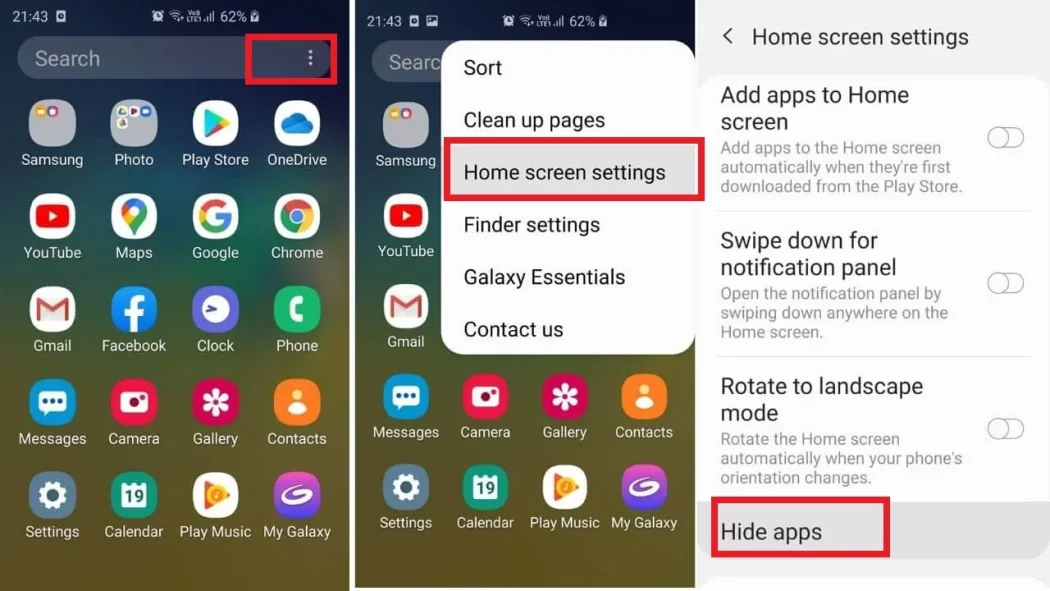
Two things to keep in mind. A hidden app is only hidden visually, so it keeps receiving updates and notifications unless you silence those separately, and anyone who opens the Hide apps screen can see and restore it. This is privacy from a casual glance, not from someone who knows where to look.
Hide apps with Private Space on a Pixel and stock Android
Pixels and most stock-Android phones do not have a per-app hide toggle in the launcher. For years that left people stuck with a third-party launcher as the only option. That changed with Private Space, which arrived in Android 15 and is now the proper first-party answer for hiding apps on a Pixel.
Private Space creates a separate, lockable container at the bottom of the app drawer. Anything you install inside it lives in its own profile, with its own accounts and notifications. When you lock the space, its apps drop out of the drawer, out of recents, and out of search entirely, as if they were never installed. Unlock it with your PIN, pattern, or fingerprint and they reappear.
Set it up under Settings, Security and privacy, Private space. You can give it a separate lock from your main screen lock, which is the part that makes it genuinely private rather than just tidy. There is also an option to hide the Private Space entry itself so the divider does not even show at the bottom of the drawer until you search for it. For the step-by-step, see Google’s own walkthrough for setting up a private space, and Android Police’s hands-on guide to Private Space covers the edge cases worth knowing before you commit.
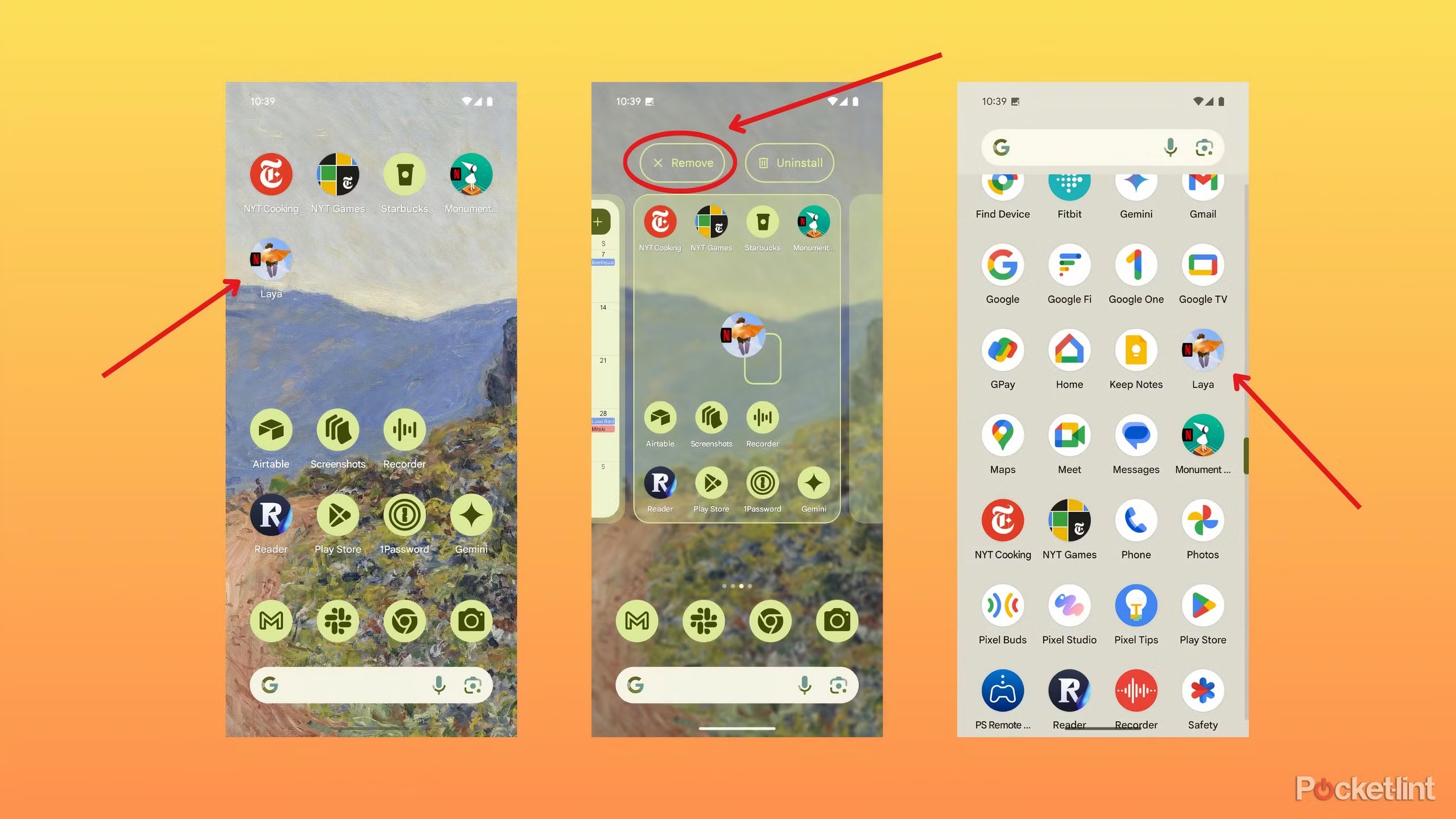
If your phone is still on an older Android build without Private Space, a third-party launcher such as Nova or Niagara can hide icons as a fallback, but treat that as the backup plan. Private Space is the cleaner route, and it is the one to use the moment your phone supports it.
Hide apps on OnePlus and Xiaomi
The two big Chinese OEMs both bake in their own version, and both lean on a gesture rather than a settings toggle, which trips people up the first time.
On OnePlus, OxygenOS calls it Hidden Space. Swipe outward with two fingers from the app drawer, or open the drawer and swipe right, and a separate hidden area slides in. You can move apps into it and protect the whole space with a password or fingerprint, so the apps inside stay out of the main drawer and behind a lock.
Xiaomi’s HyperOS handles it through Privacy Protection. Open Settings, Apps, App lock, and turn on Hidden apps, then choose which apps to hide. Once it is on, you reveal them with a pinch-out gesture on the home screen and an app-lock PIN. Hidden apps disappear from the drawer, recents, and notifications until you unlock them, which makes it closer to Samsung’s Secure Folder in feel than to a simple icon toggle.
Both the OnePlus and Xiaomi methods rely on a swipe or pinch to bring hidden apps back. If you set a separate password and then forget the gesture, the apps are still there, just genuinely hard to reach. Note the gesture somewhere before you hide anything you rely on.
Samsung Secure Folder for a fully encrypted workspace
If hiding an icon is not enough and you want the data itself sealed off, Secure Folder is Samsung’s heavyweight option. It creates a parallel, Knox-encrypted workspace with its own PIN or biometric lock. Apps and files inside it are walled off from the rest of the phone, so they do not show in the main launcher and their data stays encrypted even while the phone is unlocked.
Set it up under Settings, Security and privacy, Secure Folder. It is free and built in on Galaxy phones. A handy side effect is that you can install a second copy of an app inside it, signed into a different account, so one WhatsApp or one Instagram lives in the open and another lives behind the lock.
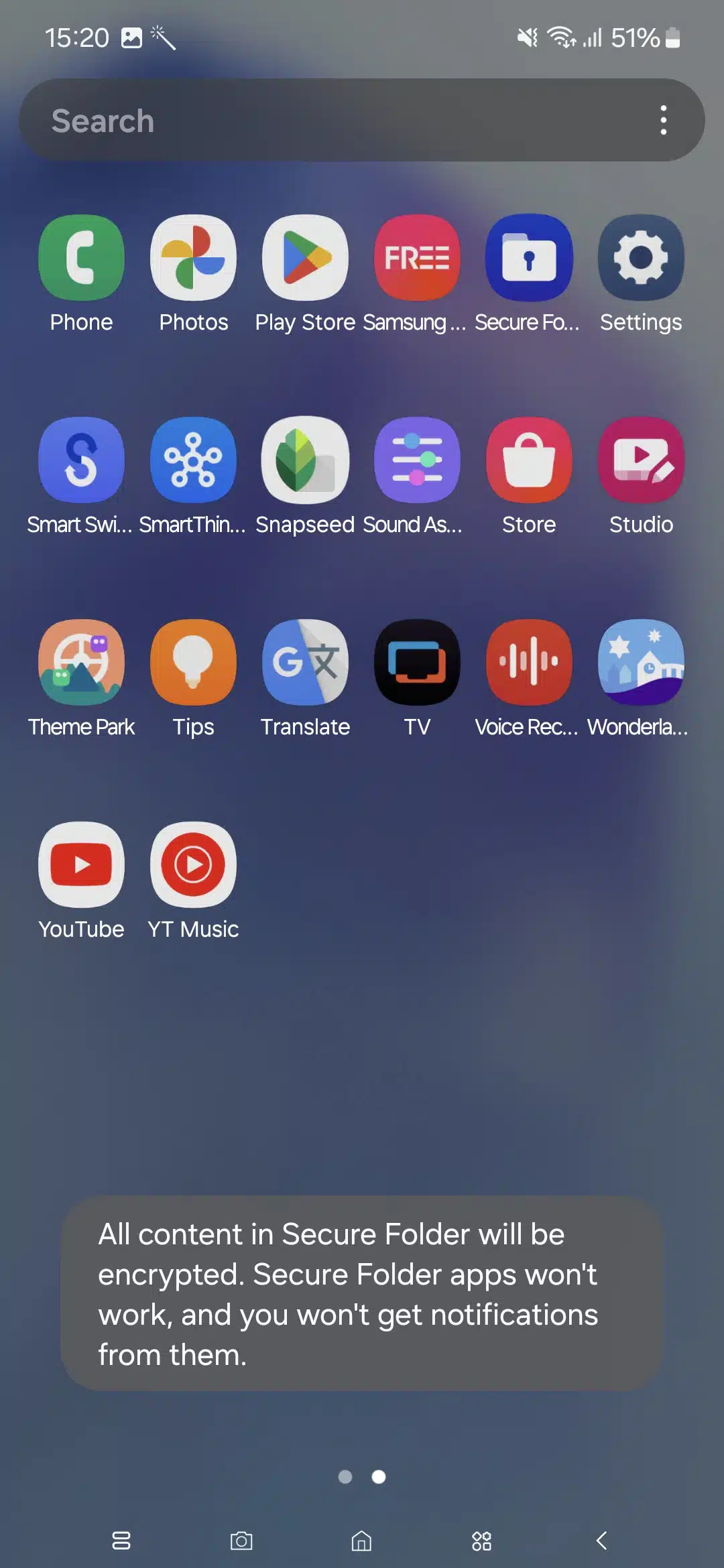
Because it runs on Samsung Knox, the contents are encrypted separately and stay unreadable without the Secure Folder lock, which is a meaningfully stronger guarantee than simply pulling an icon off the drawer. As Samsung puts it in its own explainer on what Secure Folder does, the space is designed to keep its data private even from the main user of the phone.
Files by Google Safe folder for hiding files, not apps
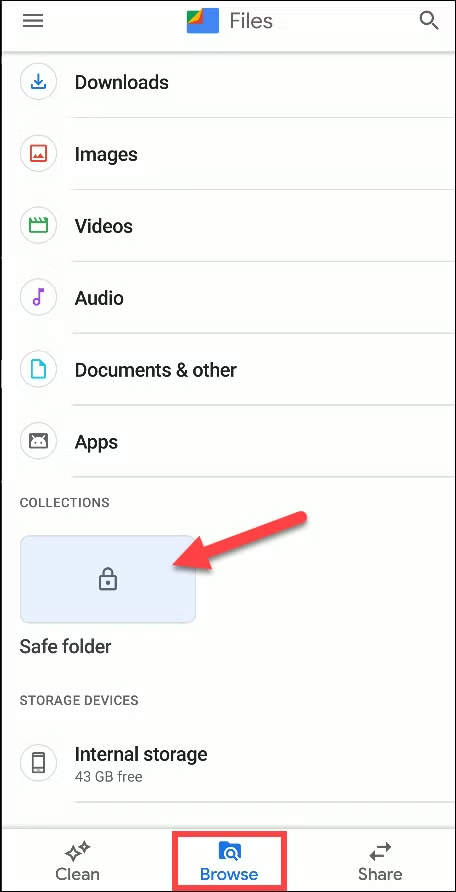
Sometimes the thing you want out of sight is not an app at all, it is a stack of documents or photos. Files by Google has a built-in Safe folder for exactly that, and it works on essentially any phone with the app installed.
Open Files by Google, tap Safe folder, and set a PIN or pattern with biometric unlock. To move something in, touch and hold a file, tap More, then Move to Safe folder. Files inside are excluded from search and from the usual categories, cannot be opened by other apps, and cannot be shared or backed up to Drive.
- Requires Android 8.0 or newer.
- Hidden files are left out of search, sharing, and Drive backup, and you cannot screenshot them while the folder is open.
- There is no recovery if you forget the PIN or pattern, so the files inside are gone for good. Pick a code you will remember.
Disable preinstalled bloat you cannot uninstall
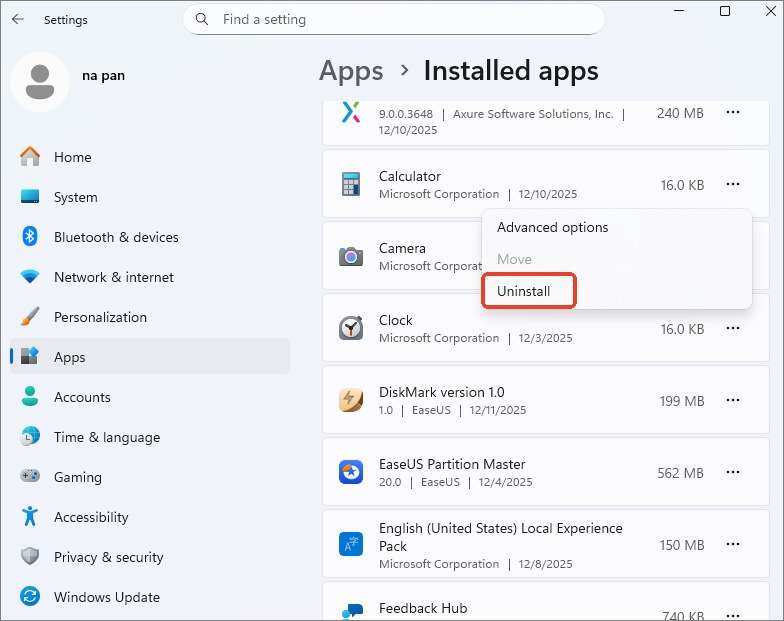
Not everything you want gone is something you chose to install. Carrier and vendor apps often cannot be uninstalled at all, but you can usually disable them, which makes them inert and pulls them out of the drawer.
Go to Settings, Apps, pick the offending app, and tap Disable. A disabled app stops running, stops updating, and disappears from the launcher, while staying on the phone in case you ever need it back. It is the cleanest way to deal with bloat you are stuck with, and you can re-enable it from the same screen at any time.
The verdict
Match the method to the job and you will almost never need anything from the Play Store. On a Galaxy, Hide apps clears the drawer and Secure Folder locks down anything sensitive. On a Pixel or other stock phone, Private Space is the built-in answer and the one to reach for first. OnePlus and Xiaomi owners get Hidden Space and Privacy Protection respectively, and Files by Google handles documents on any phone.
Two closing cautions. Steer clear of third-party hide-app utilities, since the permissions and ads they bring rarely justify what the OS already does for free. And remember that none of these methods hides anything from a managed work profile or company device management, so on a phone your employer controls, assume IT can still see what is installed.
We worked through each method on current builds of a Pixel, a Galaxy, and a OnePlus phone rather than describing the menus from memory, and cross-checked the Private Space, Secure Folder, and Files Safe folder steps against Google’s and Samsung’s official support pages. Menu paths drift slightly between OEM versions, so where a setting has moved we noted the search-bar shortcut that always finds it.