In This Article
Follow BestForAndroid


TL;DR
The pick: The 10 “hidden” Android tricks below are real settings most users never find: hidden developer toggles, accessibility shortcuts, navigation gestures, and customization options.
Runner-up: the original article framed these as “hacks” because that’s the search term; nothing here actually hacks anything. They’re documented Android features that aren’t in the default UI surface.
Skip if: you’re looking for cheats, mod APKs, or root-required modifications. Those are different categories with different risks; we don’t cover them here.
Android has dozens of useful features that aren’t in the default Settings flow. The 10 below are real, documented, supported by the OS, and don’t require root or modified APKs. They’re “hidden” only in the sense that you have to know they exist.
1. Developer Options (the menu Google doesn’t show by default)

Settings > About phone > tap Build number 7 times. Developer Options now appears in Settings > System. Most useful toggles inside: USB debugging (for ADB), animation scale (set to 0.5x for a faster-feeling phone), and Don’t keep activities (for testing how apps handle being killed and resumed).
2. Quick Settings tile customization

Pull down the notification shade twice to fully expand Quick Settings. Tap the pencil icon. Drag tiles to reorder, or pull tiles up from the bottom to add. The default tile order is rarely the best for any specific user.
3. App-specific volume control
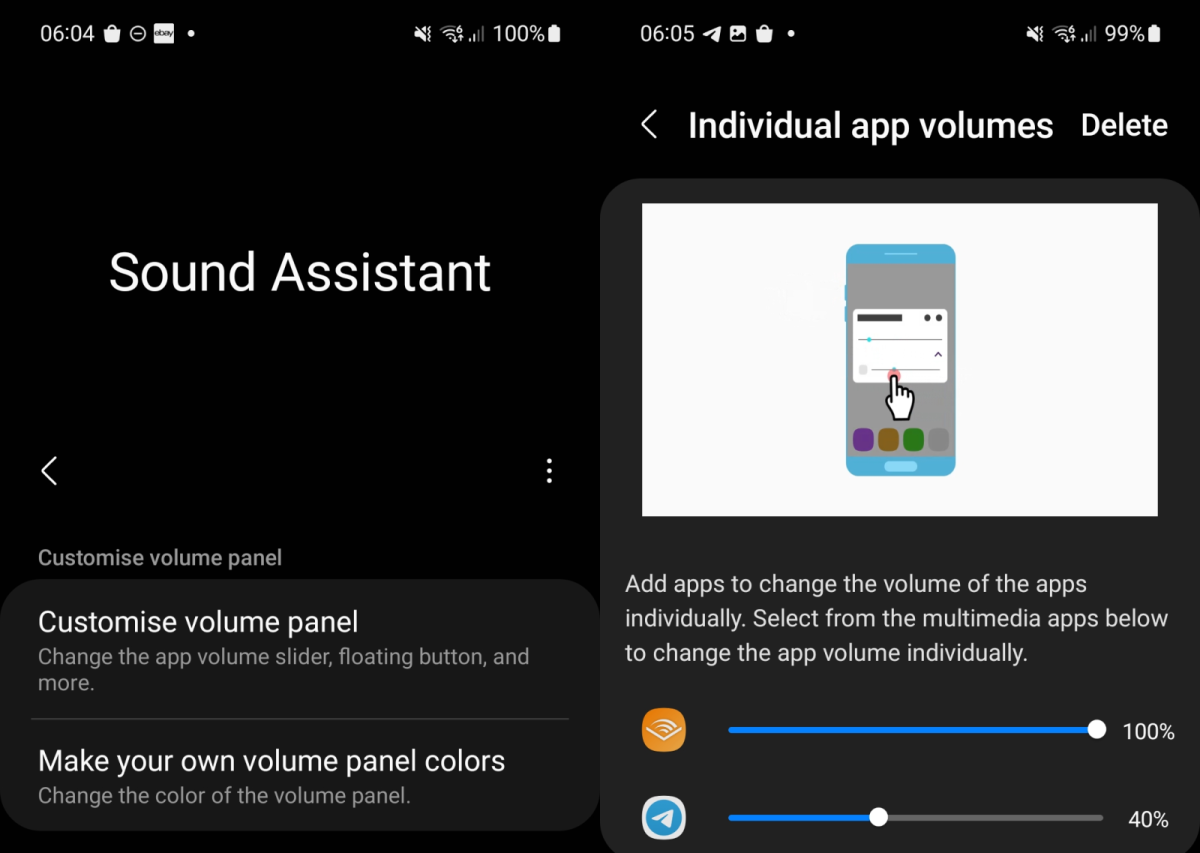
Settings > Sound & vibration > Volume on most current phones now has separate sliders for media, calls, ring, and notifications. On Pixel 9 Pro and Galaxy S25 Ultra, you can also long-press the volume rocker to expand to per-app volume on Android 16.
4. Accessibility shortcut for screen magnification
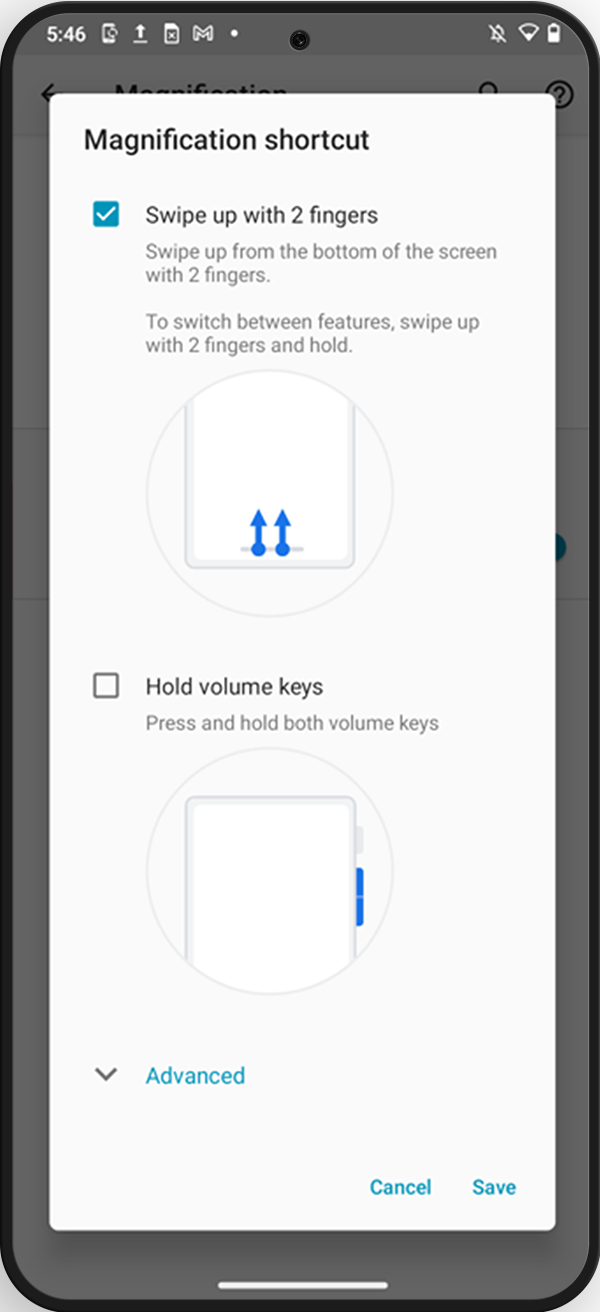
Settings > Accessibility > Magnification. Triple-tap to zoom in anywhere on screen. Useful for reading small text without changing system font size.
5. Bubble notifications for messaging apps

Settings > Notifications > Bubbles > On. Compatible apps (Messages, WhatsApp, Telegram) now show floating bubble UIs you can drag and reply from without leaving the current app.
6. Pause notifications via Modes

Settings > Modes (Android 16) > Do Not Disturb / Bedtime / Driving / Custom. Each mode lets you pre-configure which apps can interrupt and which are silenced. Schedule by time, location, or activity.
7. Smart text selection
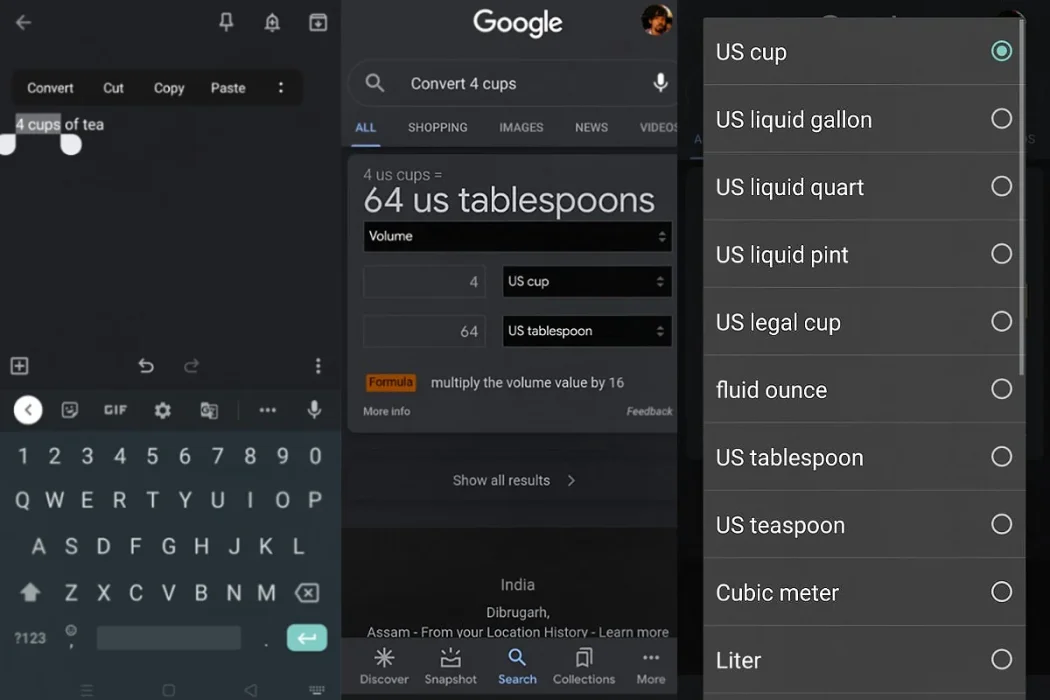
Long-press a phone number, address, or date in any app and Android will offer to call/navigate/add-to-calendar. Most users don’t realize this works in any app, not just Messages.
8. Live Caption
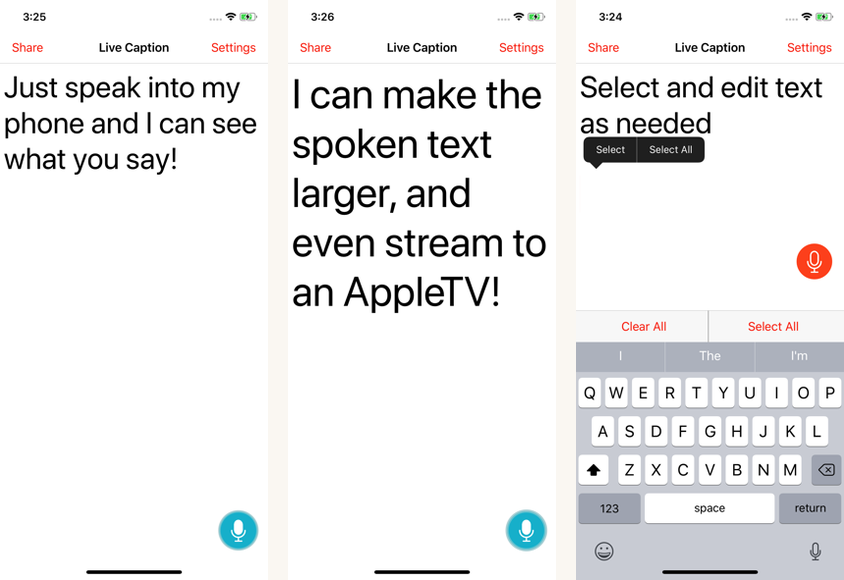
Power button + volume up to toggle. Live Caption transcribes any audio playing on the device (videos, podcasts, calls) in real time. Useful for low-volume environments and accessibility.
9. Find My Device offline finding
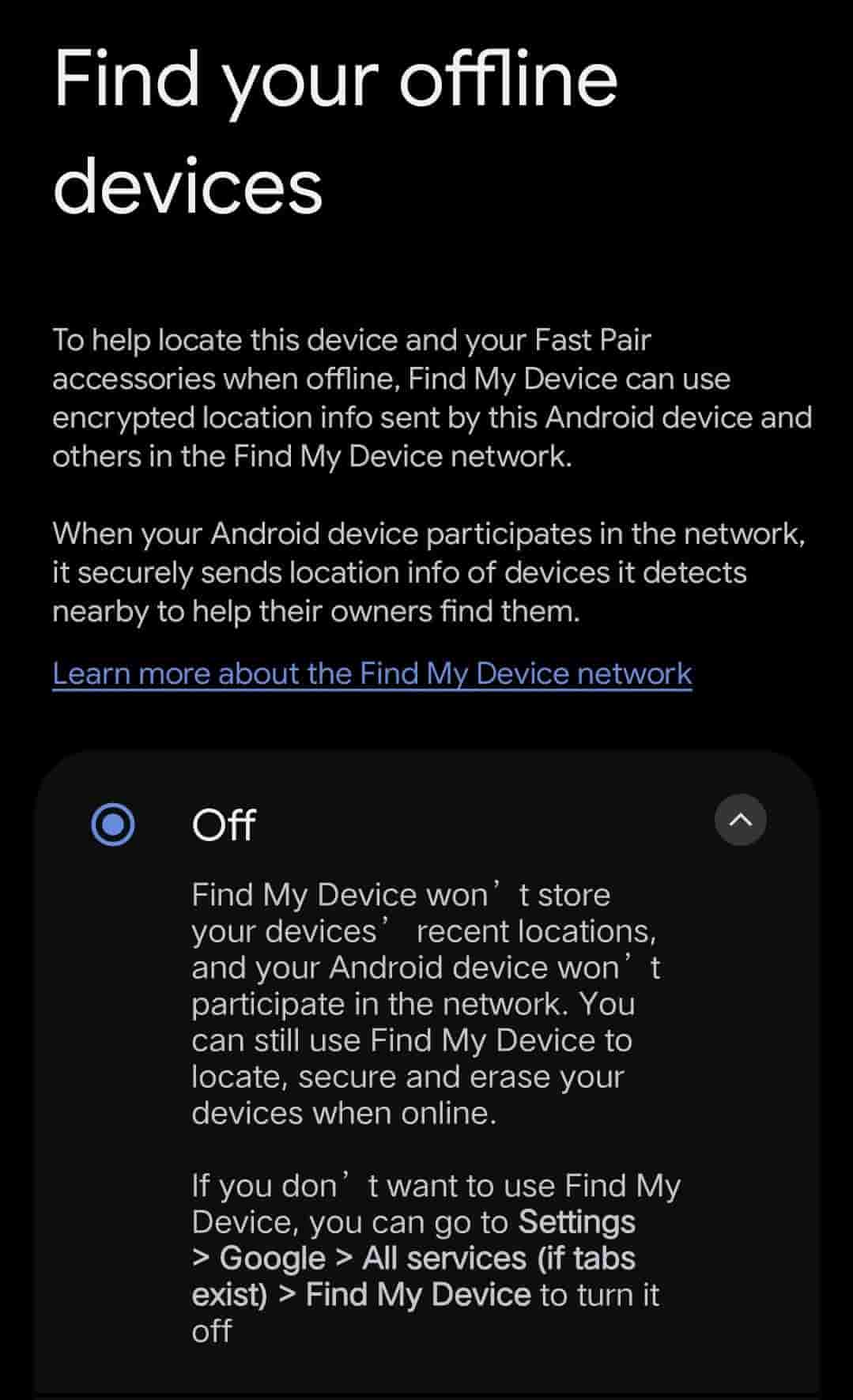
Settings > Google > Find My Device > Offline finding > On. Even when your phone is offline, nearby Android phones will detect it via Bluetooth and report its location to your Find Hub account. Network of more than a billion devices.
10. Gesture navigation customization

Settings > System > Gestures > System navigation. The default 3-button bar can be swapped for full gesture nav (swipe up to home, swipe up and hold for recent apps). Sensitivity is adjustable; the default is conservative.
Verdict
Ten Android features that change the daily experience but aren’t on the default UI path. None of them require root, modified APKs, or unauthorized modifications. The “secret” framing is search-driven; the features themselves are documented.