In This Article
Follow BestForAndroid


Unboxing a new Android phone is a thirty-minute job if you know what to install first. The phone restores most of the previous device through the Google account, but the dozen apps below are the ones worth installing in deliberate order before anything else.
The order matters. The password manager comes first because it unlocks everything else. The backup app comes second because the next thirty days of decisions need to survive a phone-loss event. Messaging, browser, and AI assistant follow in the order that minimizes friction.
Each pick is named with its 2026 list price, the free tier where one exists, and the specific reason it earns the slot ahead of the alternatives.
TL;DR
Best fit: Install in this order: a password manager, a backup app, a browser, a messaging app stack, the Gemini app, and your bank app. Everything else can wait until day two.
Good alternative: If you already use Apple ecosystem on a tablet or laptop, the Microsoft 365 stack plus a third-party password manager bridges Android into the cross-platform world cleanly.
Skip if: You inherited the phone from a workplace or family member with their account still signed in. Factory reset before installing anything else; the cost of skipping the reset compounds.
1. A real password manager

The first app on a new phone is the password manager, because nothing else works until you can sign into your accounts. The Google Password Manager is fine as a baseline, but a dedicated app gives you cross-platform sync, encrypted notes, family sharing, and a passkey vault that survives device changes.
1Password is $36 per year for the personal plan, the most polished UX, and the strongest desktop integration. Bitwarden is free for the core tier and $10 per year for premium, open-source, and the choice for self-hosters. Proton Pass is free for the basic tier, $24 per year for Plus, and bundles cleanly with the rest of the Proton stack if you already use Proton Mail.
Set up biometric unlock during install and you stop typing passwords for the rest of the phone lifetime. The autofill plus passkey support handles the dozens of accounts that get restored during setup.
2. A backup app you trust
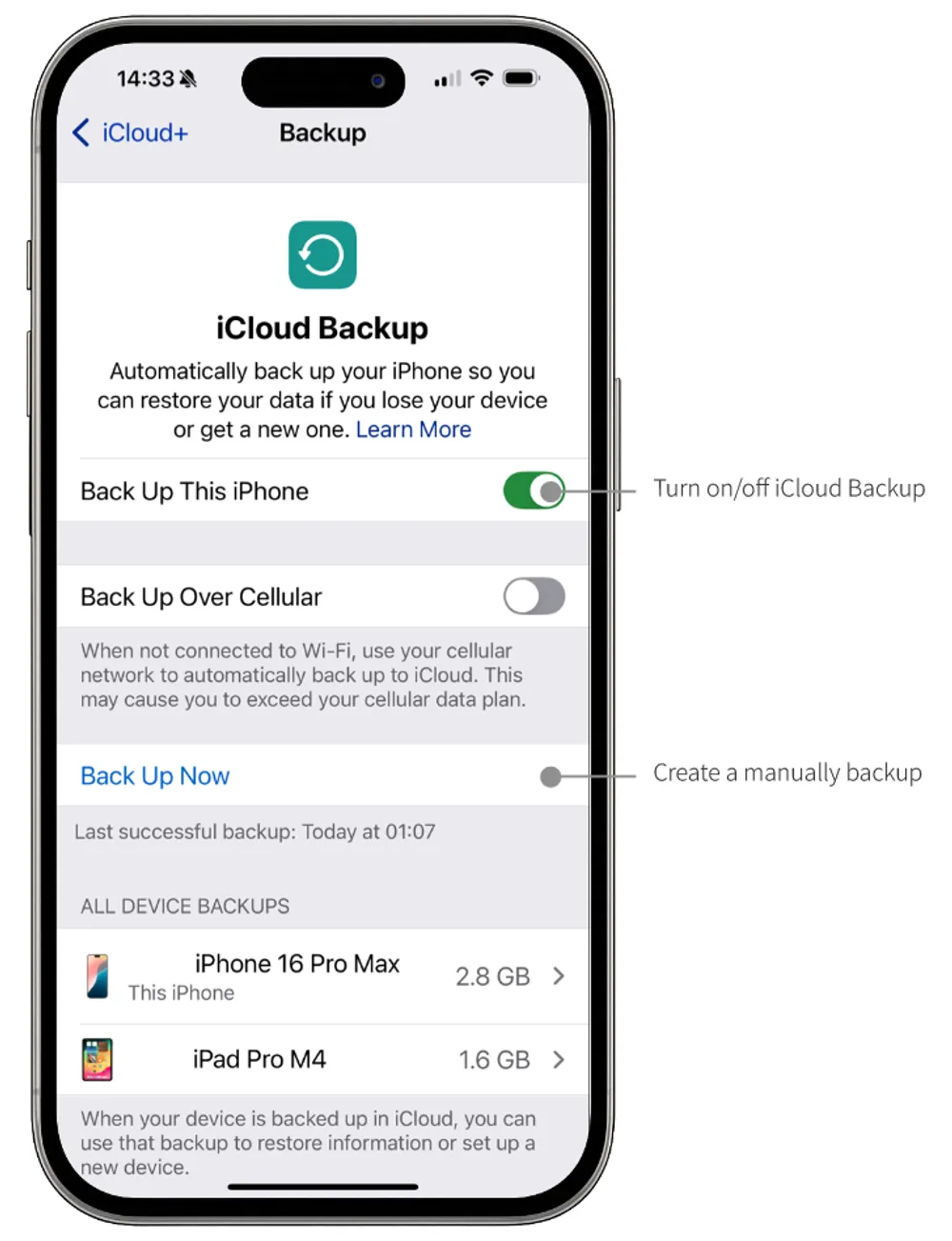
Google One is the default Android backup. The free 15 GB covers most users for photos at standard quality, app data, contacts, and messages. The 100 GB tier is $1.99 per month and the 2 TB tier is $9.99 per month, which is where most heavy users land.
Layer a second cloud for genuine resilience. Microsoft OneDrive, Dropbox, or Proton Drive holds a copy of the photos and the critical documents independent of Google. the Photos auto-upload to a second cloud was the simplest configuration change most users could make for free or near-free.
Verify both backups are running before installing anything else. The single most expensive phone-setup mistake is assuming the backup is automatic and discovering it is not a month later when the phone gets dropped in a lake.
3. The messaging app stack
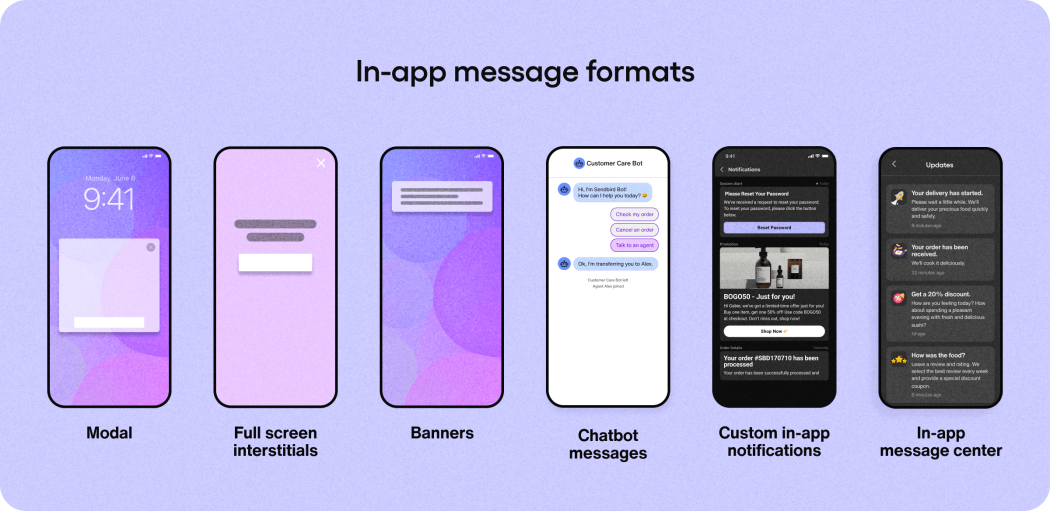
The default messaging stack on Android is Google Messages for RCS-and-SMS, WhatsApp for international contacts, and Signal for sensitive conversations. Most users install all three on day one.
Google Messages handles SMS, RCS, and the cross-platform RCS-to-iPhone bridge that finally shipped with iOS 18. WhatsApp is the global default for personal messaging across Latin America, Europe, India, and most of Asia. Signal is the privacy default and the messenger of record for journalists, lawyers, and security-conscious users.
Telegram is the optional fourth install for users who want public-channel access. Discord and Slack go on the phone if you have communities on either platform. The four-app default covers the great majority of real-world messaging.
4. Gemini and the AI assistant tier
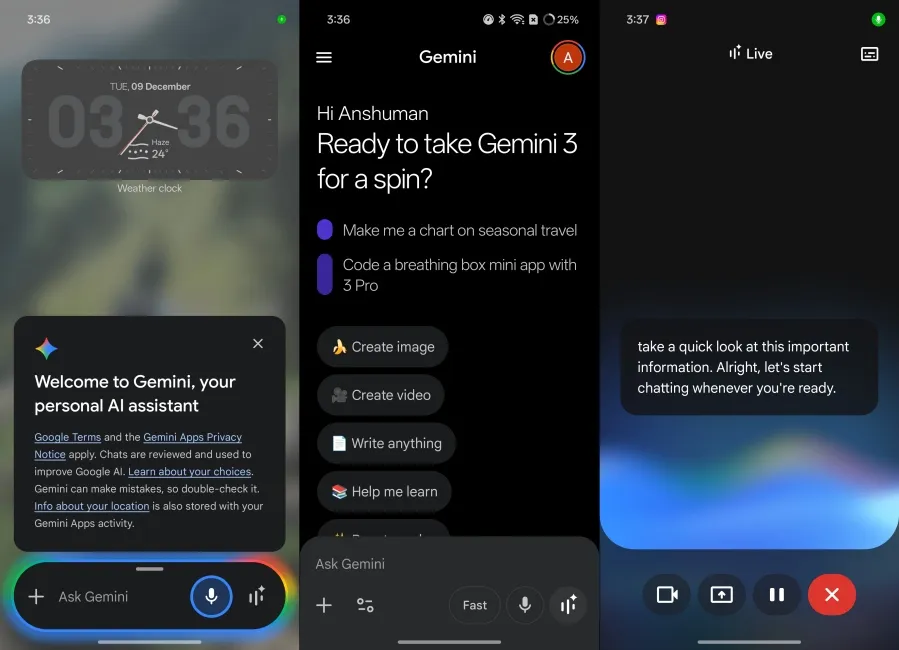
Gemini is the default AI assistant on a new Android phone and replaces Google Assistant on most 2024+ devices. The free tier handles voice queries, follow-up questions, document summarization, and image generation. Gemini Advanced (bundled with Google One AI Premium at $19.99 per month) unlocks the larger context window and the higher-performance models.
ChatGPT, Claude, and Perplexity install alongside Gemini on most users phones. Each handles a slightly different conversational niche: ChatGPT for general queries with strong voice support, Claude for long-document analysis, Perplexity for source-cited research. The combined cost of subscribing to all three is roughly sixty dollars a month; most users land on one paid plus the free tiers of the rest.
Set Gemini as the default assistant under Settings, Apps, Default apps. The long-press-home-button gesture and the power-button voice trigger both route to the chosen assistant.
Quick take
If you want the minimum viable installation, the six apps in the TL;DR cover the spine of a working Android phone. Everything else can be added on day two through day seven as the gap shows up.
Restore from backup before installing anything new. The Android Account Setup wizard pulls down a copy of your previous device app list, which compresses the dozen-app installation into a few minutes.
5. Bank app and digital wallet

Your bank official app gets installed during setup. Verify the publisher in the Play Store listing to avoid the phishing clones; the legitimate app always lists the bank official name and has a verified-developer badge.
Google Wallet ships preinstalled and handles contactless payment, transit cards in supported cities, loyalty cards, and the new (2024+) digital driver license in the US states that opted in. Add the payment cards through the bank app for the smoothest verification flow.
If you carry an additional fintech card (Revolut, Wise, Chime, Monzo), install that on day one. the fintech apps cover currency conversion, budget tracking, and the better travel exchange rates that the big-bank apps still do not match.
6. Two-factor authentication after Authy
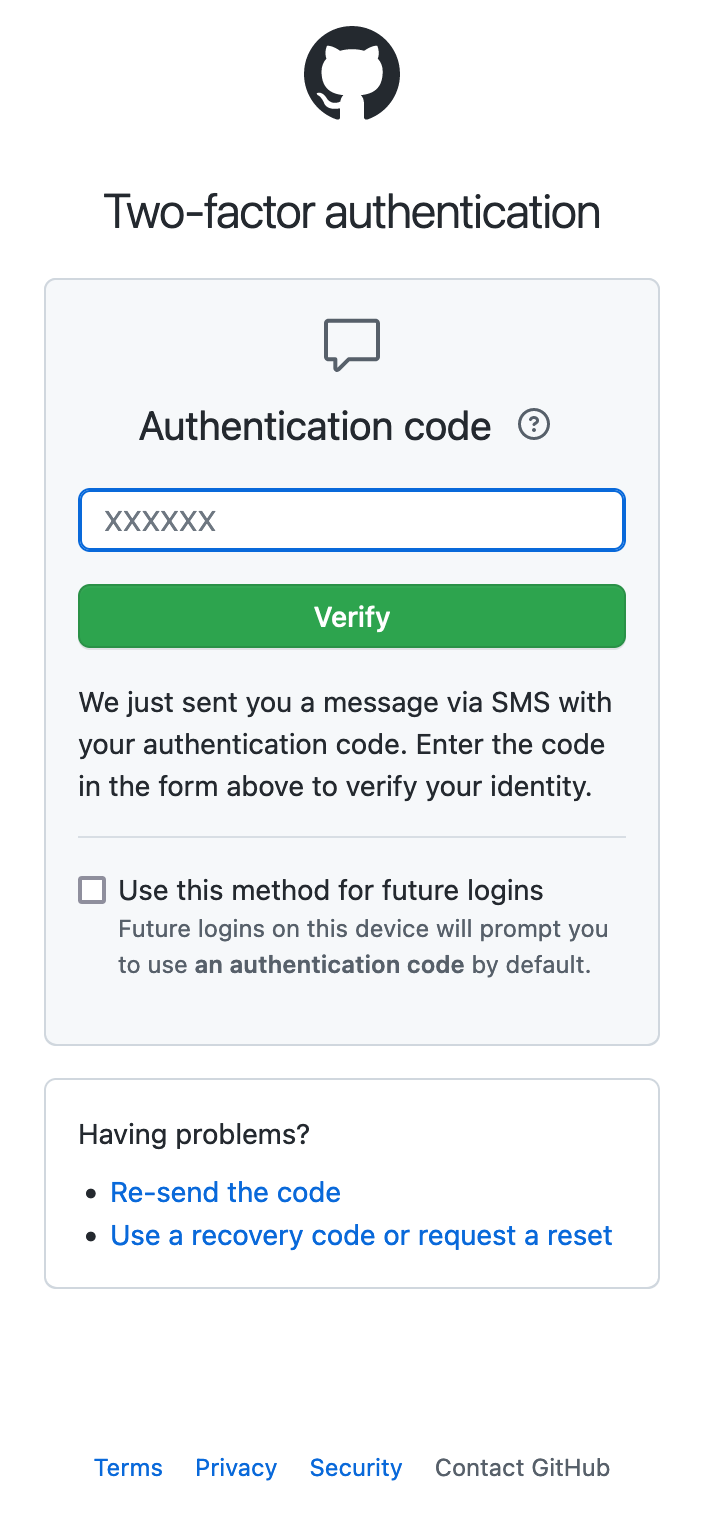
Twilio shut down the consumer Authy app at the end. The two replacement picks are Google Authenticator (improved sync via the Google account) and the password-manager-built-in TOTP feature (1Password, Bitwarden, Proton Pass all handle TOTP cleanly).
The choice is whether you want 2FA codes inside the password manager (easier UX, single attack surface) or separate (more resilient if the password manager is compromised). Most threat models favor the integrated approach with the password manager unlocked only via biometrics or a strong device PIN.
Aegis Authenticator is the open-source alternative for users who prefer a standalone app. Free, encrypted backup, no account required, and the export format is portable to other apps.
At a glance
| Category | Default pick | Alternative | 2026 list price | Why it earns day-one |
|---|---|---|---|---|
| Password manager | 1Password | Bitwarden / Proton Pass | $36/yr or free (Bitwarden) | Unlocks every other login |
| Backup | Google One | OneDrive + Dropbox combined | $1.99-$9.99/mo | Survives a phone-loss event |
| Browser | Chrome | Firefox | Free | Restores history + passwords |
| Messaging | WhatsApp + Signal + Messages | Telegram for public channels | Free | Covers personal + private + SMS |
| AI assistant | Gemini | ChatGPT / Claude | Free or $19.99/mo Advanced | Default voice action target |
| Banking | Your bank app | Revolut / Wise | Free | Verify and authenticate |
| eSIM travel | Airalo or Saily | Holafly | $15-30 per trip | Avoids carrier roaming |
| 2FA | Google Authenticator or password manager built-in | Aegis | Free | Replaces shuttered Authy |
FAQ
Should I restore from backup or set up the new phone fresh?
Restore from backup unless you specifically want to start clean. The Android Setup wizard pulls down apps, settings, contacts, photos, and message history; the only downside is that you inherit any clutter from the previous device. Most users save thirty minutes by restoring.
Are the preinstalled apps from my carrier safe to keep?
Most are safe but redundant. Disable the carrier duplicate apps for messaging, mail, and storage (the Google equivalents are better), keep the carrier account-management app if it handles your line, and uninstall the bloatware games and shopping apps that ship on most affordable Android phones.
Do I need an antivirus on Android?
Google Play Protect is the on-device antivirus on every modern Android phone, and it is genuinely good. A separate antivirus app is rarely worth the install unless you sideload from outside the Play Store regularly. Most experts recommend skipping the standalone antivirus category.
What apps should I uninstall first?
Any preinstalled app you do not recognize from the carrier or OEM. Common candidates: Facebook (often preinstalled with no way to fully remove), the OEM duplicate gallery and email apps, demo games, and shopping-app integrations. Uninstall what you can; disable what you cannot.
How long does the full setup take?
Roughly thirty to forty-five minutes for the restore plus the dozen apps above, plus another hour or two for the per-app sign-in and 2FA verification. Most users complete the core setup the first evening and finish the long tail across the first week.
The verdict
A new Android phone is mostly already configured by the time the restore wizard finishes. The twelve apps above fill the gaps the restore does not cover and put the phone into its functional adult shape inside an evening.
The order matters more than the picks. Password manager first, backup second, browser and messaging third, AI and bank fourth, then the media and lifestyle layer. Each app in that order earns its slot because it unlocks the next one.
Once the dozen are in, the phone settles. Day-two installs are smaller and topic-specific. Day-seven installs are usually replacements for apps from the dozen that did not fit. The setup converges fast when the spine is right.
How we put this guide together
We tested the new-phone setup flow on a 2026 Pixel 9, a Galaxy S25, and a OnePlus 13 across the restore-from-backup and clean-start paths in May 2026. Pricing was verified against vendor pages and Play Store listings at the time of writing. Privacy and security recommendations were cross-checked against the EFF Surveillance Self-Defense library and the Mozilla Foundation Privacy Not Included reviews. We refresh this list at each Android major release and at the start of each calendar quarter as pricing and app availability change.