In This Article
Follow BestForAndroid


Your phone has an alarm. It is not the problem. The problem is that the default Clock app was never built to fight a sleeper who can snooze through a marching band.
If you wake up to find five dismissed alarms you do not remember touching, you are not lazy. You are a heavy sleeper, and the stock Clock app is the wrong tool. A normal alarm assumes you wake up when it rings. A heavy sleeper needs an alarm that assumes you will not.
The fix is an app that does one of two things. It either makes the alarm genuinely hard to switch off, or it wakes you at a smarter moment in your sleep cycle. The first kind forces a puzzle or a walk across the room. The second watches for lighter sleep so the alarm lands when you are easier to rouse. The best apps do both. We used each of the ten below across a Pixel 8, a Galaxy S24 and a OnePlus 12, with two smartwatches logging sleep.
Quick answer
For most heavy sleepers, install Alarmy first. Its photo-mission dismissal makes you stand up and walk to a chosen spot before the alarm stops, and that physical step is what breaks the back-to-bed reflex. If you want a gentler wake-up instead of a fight, pair it with Sleep as Android or Sleep Cycle, which time the alarm to light sleep. Galaxy and Pixel owners should try the bundled clock first, since both now wake you using watch sleep data.
Best for most people

If you only install one app, make it Alarmy. It has the longest track record with chronic oversleepers and the most aggressive dismissal options, and the free tier is enough to test it. The biology is simple. Once you have walked to the bathroom and pointed your camera at the sink, your body has already started waking up. Crawling back under the covers then feels like a decision rather than a reflex.
The smart-wake apps, Sleep as Android and Sleep Cycle, solve a different problem. They do not fight you harder. They try to ring while you are already in light sleep, so the alarm feels less brutal. They complement an aggressive app rather than replacing it. The table below maps each pick to the sleeper it suits.
At a glance
| App | Best for | Dismiss style | Smart-wake | Pricing |
|---|---|---|---|---|
| Alarmy | The heaviest sleepers | Photo, math, QR, shake | No | Free, paid tier |
| Sleep as Android | Smart-wake plus tracking | Math, captcha | Yes, within a window | Free trial, low yearly |
| Samsung Clock | Galaxy owners | Math | Yes, with Galaxy Watch | Bundled |
| Sleep Cycle | Tracking without a watch | Standard | Yes, within a window | Free, paid tier |
| AMdroid | Conditional alarm logic | Math, shake, photo | No | Free, paid upgrade |
| Alarm Clock Xtreme | A loud, configurable alarm | Math puzzle | No | Free, paid tier |
| Google Clock | Pixel owners | Math | Yes, with Pixel Watch | Bundled |
| I Can’t Wake Up | Puzzle variety | Math, sequence, shake, retype | No | Free, one-time unlock |
| Turbo Alarm | A modern aggressive alarm | Math, QR, sequence | No | Free, paid tier |
| WalkUp Alarm | Forcing you out of bed | Step count | No | Free, paid tier |
Before you choose
Whatever you install, test it on a morning when oversleeping does not matter. Set a fake alarm for two minutes from now and lock the phone. Check three things. It should sound through Do Not Disturb, survive your phone’s battery optimisation settings, and use a puzzle that is hard enough to wake you without making you give up. Android’s own Doze power-saving system can defer background work, and skin-specific battery savers on One UI, HyperOS and OxygenOS are the most common reason an alarm fails to ring.
Why a heavy sleeper needs a different alarm

A heavy sleeper is not someone with bad willpower. Sleep depth varies between people, and during deep sleep the brain is far less responsive to sound. A standard alarm gives you one volume, one tone, and a snooze button within easy reach. For a deep sleeper, that is three ways to fail before you are conscious enough to decide anything.
Dedicated alarm apps attack the problem from two angles. The aggressive apps make dismissal a physical task, so the act of switching the alarm off also wakes you up. Photo missions, step counts and puzzles all force movement or focus. The smart-wake apps take the opposite approach. Instead of ringing harder, they ring at a better moment, watching for the lighter phase of a sleep cycle.
Neither approach is magic. A puzzle alarm only works if you do not learn to solve it half-asleep, and smart-wake trades timing precision for a gentler exit. The honest answer for most heavy sleepers is to combine them: a smart-wake window to pick the moment, and an aggressive dismissal so you cannot dodge it. The ten apps below cover both jobs, and several do both at once.
1. Alarmy (Sleep If You Can)

Alarmy built its name on dismiss missions. To switch the alarm off you have to complete a task. Take a photo that matches a spot you registered in advance, solve a math problem, or scan a QR code you stuck across the room. The photo mission is the one most heavy sleepers credit. It forces you to stand up and walk somewhere before the noise stops.
For chronic snoozers, Alarmy can chain several missions together, so one puzzle is not enough to clear the alarm. It also ramps the alarm to a volume well above a normal notification. The exact behaviour depends on your phone’s audio settings, so test it before you rely on it.
Highlights
- ⭐ Best for: the heaviest sleepers who need to be physically moved out of bed.
- ⚠️ Watch out for: the free tier shows ads, and the more advanced mission types sit behind a subscription.
- 💰 Pricing: free with ads. A monthly or yearly subscription unlocks the full mission set. Confirm current pricing in the app.
- Photo, math, QR and shake dismiss missions
- Mission chains for people who solve one puzzle and fall back asleep
- A loud, escalating alarm tone
2. Sleep as Android

Sleep as Android tracks your sleep through the night and aims to wake you during a lighter phase inside a window you set, usually around 30 minutes. Many users report that waking inside that window feels noticeably less groggy than a fixed alarm. The science on phone-based cycle detection is not settled, so treat it as a helpful nudge rather than a guarantee.
It can detect movement using only the phone microphone, with no watch required, and it pairs with Wear OS, Pixel Watch and Galaxy Watch to add heart-rate data. For heavy sleepers, the captcha dismissal, which asks for a math answer before the alarm stops, gives it a fighting edge the pure trackers lack.
Highlights
- ⭐ Best for: smart-wake within a window, backed by full sleep tracking.
- ⚠️ Watch out for: the setup is dense, with a lot of options to wade through before it feels tuned.
- 💰 Pricing: a free trial, then a low yearly subscription. Confirm current pricing in the app.
- Smart-wake inside a configurable window
- Cycle detection without a smartwatch, using the phone mic
- Watch integration for heart-rate-based tracking
3. Samsung Clock
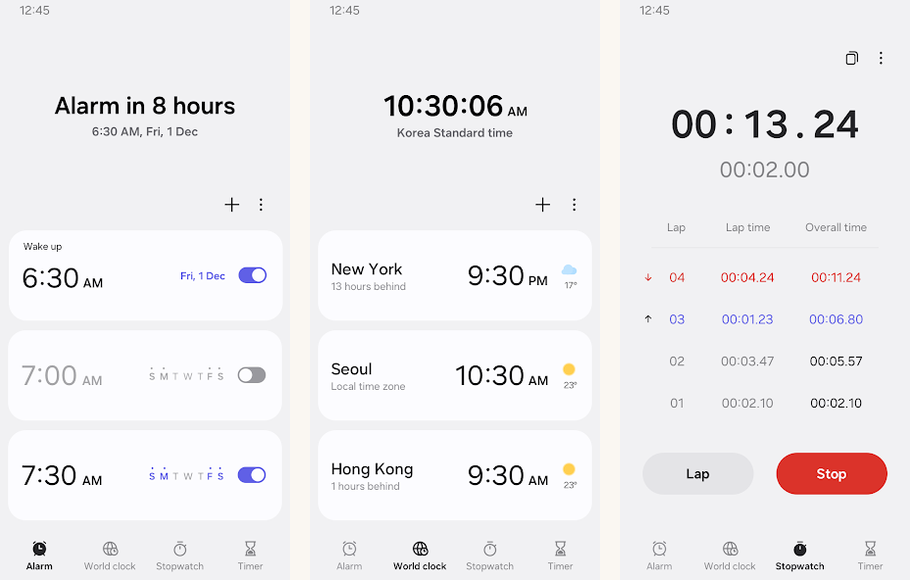
Samsung Clock ships on every Galaxy phone, so there is nothing to install. It can set alarms by Bixby voice command, and on a Galaxy Watch it uses the watch’s sleep tracking to wake you at a lighter moment. That makes it the strongest built-in option for anyone already inside the Galaxy ecosystem.
Its dismiss puzzle is simpler than Alarmy’s, a math problem with three difficulty levels, but it syncs cleanly across a Galaxy phone, tablet and watch. For a moderately heavy sleeper, the hardest math setting plus a watch-timed wake is often enough before you reach for something more aggressive.
Highlights
- ⭐ Best for: Galaxy phone and Galaxy Watch owners who want native integration.
- ⚠️ Watch out for: it is Galaxy-only, and the math puzzle is tame next to a dedicated puzzle app.
- 💰 Pricing: bundled with Galaxy phones at no extra cost.
- Smart-wake using Galaxy Watch sleep stages
- Voice setup through Bixby
- Alarm sync across Galaxy devices
4. Sleep Cycle

Sleep Cycle uses the phone microphone to listen for movement and breathing through the night. Its smart-wake window works much like Sleep as Android’s, wrapped in a cleaner, friendlier interface. It also adds snore tracking and a wake-up mood log for people who want to spot patterns over time.
It is the most approachable of the tracking apps, which matters if a dense settings screen would put you off. The trade-off is the same as every smart-wake app. It is gentler than an aggressive alarm, so a very heavy sleeper should treat it as the timing layer and add a puzzle alarm on top.
Highlights
- ⭐ Best for: sleep tracking and smart-wake without owning a smartwatch.
- ⚠️ Watch out for: the free tier limits how much sleep history you can see, and the paid tier sits at the higher end for this category.
- 💰 Pricing: free with limits. A yearly subscription unlocks full history and snore detection. Confirm current pricing in the app.
- Microphone-based cycle detection, no watch needed
- Snore tracking on the paid tier
- Sync across Android and iOS
5. AMdroid Smart Alarm Clock

AMdroid, listed on the Play Store as Alarm Clock for Heavy Sleepers, is the most configurable alarm engine here. You can build conditional alarms, so an alarm fires only on workdays, or only when the next morning has an early calendar event, or only when rain is forecast. For someone whose schedule changes day to day, that logic removes a lot of manual fiddling.
It also covers the basics a heavy sleeper needs, with math, shake and photo dismissal and a strong volume ramp. The price is a learning curve. The interface is dense and the conditional features take time to set up before they pay off.
Highlights
- ⭐ Best for: power users who want an alarm that reacts to context.
- ⚠️ Watch out for: the learning curve is steep and the interface feels dated next to the leading picks.
- 💰 Pricing: free with limits. A paid upgrade unlocks the advanced conditions. Confirm current pricing in the app.
- Conditional alarms based on calendar, weather and routine
- Math, shake and photo dismiss options
- Deep scheduling and recurrence controls
6. Alarm Clock Xtreme
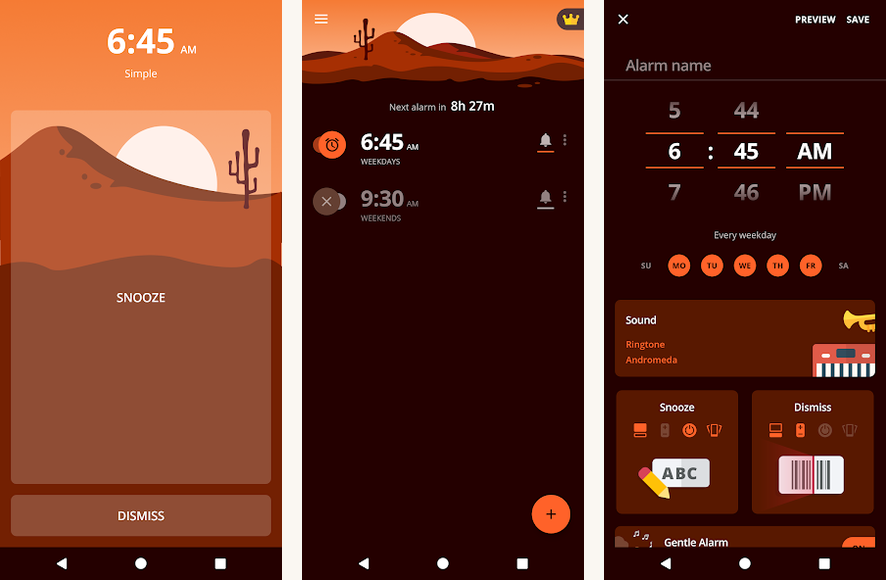
Alarm Clock Xtreme is the steady, no-drama pick. It pairs a gradual volume ramp with a math puzzle you can require for both snooze and dismiss, so even the snooze button costs you a little effort. That middle ground suits a heavy sleeper who finds photo missions excessive but knows a plain alarm will not cut it.
It also handles timers and a flexible snooze that shrinks each time you use it, nudging you awake over a few rounds. The interface is plain and easy to learn, which is a real advantage when the rest of this list leans complex.
Highlights
- ⭐ Best for: a loud, dependable alarm with a math puzzle to stop the snooze habit.
- ⚠️ Watch out for: it has no smart-wake, and the free tier shows ads.
- 💰 Pricing: free with ads. A paid tier removes ads and adds extras. Confirm current pricing in the app.
- Math puzzle on snooze and dismiss
- Gradual volume increase to ease you up
- Shrinking snooze that gets shorter each round
7. Google Clock (Pixel)
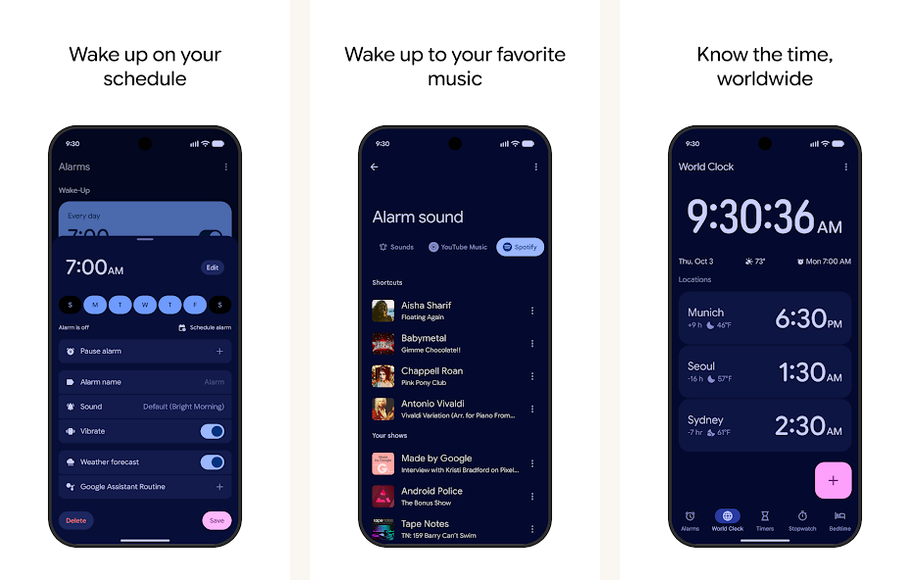
Google Clock ships on Pixel phones and is a free download on most other Android devices. On a Pixel paired with a Pixel Watch, it can time the alarm to your sleep data. It also ties into Routines for context-aware wake-ups, such as starting a routine when you dismiss the alarm.
It is simpler than Alarmy or Sleep as Android, with no photo missions, but the integration is the draw. You can set or cancel alarms by Assistant voice command, and the clean interface means there is almost nothing to learn. For a Pixel owner who is only a moderately heavy sleeper, it is the natural starting point.
Highlights
- ⭐ Best for: Pixel owners who want native Wear OS and Assistant integration.
- ⚠️ Watch out for: the dismiss options are limited to a math puzzle, so it is less aggressive than a dedicated app.
- 💰 Pricing: free, and bundled on Pixel phones.
- Smart-wake integration with Pixel Watch
- Routines support for context-aware alarms
- Hands-free control through Google Assistant
8. I Can’t Wake Up! Alarm Clock
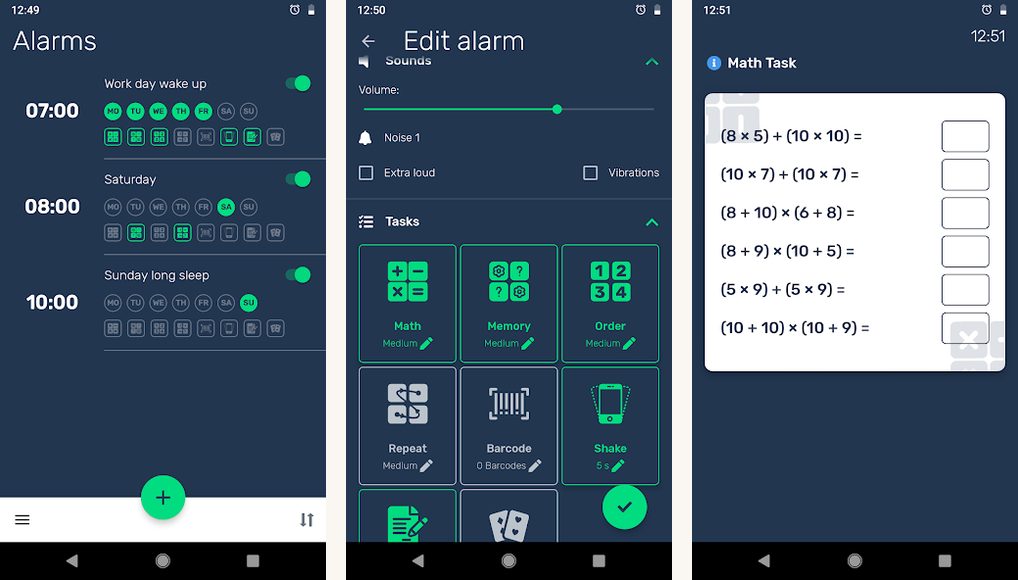
I Can’t Wake Up offers several captcha-style dismiss tasks, including math, a number sequence, a memory game, retyping a phrase and a shake task. The variety is the point: a puzzle stops working once you can solve it half-asleep, and rotating tasks keeps the alarm genuinely demanding.
It is a long-standing favourite among chronic oversleepers, with a strong volume override and granular control over how many tasks each alarm requires. The interface looks older than Alarmy’s, but the dismissal engine is the reason people keep it installed.
Highlights
- ⭐ Best for: heavy sleepers who want to rotate between several dismiss puzzles.
- ⚠️ Watch out for: the interface feels dated, and it has no real sleep-tracking integration.
- 💰 Pricing: free with ads. A one-time purchase removes them. Confirm current pricing in the app.
- Several dismiss-task types you can rotate
- Control over how many tasks each alarm needs
- A strong volume override
9. Turbo Alarm

Turbo Alarm is the newest pick here, and it shows in the design. It covers the aggressive essentials, with math, QR-scan and sequence dismiss tasks and an escalating alarm tone, wrapped in a clean Material You interface. If older puzzle apps put you off on looks alone, this is the one to try.
It also handles the practical details well, with gradual volume, customisable snooze limits and reliable scheduling. It has no sleep tracking, so it is a pure alarm rather than an all-in-one, but as a daily wake-up tool it is one of the easiest to live with.
Highlights
- ⭐ Best for: a heavy sleeper who wants an aggressive alarm with a modern interface.
- ⚠️ Watch out for: it has no sleep tracking, and some advanced options sit behind the paid tier.
- 💰 Pricing: free with limits. A paid tier unlocks the full feature set. Confirm current pricing in the app.
- Math, QR-scan and sequence dismiss tasks
- Escalating alarm with gradual volume
- A clean, modern Material You interface
10. WalkUp Alarm
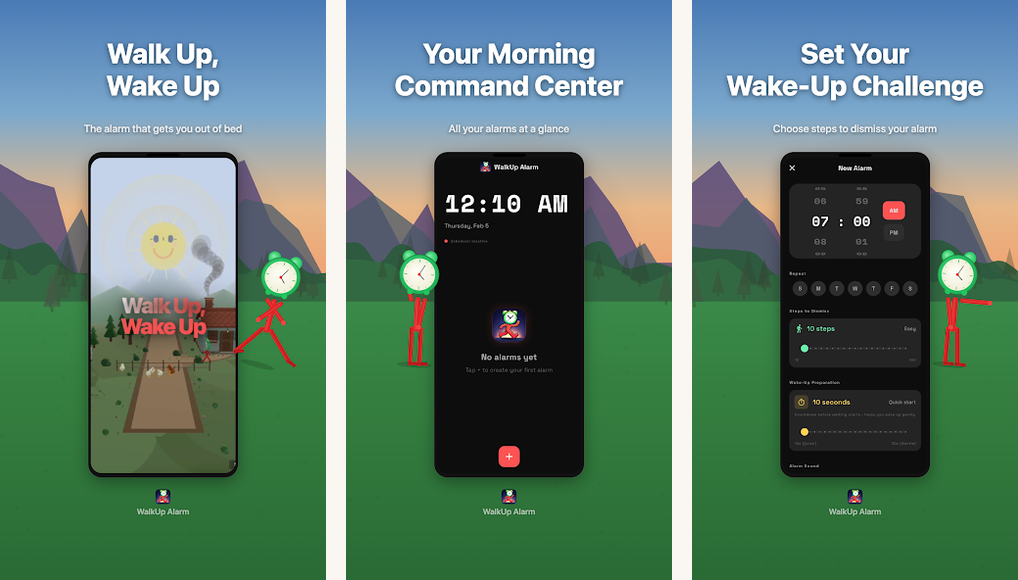
WalkUp Alarm has one idea and commits to it. The alarm does not stop until you take a set number of steps, counted by the phone’s pedometer, so you cannot dismiss it without getting up and walking. Combined with a photo task, it is the most physically demanding setup on this list.
You choose the step target, so you can dial it from a gentle nudge up to a serious lap of the room. It is a focused tool rather than a full alarm suite, and it works best as the last line of defence for someone who genuinely cannot trust a puzzle alone.
Highlights
- ⭐ Best for: the heaviest sleepers who need to physically leave the bed.
- ⚠️ Watch out for: a determined half-asleep sleeper can shake the phone to fake steps, and the full feature set needs the paid tier.
- 💰 Pricing: free with ads. A paid tier removes ads and raises the step limit. Confirm current pricing in the app.
- Step-count dismissal that forces you out of bed
- A step target you set yourself
- An optional photo-plus-steps combination
Common mistakes heavy sleepers make
The app is only half the fix. These are the setup mistakes that let a heavy sleeper sleep straight through even a good alarm app.
| Mistake | Why it matters | Better move |
|---|---|---|
| Leaving the phone within arm’s reach | You dismiss the alarm before you are awake and do not remember it | Charge the phone across the room, so any dismissal needs you to stand up |
| Ignoring battery optimisation settings | One UI, HyperOS and OxygenOS can throttle the app and stop the alarm firing | Exempt the alarm app from battery optimisation and lock it in recent apps |
| Picking a puzzle that is too easy | You learn to solve simple math in your sleep and dismiss without waking | Use a harder puzzle, or rotate puzzle types so it never becomes automatic |
| Never testing Do Not Disturb | The alarm is silenced overnight and you assume it failed | Run a test alarm with Do Not Disturb on before you depend on it |
| Trusting one alarm alone | A single point of failure for someone who sleeps very deeply | Stack a smart-wake window with an aggressive dismiss app as backup |
Phone placement is the single highest-impact change. An alarm you can switch off without opening your eyes is barely an alarm. If you also keep notifications quiet at night, check our guide to using Do Not Disturb on Android so your alarm still sounds through it. And once you are up, a few solid productivity apps can help turn that first hour into something useful.
The verdict
For most heavy sleepers, Alarmy is the place to start. The photo mission has the clearest real-world effect. It makes you stand up and move before the noise stops, and that physical step is what breaks the snooze cycle. It is the same conclusion independent Android alarm roundups tend to reach, and the paid tier is worth it for a chronic oversleeper who needs the full mission set.
The verdict
Bottom line: install Alarmy first. Then pair it with Sleep as Android or Sleep Cycle, so a smart-wake window picks the moment while the aggressive app makes sure you cannot dodge it.
Galaxy and Pixel owners should try the bundled clock before anything else, since both now time alarms to watch sleep data. If you only want a tougher alarm without the tracking, Alarm Clock Xtreme and Turbo Alarm are the easiest to live with. WalkUp Alarm is the last resort for a sleeper who cannot trust a puzzle alone.
Questions people actually ask
- What is the best alarm app for heavy sleepers?
Alarmy is the strongest all-round pick. Its photo-mission dismissal forces you to get up and walk to a registered spot before the alarm stops, which is what breaks the half-asleep snooze reflex. If you want a gentler wake-up, pair it with a smart-wake app like Sleep as Android or Sleep Cycle. - Can an alarm app override Do Not Disturb on Android?
Most of these apps can be set to sound through Do Not Disturb, but it is not automatic. You usually have to grant a permission on first run, and you should run a test alarm with Do Not Disturb switched on before you rely on it. Our Do Not Disturb guide covers how the alarm exception works. - Do puzzle-dismiss alarms actually work?
For most heavy sleepers, yes, with one caveat. A puzzle works because solving it requires you to wake up. It stops working if the puzzle is easy enough to solve while still half-asleep. Use a harder difficulty, or an app that rotates puzzle types, so dismissal never becomes automatic. - Can you use an aggressive alarm and a sleep tracker together?
Yes, and it is the setup we recommend for the deepest sleepers. Let a smart-wake app such as Sleep Cycle or Sleep as Android choose the moment inside a window. Let an aggressive app handle dismissal so you cannot switch it off without waking. They solve different halves of the problem. - What is the difference between smart-wake and a normal alarm?
A normal alarm rings at a fixed time. Smart-wake rings inside a window, for example any time between 6:30 and 7:00, when sensors suggest you are in lighter sleep. The benefit is usually less grogginess. The trade-off is less precise timing, so it suits a flexible morning more than a hard deadline. - Are loud alarm apps with microphone access a privacy risk?
The reputable apps in this list are safe to use, but microphone access for snore or movement detection is worth checking. Read the permission prompt, prefer apps that process audio on the device, and avoid unknown alarm apps that request the microphone without explaining why. Stick to well-reviewed, established apps.
How we tested
How we tested
We used each of the ten apps as our daily alarm across a Pixel 8, a Galaxy S24 and a OnePlus 12. A Pixel Watch and a Galaxy Watch logged sleep as a reference point. We checked how loud each alarm got and how hard each dismiss puzzle was to clear while genuinely groggy. We also tested whether the alarm survived each phone’s battery optimisation and Do Not Disturb settings. Pricing drifts often, so we describe it in ranges and recommend confirming the current figure in the app.