In This Article
Follow BestForAndroid


Short answer: The fastest way to back up texts and print them is to open a conversation, tap the menu and choose Print, then pick Save as PDF and print or share that file. For exporting whole threads in bulk, the free SMS Backup and Restore app saves to PDF, CSV, or HTML, while a PC tool like Droid Transfer handles large jobs and court-ready printouts. Google One quietly backs up your messages too, but you cannot open that backup to read or print a single text.
SAVE AND PRINT YOUR TEXTS
Android keeps your texts locked inside the messaging app. Here are the routes that actually let you export, save, and print them.
FAST AND FREE
Open a thread, choose Print, then Save as PDF. No app, no cost, ready in seconds.
BULK EXPORT
SMS Backup and Restore or a PC tool saves whole threads to PDF, CSV, or HTML.
THE CATCH
Google One backs texts up but will not let you open or print a single message.
Picture the moment you actually need this. A lawyer asks for a printout of a thread, a relative wants the last messages from someone they lost, or your boss needs a work conversation on file across two phones. There are plenty of reasons to pull a text conversation off your phone, and Android does not make any of them obvious. Your messages sit locked inside the messaging app, and getting a clean, readable copy out of there takes a bit more than a long-press.
The good news is that you have real options, and most of them cost nothing. The route you pick depends on how much you are exporting and how polished it needs to look. A single thread for your own records is one job. Hundreds of conversations formatted for a courtroom binder is another. This guide walks the full set: the built-in Print dialog, a free export app, and for heavy lifting a desktop tool like Droid Transfer, paired with its free Transfer Companion app. The aim is to match the method to the task instead of forcing one tool to do everything.

Why saving and printing texts is harder than it should be
The first thing to understand is that Android has no single, built-in Export Conversation button. The messaging app shows your texts beautifully, but it treats them as something to read, not something to hand off. That gap is what trips most people up when they first try to save a thread.
It is easy to assume your cloud backup has you covered, and in one narrow sense it does. When you back up your device with Google One, your SMS and MMS history travels with it, ready to drop back onto a new phone during setup. The catch is that this is a restore tool, not a viewer. You cannot open that backup to read, copy, extract, or print a single message; it only ever comes back as a full device restore. So for keeping a record, a Google One backup is close to useless. Android Police walks through every way to back up your old texts and lands on the same point: the backup that protects you against a lost phone is not the one that gives you a readable copy.
Screenshots are the other instinct, and they work fine for a few lines. But the moment you are dealing with a long back-and-forth, or several conversations at once, you end up with dozens of disjointed images that are a nightmare to stitch together, search, or print in order. For anything beyond a quick grab, you want a method that exports the whole thread as one clean document. That is where the rest of this guide comes in.
Your options at a glance
Before getting into the steps, here is how the main methods stack up. Two of the three cost nothing, and the right choice usually comes down to how many threads you are saving and whether you need a tidy printout at the end.
| Method | Free? | Can print? |
|---|---|---|
| System Print to PDF | Yes, built in | Yes, print the PDF or use the Print dialog directly |
| SMS Backup and Restore | Yes, with an optional paid tier | Yes, export to PDF then print |
| Google One backup | Yes, within your storage | No, restore only, you cannot open it |
| Droid Transfer (PC) | Free preview, paid to unlock full export | Yes, built for clean bulk printouts |
The free on-device route: Print to PDF
For most people saving or printing one conversation, this is the fastest path and it is already on your phone. Android’s system Print dialog can turn almost anything on screen into a PDF, and a single text thread is no exception. Open the conversation in your messaging app, tap the three-dot menu, and look for Print. If your app does not show a Print option directly, the share sheet often has one, or you can scroll the whole thread and the Print dialog will capture it.
Once the print preview appears, change the printer dropdown to Save as PDF instead of a physical printer. Tap the download button, choose where to store the file, and you have a clean, dated copy of the conversation. From there you can email it, drop it in cloud storage, or send it to a real printer later. To print on the spot instead, just leave a connected printer selected rather than the PDF option.
This method shines for single threads and quick jobs. Its limit is volume. The Print dialog handles one conversation at a time, so if you need to archive dozens of threads, the next two options will save you a lot of tapping.
The free app route: SMS Backup and Restore
When you want a proper, repeatable export rather than a one-off PDF, a dedicated app is the move. SMS Backup and Restore is the long-standing free choice on the Play Store, and it does exactly what its name promises: it pulls your SMS and MMS history into a backup file you actually control. It runs scheduled backups, can save to local storage or a cloud account, and restores cleanly to a new phone.
For getting messages onto paper, the relevant feature is its export. The app can output your conversations to formats including PDF, CSV, and HTML, so you can open a thread as a readable document, drop the data into a spreadsheet, or view it in a browser. From the PDF or HTML version, the same Print to PDF or Save as PDF step from the previous section gives you something you can print. The core app is free; a one-time paid upgrade removes ads and unlocks extras, but the export you need for printing is not locked behind it.
- Install and grant access: add the app from the Play Store and let it read your messages so it can back them up.
- Run a backup: choose what to include, SMS, MMS, or both, and pick local storage or a linked cloud account.
- Export to a readable format: open the backup or a single conversation and export it to PDF, CSV, or HTML.
- Print or share: open the PDF and print it, or push it through the system Save as PDF dialog for a tidy file.
There is also an older power-user tool, SMS Backup+, that funnels your texts into a Gmail label over IMAP. It still works, but it leans on app passwords and Gmail setup that most people will find fiddly today. Treat it as a legacy option rather than your first pick.
Google One: great for restore, useless for printing
It is worth being clear about where Google One fits, because a lot of people assume it is the answer and then hit a wall. Google One does back up your text messages as part of a full device backup, and that is genuinely valuable. If your phone is lost or you are setting up a new one, your conversations come back during the restore step without any effort on your part.
What it will not do is let you reach into that backup and pull out a single conversation to read or print. There is no file you can open, no thread you can export. The backup exists to rebuild a phone, not to give you a document. Google Messages has also been rolling out its own backup and restore tied to your Google account, which is handy for moving between phones, but it shares the same limitation: it is built for restore, not for extracting a printable record. So keep Google One on for peace of mind, but reach for one of the export methods above when you actually need a copy in hand.
The tool that protects you against a lost phone, a full Google One device backup, is not the tool that hands you a readable thread. Whole-device backups restore everything at once and expose nothing in between. If your goal is a document you can read, search, or print, you need an export method, not a backup. Keep both running and use each for what it is good at.
The PC power route: Droid Transfer for bulk and court-ready printouts
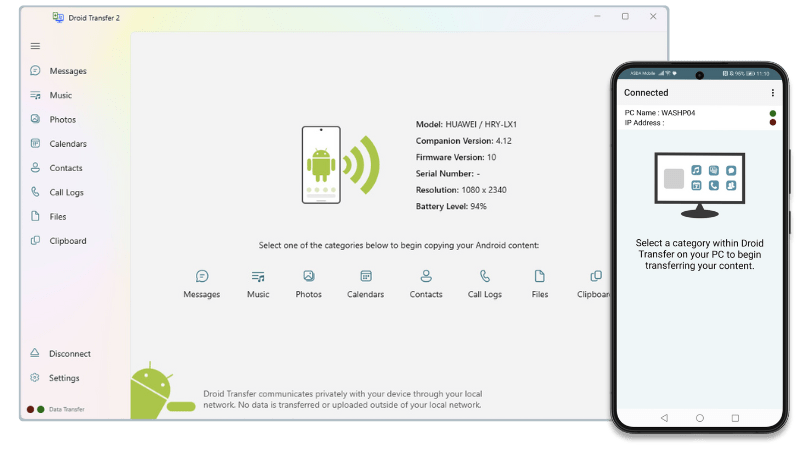
When the job gets serious, hundreds of threads, attachments that have to survive the export, or a printout polished enough for a legal file, a desktop tool earns its place. Droid Transfer, the Wide Angle Software app linked above, is a Windows program that copies messages, photos, call logs, and more between your Android phone and a PC, with nothing uploaded to the cloud. Everything stays local on your computer, which matters when the contents are sensitive. There is no rooting involved, and it pairs over Wi-Fi or a USB cable.
The standout for this guide is how it handles message exports. It saves SMS and MMS along with their attachments, photos, videos, emoji, and links, and keeps the full date and time stamps, contact names, and numbers intact. You can export a conversation to PDF, HTML, CSV, or plain text, and the PDF and HTML layouts are clean enough to print straight into a binder. For bulk work you can select every thread at once or pick several at a time, then export or print the lot in one pass instead of one conversation at a time.
Getting set up takes two pieces: the Droid Transfer app on your PC and the free Transfer Companion app on your phone. To pair over Wi-Fi, open Transfer Companion and scan the QR code shown in Droid Transfer on the computer. To pair over USB instead, enable Developer Options and USB debugging on the phone, then connect the cable. From there, open the Messages tab, select the conversations you want, and either save them to a folder or send them to your printer.

Droid Transfer is the one paid option here, with a free preview that lets you try the workflow and a one-time license to unlock unlimited export. Pricing on the vendor’s site shifts over time, so check the current figure before you buy. Tom’s Guide on backing up and restoring Android text messages covers the free routes in more depth if you would rather not pay; the case for a tool like this is purely the time it saves on big jobs and the quality of the printout at the end.
What ends up in your backup or printout
What survives the export depends on the format you pick, and it is worth knowing before you commit to one. A full-featured PDF or HTML export from a tool like Droid Transfer carries far more than the words. You get the message text and any images, stickers, video, emoji, and links, plus the sender’s name, contact image, phone number, and the exact send time and date. That metadata is what makes an export hold up as a record rather than a screenshot.

The format does set limits, though. Videos cannot live inside a physical printout, so a printed page shows them as a placeholder rather than playable media. Text-only formats like CSV and plain text drop images entirely, since there is nowhere to put them; they are best when you want the words in a spreadsheet, not the full visual thread. Match the format to the goal: PDF or HTML for a faithful copy, CSV or plain text for data you plan to sort or search.
| Format | Best for | What it drops |
|---|---|---|
| Sharing and printing a faithful copy | Playable video on printed pages | |
| HTML | Viewing in a browser with media intact | Nothing major for on-screen use |
| CSV | Loading into a spreadsheet | Images and other media |
| Plain text | The smallest, most portable file | Images and all formatting |
Customizing the export before you print
Most export tools let you shape the output before you save or print, and a few minutes here makes the final document far more useful. The most common controls are date-range filtering, so you can pull just the months that matter instead of years of chatter, and a media tab for extracting photos and videos on their own when you only want the attachments.
For printouts specifically, look for options to hide or show contact images and phone numbers, adjust the font size, and switch on a compact layout that fits more onto each page. Those settings are the difference between a printout that runs to thirty pages and one that comes in at ten without losing anything you need. Decide what the document is for, a personal keepsake, a work archive, a legal exhibit, and trim accordingly before you hit print.
Which method should you choose?
There is no single best tool here, only the best fit for the job in front of you. If you are saving or printing one conversation, the built-in Print to PDF dialog does it in under a minute and costs nothing. If you want a repeatable backup with PDF, CSV, or HTML exports across many threads, the free SMS Backup and Restore app is the sensible default. If you need to export hundreds of conversations with attachments intact, or a printout clean enough for a legal file, a desktop tool like Droid Transfer is worth the license.
Keep Google One backups switched on no matter which you pick, because they are your safety net against a lost or broken phone. Just remember that the safety net and the readable copy are two different things. Decide whether today’s task is protect my data or hand someone a document, then reach for the method that actually does that job.
One thread to keep? Print to PDF. A regular backup with readable exports? SMS Backup and Restore. A big archive or a courtroom-ready printout? A PC tool like Droid Transfer. Whole-device safety net? Google One, with the understanding that you cannot open it. Pick by the job and you will spend minutes, not an afternoon.