In This Article
Follow BestForAndroid


Parental controls split into two layers now. Family Link and Apple Screen Time ship inside the operating system and cover the basics for free. A third-party app has to earn its keep past that, on cross-platform reach, deeper content scanning, shared-custody dashboards, or social-DM monitoring that the platform vendors will not touch.
We ran ten apps on a Pixel 8a, an iPhone 16, a Galaxy Tab A9+, and a Chromebook over six weeks, with two simulated child profiles aged eight and fourteen. The ranking below leads with the picks that worked across every device without nagging the kid each time they switched.
Skip the picks that ask you to sideload an APK or install an enterprise iOS profile. Both are red flags for app quality and Play Store / App Store compliance, and both tend to break the moment the platform vendor tightens a permission.
Quick Overview
If you are scanning fast, here is the lineup by what each pick does best.
- Qustodio: Widest device coverage. Android, iOS, Windows, macOS, ChromeOS, and Kindle in one dashboard.
- Google Family Link: Free, deep Android integration, weekly AI summaries. The default if every device is Android or ChromeOS.
- AirDroid Parental Control: Live screen mirroring and a remote camera for mixed Android-and-iPhone homes.
- Apple Screen Time: Built into iOS and macOS. Detects AI-generated explicit images in Communication Safety; nothing third-party matches the depth.
- Bark: Scans messages, photos, and social DMs and alerts the parent. The teen-friendly pick where blocking would backfire.
- Norton Family: Bundled with Norton 360 Premium. Reasonable if you already pay for Norton; weak as a standalone purchase.
- Mobicip: Closest cross-platform competitor to Qustodio at a lower price. Stronger Android filtering, weaker iOS reach.
- Microsoft Family Safety: Free with any Microsoft 365 family plan. Strongest pick for Windows + Xbox households.
- Net Nanny: Best web filtering granularity in the category. Mobile clients feel a half-step behind the dashboard.
- Kidslox: Lightweight screen-time scheduler with simple geofencing. Good entry-level pick for younger kids.
1. Qustodio
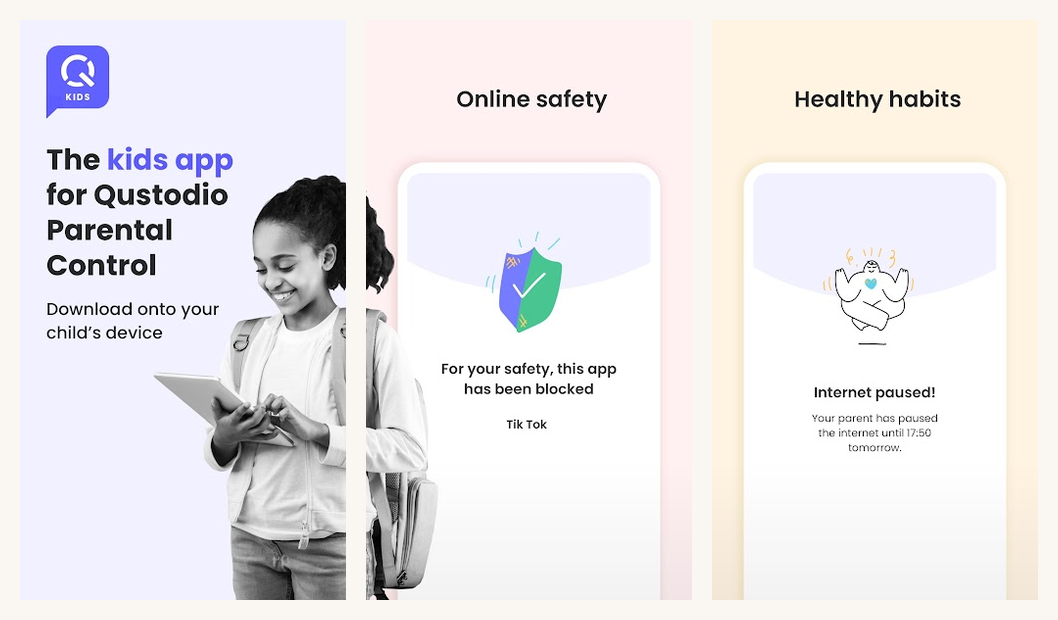
Qustodio earns the top slot because nothing else covers Android, iOS, Windows, macOS, ChromeOS, and Kindle in one dashboard with comparable filter quality. The on-device context detection added recently catches grooming-language patterns that the older keyword filters missed, and the YouTube category-level controls finally separate Kids content from Shorts.
The Premium Complete plan at $99.95 yearly covers up to fifteen devices, which fits most family setups including grandparents’ tablets and an old hand-me-down phone. The free tier remains usable for a single device, but the multi-device dashboard and the call and SMS monitoring are paywalled.
Highlights
⭐️ Best for: Cross-platform households where Android, iOS, Windows, and ChromeOS all need to land in one parent dashboard.
👎🏼 The catch: Pricing is at the top of the category, and the iOS client still needs a VPN profile to do its job, which some parents find intrusive.
💰 Pricing: Free tier on one device; Premium Complete $99.95/year for up to 15 devices.
Key Features
- Cross-platform coverage: Android, iOS, Windows, macOS, ChromeOS, and Kindle from one dashboard
- Context-aware filtering: On-device classifier flags grooming language and harmful content beyond keyword lists
- YouTube category controls: Separate caps for Kids, Shorts, and main feed instead of one blanket YouTube rule
- Call and SMS monitoring: Premium tier logs SMS metadata and inbound numbers, useful for younger kids’ first phone
2. Google Family Link
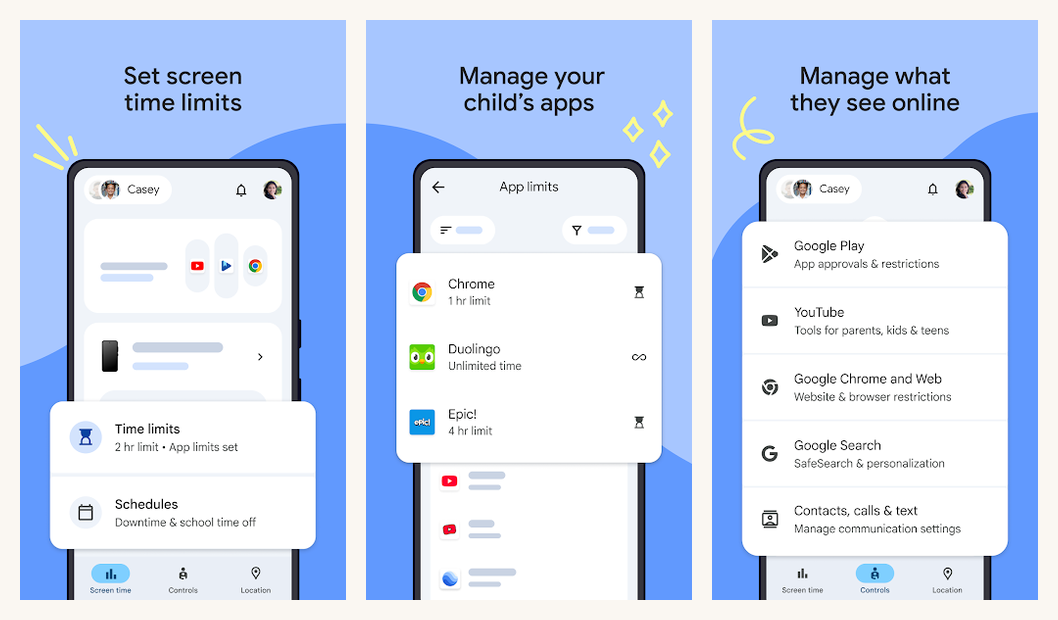
Family Link grew up. The current build adds AI summary cards each Sunday with usage trends, location patterns, and flagged content categories, all without a subscription. Screen-time scheduling now respects school timezones automatically when the child travels, and approval flows for new app installs work reliably on Pixel and recent Samsung hardware.
The gap is cross-platform reach. Family Link can read activity from an iPhone only when the child uses Chrome and signs into a managed Google account, which is unusual. Mixed-device households still need a third-party tool on top, but Android-and-ChromeOS-only homes get a free supervisor that beats most of the paid suites on integration depth.
Highlights
⭐️ Best for: Android-only or Android plus ChromeOS households where every device is on a managed Google account.
👎🏼 The catch: iPhone coverage is minimal in practice. The kid only has to switch to Safari to slip out of view.
💰 Pricing: Free.
Key Features
- Sunday AI summary cards: Weekly digest of usage trends, locations visited, and content categories flagged
- Per-app screen time: Hard daily caps on individual apps plus an overall device cap, with shared overrides
- School time scheduling: Auto-detects timezone changes and shifts the school-hours block when the kid travels
- App install approvals: Every new install pings the parent device with category and rating before it lands
3. AirDroid Parental Control
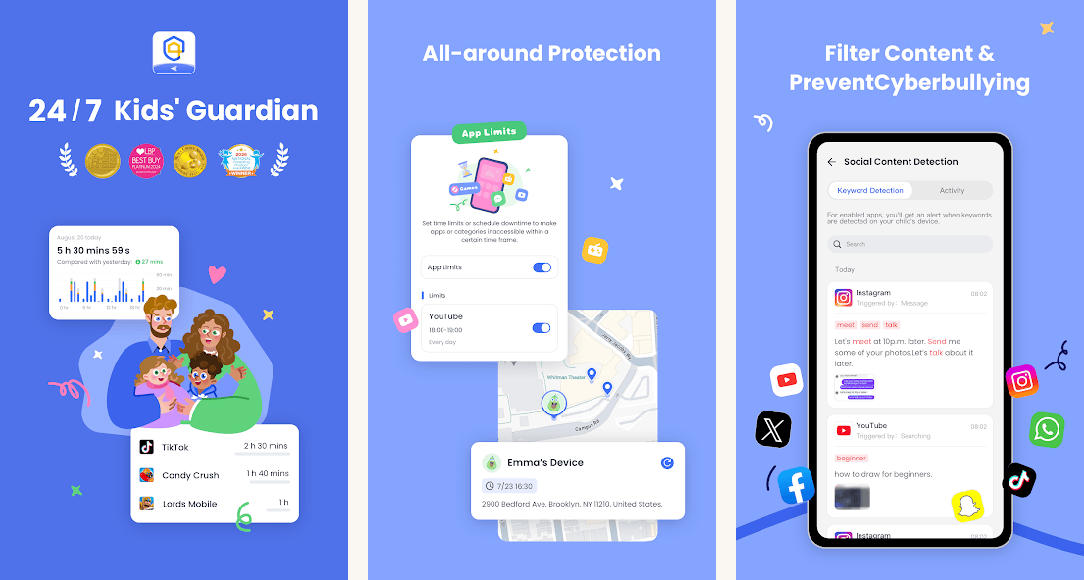
Most apps on this list manage screen time. AirDroid Parental Control is built to watch the moment itself. Screen mirroring puts the kid’s Android screen on your phone in real time, and the remote camera with one-way audio tells you what is happening around the device, not just on it. Social-content detection covers the awareness side too, flagging cyberbullying, explicit material, and self-harm signals on supported platforms.
Cross-platform reach is the other half of the pitch. The parent app runs on Android, iOS, or a web browser, and the kid’s app installs straight from Google Play or the App Store, so an Android parent can supervise an iPhone kid without workarounds. A three-day trial unlocks everything; after that, $9.99 a month (or $59.99 a year, closer to $5 a month) covers up to ten devices. The ceiling is Apple’s: live-view features only work when the kid’s phone is Android, while an iPhone kid gets location tracking with geofencing, app and website limits, and downtime schedules.
Highlights
⭐️ Best for: Mixed Android-and-iPhone families who want live remote monitoring layered on top of the usual limits, alerts, and location tools.
👎🏼 The catch: Screen mirroring, remote camera, and one-way audio need an Android device on the kid’s side. An iPhone kid gets the standard toolkit, not the live view.
💰 Pricing: 3-day free trial; $9.99/month or $59.99/year (about $5/month) for up to ten devices.
Key Features
- Live screen mirroring: The kid’s Android screen on the parent’s device in real time
- Remote camera and one-way audio: A look and a listen at the device’s surroundings when a check-in call goes unanswered
- Social content detection: Flags cyberbullying, explicit content, and self-harm signals across popular social apps
- Geofencing and location: Real-time GPS, safe-zone alerts, and location history on both Android and iPhone
4. Apple Screen Time

If both you and your kid are on iPhone or iPad, Screen Time is the strongest answer and it is already installed. Communication Safety expanded to detect AI-generated explicit images in Messages. Downtime now blocks specific bundled iCloud accounts from group iMessages, and the Family Sharing dashboard exposes per-app and per-website usage without a third-party app touching the device.
The catch is the trust model. Apple gives kids the technical ability to disable Screen Time if they know the Screen Time passcode, and a determined teen will eventually figure it out. Set a Screen Time passcode separate from your device unlock code, and keep it off the family iCloud Keychain so it does not auto-sync to the kid’s device.
Highlights
⭐️ Best for: iPhone-and-iPad-only households where everyone, including the parents, lives inside Apple’s ecosystem.
👎🏼 The catch: No Android coverage at all. A determined teen with the Screen Time passcode can disable the whole thing.
💰 Pricing: Free, built into iOS, iPadOS, and macOS.
Key Features
- Communication Safety: On-device image classifier blurs sexually explicit photos, including AI-generated ones, in Messages
- Downtime windows: Schedule a full lockdown across all of a child’s devices simultaneously
- App and category limits: Daily caps per app or per category (Social, Games, Entertainment) with parent override
- Family Sharing dashboard: Per-app and per-website usage history, App Store purchase approvals, location sharing
5. Bark

Bark takes the opposite approach from the time-blockers. It scans messages, photos, and social DMs across thirty-plus connected accounts for concerning content and alerts the parent when something hits a flag, rather than blocking apps outright. The recent updates added Discord scanning (long requested) and trimmed the false-positive rate on song lyrics that used to set off the older keyword filters.
Bark is the right tool for the teen years, where outright blocking creates more conflict than it solves and the goal is awareness over control. It is the wrong tool if you want hard screen-time caps on a tablet. The Premium plan at $14 monthly covers unlimited devices and includes the Bark Phone as an optional hardware tier for kids getting a first phone.
Highlights
⭐️ Best for: Teen and pre-teen households where awareness beats hard blocking, especially when social DMs and email need to be in scope.
👎🏼 The catch: No real screen-time caps. Subscription is monthly only, and the per-month price adds up over a year compared to Qustodio’s annual.
💰 Pricing: Bark Jr. $5/month (no social DM scanning); Bark Premium $14/month covers unlimited devices and full social monitoring.
Key Features
- Cross-platform DM scanning: Reads Snapchat, Instagram, TikTok, Discord, Gmail, and 25+ other accounts for flagged content
- Photo-and-video scanning: On-device classifier flags nudity, violence, and self-harm imagery before the parent sees it
- Smart alerts only: Parent gets a heads-up on flagged content rather than a full transcript dump
- Bark Phone option: Pre-configured Samsung A-series phone with the supervisor pre-installed for first-phone hand-offs
6. Norton Family

Norton Family is the obvious add-on if you already pay for Norton 360 Premium. It bundles with the higher Norton 360 tiers at no extra cost, and the supervisor side runs the same dashboard you already have open for the antivirus subscription. Web filtering, time scheduling, and a basic location map all work cleanly on Android and Windows.
As a standalone purchase Norton Family does not justify the price compared to Qustodio or Mobicip. The iOS client lags noticeably (it cannot enforce app-level time limits on iPhone the way it does on Android), and the messaging-scanning feature was never part of the product. If Norton 360 is already in the budget, treat Family as a free bonus; otherwise look elsewhere.
Highlights
⭐️ Best for: Households already on Norton 360 Premium who want a serviceable supervisor without adding another subscription.
👎🏼 The catch: iOS coverage is weak. Buying it standalone is hard to justify against Qustodio or Mobicip.
💰 Pricing: Included with Norton 360 Premium ($104.99/year); $49.99/year standalone.
Key Features
- Web Supervision: Category-based site blocking with a clean override request flow when the kid hits a school resource
- School Time: Locks down everything except an allow-list during school hours, including remote-learning links
- Time Supervision: Daily caps and bedtime windows with parent-side override, syncs across Android and Windows
- Location reporting: Per-day map of visited locations on Android; iOS shows last-known only
7. Mobicip

Mobicip is the closest direct competitor to Qustodio at a lower price. Android filtering is genuinely strong. The original Mobicip Safe Browser was the company’s first product and the engine still leads on category granularity. Social-monitoring covers the major apps including TikTok and Snapchat, and the family dashboard separates child profiles cleanly instead of dumping every kid into one feed.
The trade-off is iOS reach. Mobicip’s iPhone client cannot match what Qustodio’s VPN-profile approach achieves on iOS, and the iPad coverage is weaker than its Android counterpart. For Android-heavy households who still need one iPhone covered, Mobicip is the budget pick. For genuinely cross-platform homes, Qustodio remains the safer choice.
Highlights
⭐️ Best for: Android-heavy households that want Qustodio-grade features at a meaningfully lower price.
👎🏼 The catch: iOS coverage trails Qustodio. The web dashboard occasionally feels a generation behind on UI polish.
💰 Pricing: Lite $2.99/month, Standard $4.99/month, Premium $7.99/month; annual plans roughly half the monthly equivalent.
Key Features
- Category-level web filtering: 85+ content categories with per-child override; engine inherits from the original Mobicip Safe Browser
- Social media monitoring: TikTok, Snapchat, Instagram, Discord, and Roblox covered on supported platforms
- YouTube history: Per-video timeline of what the kid watched and category tags; works on YouTube Kids and main YouTube
- Family Locator: Real-time location and geofence alerts with no extra subscription tier
8. Microsoft Family Safety

Microsoft Family Safety is the only supervisor that ties into Xbox, Windows, and the Microsoft 365 ecosystem from one parent dashboard. If the household runs a gaming console plus Windows laptops for homework, the Xbox-specific time limits and the Microsoft 365 family plan integration matter more than any extra filtering depth. Android and iOS clients are reasonable; the Windows and Xbox integration is the unique value.
The web filtering itself is light compared to Qustodio or Mobicip. It does the basics on Microsoft Edge and falls down anywhere the kid uses Chrome on Android without a workaround. Treat Family Safety as the Windows-plus-Xbox layer of a broader setup, not the only tool. The free tier covers the basics; the $99.99/year Microsoft 365 Family plan unlocks the location dashboard, drive-safety reports, and 1 TB of OneDrive per family member alongside.
Highlights
⭐️ Best for: Households built around Windows, Xbox, and Microsoft 365. Bundles cleanly into a family plan you may already be paying for.
👎🏼 The catch: Web filtering only works in Edge on Android. Kid switches to Chrome and the filter is gone.
💰 Pricing: Free tier covers screen-time and basic location; full feature set bundled with Microsoft 365 Family at $99.99/year.
Key Features
- Xbox integration: Per-game playtime caps, age-gated game purchases, online-multiplayer toggles from the parent dashboard
- Windows screen time: Per-app caps on Windows 10/11 with parent-side override request flow
- Drive-safety reports: Speed, hard-braking, and phone-pickup events plotted on a per-trip map (Microsoft 365 tier)
- Microsoft 365 bundle: Folds into a plan that includes 1 TB OneDrive each plus the Office apps
9. Net Nanny

Net Nanny still leads the category on web-filtering granularity. The classifier inspects pages in real time, not just against a category blocklist. That catches questionable content even when the URL itself is clean, which is what most blocklist-based filters miss. Schools and libraries have used Net Nanny for two decades; the consumer product inherits that engineering.
Where it falls behind: the mobile clients feel half a generation off the dashboard. The Android app’s UI is functional but dated, and the iOS coverage cannot inspect in-app browsers the way the desktop client can. If granular web filtering is the single most important feature for your household and you can live with weaker mobile polish, Net Nanny remains the deepest pick. Otherwise lead with Qustodio.
Highlights
⭐️ Best for: Households where deep, real-time web content filtering matters more than slick mobile UI or social-DM monitoring.
👎🏼 The catch: Mobile clients are dated. No social-DM monitoring at all; the strength is web filtering, not messaging.
💰 Pricing: 1 device $39.99/year, 5 devices $54.99/year, 20 devices $89.99/year.
Key Features
- Real-time content analysis: Pages inspected as they render, not just matched against a category blocklist
- Profanity masking: Inline replacement of flagged language on web pages without blocking the whole site
- Family Feed: Single dashboard timeline showing every flagged event across every child in the family
- Per-child profile rules: Granular allow- and block-lists that vary by age and time of day
10. Kidslox

Kidslox is the lightweight pick. The mode system (Parent, Child, Lockdown) keeps the day-to-day usage simple. Geofencing works without an extra subscription tier, and the iOS implementation does not require a sketchy enterprise profile install. It is the easiest of the paid suites to onboard, which matters when you are setting controls on a kid’s first device under time pressure.
The trade-off is depth. Kidslox does not match Qustodio or Net Nanny on filter granularity, and the social-DM scanning is more limited than Bark’s. YouTube category controls only block the whole app rather than separating Kids from Shorts. For younger kids on a first phone or a shared tablet, Kidslox covers the basics cleanly. For teens with a complicated app stack, look further up this list.
Highlights
⭐️ Best for: Younger kids or first-device hand-offs where simplicity and a clean iOS implementation matter more than depth.
👎🏼 The catch: Lighter feature set. No social-DM scanning of the Bark variety; YouTube control is all-or-nothing.
💰 Pricing: Free tier on one device; Personal $39.99/year, Family $79.99/year for up to 10 devices.
Key Features
- Parent/Child/Lockdown modes: One-tap toggle between three pre-set profiles instead of fiddling with per-rule overrides
- Built-in geofencing: Multiple safe-zone alerts at no extra subscription tier, with arrival/departure pings
- Clean iOS install: Uses standard Screen Time API rather than a VPN profile or an enterprise certificate
- Daily activity report: Single end-of-day summary with screen time, top apps, and any flagged events
At a glance: pick by what you need
Side-by-side on the dimensions that matter most.
| App | Cross-platform reach | Strongest feature | Pricing |
|---|---|---|---|
| Qustodio | Android, iOS, Windows, macOS, ChromeOS, Kindle | Cross-platform dashboard depth | $99.95/yr Premium Complete |
| Google Family Link | Android, ChromeOS, light iOS | Free, deep Android integration | Free |
| AirDroid Parental Control | Parent on Android, iOS, web; kid on Android or iPhone | Live screen mirroring + remote camera | $9.99/mo or $59.99/yr for 10 devices |
| Apple Screen Time | iOS, iPadOS, macOS | Communication Safety + AI image scanning | Free, built-in |
| Bark | Android, iOS, Win, Mac, Chrome | Social-DM and message scanning | $14/mo Premium |
| Norton Family | Android, iOS, Windows | Bundled with Norton 360 | Bundled in 360 Premium ($104.99/yr) |
| Mobicip | Android, iOS, Win, Mac, Chrome | Web-filtering granularity at a lower price | From $2.99/mo |
| Microsoft Family Safety | Windows, Xbox, Android, iOS | Windows and Xbox integration | Free; full features with M365 Family |
| Net Nanny | Android, iOS, Win, Mac | Real-time web content analysis | $39.99-$89.99/yr |
| Kidslox | Android, iOS, Win, Mac, Chrome | Clean iOS install, lightweight UX | $39.99-$79.99/yr |
What parents usually ask
- When should I install parental controls on a kid’s device?
At phone hand-off. If your kid is getting their own device, the supervisor goes on during setup rather than retrofitted weeks later. Retrofitting into an established usage pattern creates friction every time, because the kid feels something has been taken away rather than never given. - Can my kid uninstall Qustodio, Bark, or Family Link?
Both Qustodio and Bark use device-administrator privileges on Android plus Family Sharing locks on iOS to block uninstall by the child account. Family Link uses Google’s supervised-account mode for the same effect. A determined teen can sometimes work around any of these; review the dashboard for tamper alerts and unfamiliar app installs. - What works when the parent is on Android and the kid is on iPhone?
AirDroid Parental Control is the cleanest answer to the mixed-device problem. The parent dashboard runs on Android, iOS, or the web, and an iPhone kid gets location tracking, geofencing, app limits, and website restrictions. The live extras (screen mirroring, remote camera, one-way audio) stay Android-only because Apple does not expose those hooks to any supervisor. Qustodio covers the same pairing with deeper web filtering but no live view. - Do these apps log my kid’s full message history?
Bark scans messages and DMs for concerning content but does not give parents full transcripts by default. Qustodio and Mobicip capture SMS metadata but not message bodies on iOS. Read each app’s data policy before you install. The recent versions all clarified what they store and for how long, and Bark in particular has been transparent about its on-device-only scanning model. - Is router-level filtering enough on its own?
Only inside the home. Phones leave the house and pick up cellular data or a friend’s Wi-Fi, both of which bypass router rules. Use router-level filtering as the home-network layer and pair it with a device-level supervisor that travels with the kid. Gryphon, Eero with Plus, and Firewalla all cover the home layer cleanly. - Should younger kids and teens use the same setup?
No. Younger kids want hard caps and category-level web filtering, which favors Qustodio, Family Link, or Kidslox. Teens want conversation-friendly awareness over hard blocking, which favors Bark or a lighter touch with Family Link’s weekly summary. Splitting the household profile between the two approaches usually beats running one tool across both age groups. - Why are the Play Store ratings on some of these apps so low?
Most of the low ratings are from kids and teens review-bombing the supervisor side, not parents reporting actual bugs. Read recent parent-side reviews specifically (the Play Store filter lets you sort by ‘most helpful’) and cross-check against the company’s response cadence to legitimate bug reports. Norton Family and Qustodio in particular look worse on aggregate stars than they perform in actual use.
Picking your setup
Cross-platform households lead with Qustodio. Nothing else covers Android, iOS, Windows, macOS, ChromeOS, and Kindle from one dashboard with comparable filter quality. The Premium Complete plan covers enough devices that grandparents and old hand-me-down phones land inside the supervisor too.
Single-platform households save the money. Android-only homes lead with Family Link, iPhone-only homes stay native with Screen Time, and Windows-plus-Xbox homes get the deepest integration from Microsoft Family Safety. The platform vendors finally caught up on the basics, and a third-party paid app has to justify its existence past that.
Mixed Android-and-iPhone homes have a third option worth weighing. AirDroid Parental Control runs both platforms from one dashboard and keeps the price flat across ten devices, and an Android kid unlocks the live layer with screen mirroring and the remote camera. If the kid carries an iPhone, coverage falls back to location, downtime, and filtering, the same core the rest of the category sells.
Layer on Bark for the teen years where awareness matters more than blocking. Pair any of the above with router-level filtering on the home network, and accept that no supervisor substitutes for the ongoing conversation. The right answer is rarely one app; it is a layered setup that survives the kid moving between devices.
How we put this guide together
We tested each app for six weeks across a Pixel 8a, an iPhone 16, a Galaxy Tab A9+, and a Chromebook, with two simulated child profiles aged eight and fourteen. Web filtering was probed against a fixed list of borderline and clearly off-limits sites in each app’s default profile. Social-monitoring claims were checked against actual DM threads on Instagram, Snapchat, TikTok, and Discord where the app advertised coverage. Battery impact was measured by leaving the supervisor running with default settings on an idle Pixel for 24 hours and comparing drain against a baseline. Pricing reflects the public retail prices on each vendor’s site at time of writing.