In This Article
Follow BestForAndroid


Disclosure: This post is sponsored by X-VPN and contains links to its apps. BestForAndroid may earn a commission if you download through them, at no cost to you. The advice here is my own, and I have kept the security parts honest even where they cut against the pitch.
Short answer: On an open hotspot, do three things and you have covered the realistic risks. Make sure sites load over HTTPS, which now covers more than 90% of the pages you visit, switch on Android Private DNS, and run a VPN you actually trust. The whole routine takes under a minute, and below is exactly how I set it up on my own phone.
Public Wi-Fi is convenient, and it is usually the connection I reach for first when I am out, because that is where most of us actually use it: on a phone, in a cafe, between meetings. The trouble is that an open network you did not set up is a network you cannot fully vouch for. So here are the practical steps I took to make those connections both safer and a little smoother on my Android phone, written by someone who lives on them rather than someone scaring you off them.
I am one of those people who works from anywhere. One day it is a co-working space in Bali, the next it is an airport lounge in Frankfurt. Free Wi-Fi always felt like a perk, until it bit me. I was finishing a project at a cafe when my Android phone flagged the network as untrusted. A few hours later my bank queried a login attempt from the same IP, and the romance with open hotspots ended right there.
I spent the next week testing tools and habits, and the least nerdy fix turned out to be a free VPN for Android phones paired with two settings Android already ships. Here is what I learned, what I had wrong, and how I do it now.
What Actually Happens on Public Wi-Fi
Plenty of people know an open hotspot can be risky, but the reasons that get repeated online are stuck a decade in the past. Some of the classic warnings simply do not apply to a modern phone anymore, and it is worth separating the real exposure from the folklore so you are protecting against the right things. The US cyber-defense agency, CISA, frames the modern advice around fake networks and untrusted DNS rather than the breathless tracking demos, and that matches what I see in the wild.
Take the old line that your phone broadcasts a permanent hardware ID for anyone nearby to track. That was true years ago, but it is no longer how an up-to-date Android behaves. On modern Android, the system randomizes a fresh hardware address for every network by default, with some versions and devices going further and periodically re-randomizing it, so the fixed-MAC tracking demo from old security talks just does not land on a current phone (there is an official Android engineering note on this, which I link near the end). Other metadata, like which sites and apps your phone reaches out to, can still leak on an open network, which is a real reason to care, but it is a different problem than the one usually described.
Here is what genuinely matters on a hostile hotspot, regardless of which phone you carry:
| The threat | What actually protects you |
|---|---|
| Evil-twin hotspot named like “Airport Free Wi-Fi” | Confirm the network name with staff, and turn off auto-connect so your phone never joins a fake one on its own |
| Untrusted DNS that can be logged or poisoned | Android Private DNS, which encrypts your lookups over TLS so the network cannot read or redirect them |
| Unencrypted (HTTP) pages and the rare app with sloppy validation | HTTPS everywhere, plus a VPN tunnel as a backstop for anything that is not already encrypted |
| Captive-portal trickery and metadata snooping | A trustworthy VPN, which hides which servers you are talking to and keeps the portal from seeing your traffic |
Notice that none of these are Android-specific weaknesses. The common myth is that Android is uniquely exposed because apps somehow chatter to each other on the network, but that is not how interception works on a public hotspot. The real openings are unencrypted traffic, untrusted DNS, and fake networks, and they apply to any device on the same Wi-Fi. The fix is layered: close each gap rather than hoping one tool covers all of them.
How VPNs Actually Work (in Plain English)
Think of a request leaving your phone like a postcard: anyone handling it can glance at what is written. A VPN seals that postcard in an envelope. When you use a VPN app on Android, it encrypts the traffic leaving your phone, routes it to a server the provider runs, and only then sends it on to the site or app you wanted. The site sees the VPN server’s address instead of yours, which hides your location and can help with region-locked content.
It is worth being honest about what that buys you, because the sealed-envelope story is sometimes oversold. Nearly all of the web already travels over HTTPS now, with measurements from major browser makers putting it well above 90 percent of page loads, so the content of most pages is encrypted before a VPN ever touches it. The clearest wins a VPN still delivers are hiding the network-level metadata of which servers you contact, keeping your DNS away from a sketchy hotspot, and giving you a clean tunnel when you land on a captive portal or an evil-twin network. That is plenty of value, it is just not magic protection for traffic that was already locked.
Why I Chose X-VPN for Android

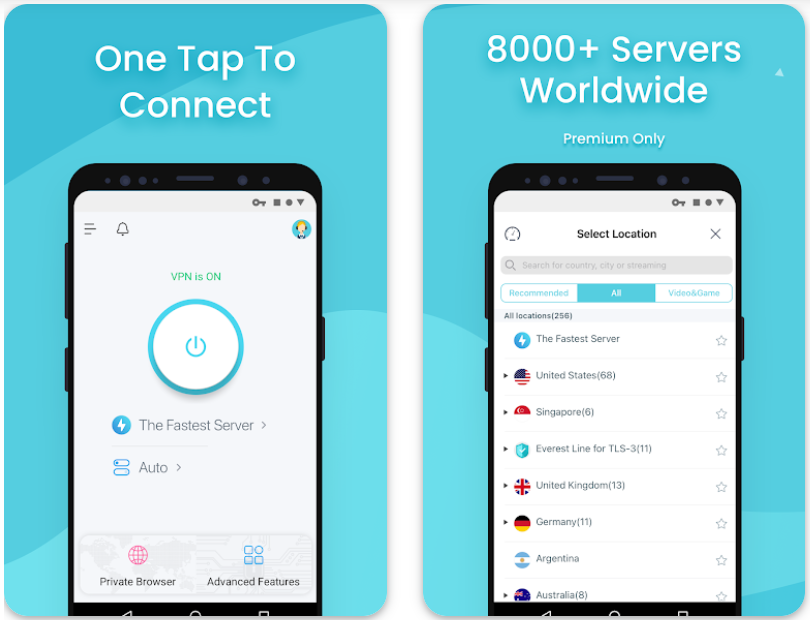
I tried half a dozen apps before settling on X-VPN’s Android app (it is also on iOS if you carry both). Most of the free ones either throttled my connection to a crawl or buried the screen in ads. X-VPN was the first that felt like a finished product rather than a lead magnet:
- One-tap connection, with none of the fiddly menus that make you give up halfway
- A usable free tier, enough data for everyday browsing and checking accounts
- A broad server list, multiple countries with the load times labeled so you can pick a fast one
- An optional paid upgrade, if you want more bandwidth or coverage in more places
I have run it on a Pixel 8 Pro and an older Moto G, and the experience held up on both: quick to connect, no pop-ups, and steady enough for video without constant rebuffering. Worth saying plainly: it is the sponsor of this piece, and I would not pretend a free tier is unlimited or that any one app is the right fit for everyone. It earned its place on my phone, and the section further down on vetting a free VPN applies to it as much as anything else.
How I Actually Use It Day to Day
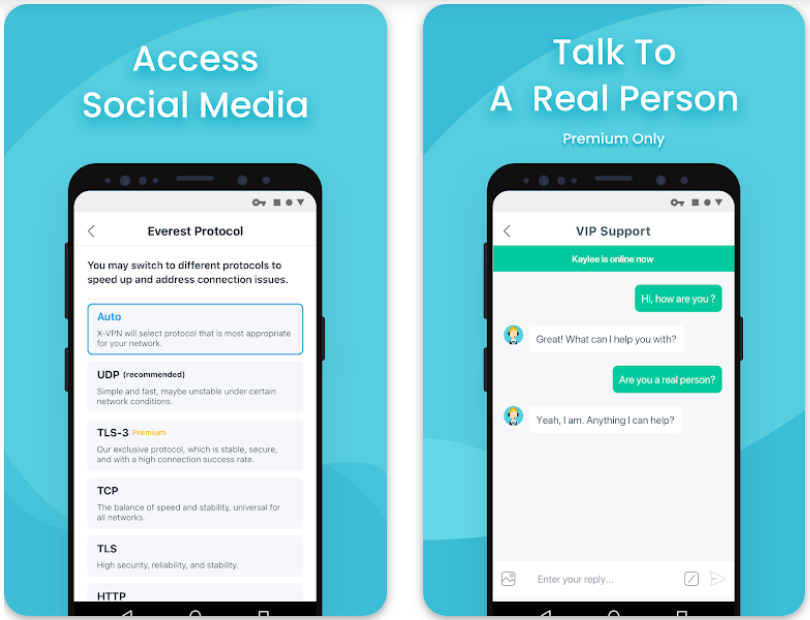
Here is the routine I fall into when I am out and about. None of it is complicated, which is rather the point, because a security habit you skip is no habit at all:
- At airports and hotels: as soon as I join the Wi-Fi I open X-VPN and tap connect, choosing a nearby server so the link stays responsive
- Streaming abroad: I pick a server back in my home country to watch shows that are otherwise region-locked
- Banking or shopping: I leave X-VPN running so logins and payments ride the tunnel rather than the open network
- On mobile data: I sometimes keep it on over 5G when a carrier is clearly shaping streaming traffic
Because the app holds the connection even while the phone sleeps, I am not constantly rechecking it, which is one less thing to track when I am juggling flights and deadlines. I keep the naming consistent in my head too: it is X-VPN, not some shapeshifting xVPN, and treating it as one fixed tool makes the routine stick.
Pro Tips for Android Users New to VPNs

A few small habits picked up over time make VPN use smoother, and most of them live in the app’s own settings rather than anywhere exotic:
- Use split tunneling: most VPNs, X-VPN included, let you choose which apps go through the tunnel and which stay on the direct connection, which is handy for keeping a local banking app off a foreign server
- Check server latency: the app shows the load on each server, so picking a lightly loaded one nearby keeps things quick
- Auto-connect on unsecured Wi-Fi: flip this on and the VPN starts itself the moment you join an open network, so you never forget
- Mind the battery, lightly: a VPN does sip some power, but Android’s adaptive battery keeps the impact small, and keeping the phone updated helps efficiency
What to Look for in Any Free VPN App
This is the part I wish someone had drilled into me earlier, because a careless free VPN can be worse than running none at all. The whole point of the app is to handle your traffic, so if it is logging or selling that traffic, you have simply handed the keys to a different stranger. Independent investigations have repeatedly found a worrying share of free VPN apps that quietly log activity, ship weak or missing encryption, or bundle trackers, with one widely cited estimate putting it around 60 percent of the free apps studied. That is exactly why the app you pick matters more than any marketing claim.
When I vet a free VPN now, including the one I use, I run through a short checklist before I trust it with anything sensitive:
- A transparent privacy policy: you should be able to tell, in plain language, what is logged and what is not
- Regular updates: an app that has not shipped a release in a long time is an app nobody is patching
- No invasive permissions: a VPN has no business demanding access to your contacts, photos, or location
- A real company behind it: hidden ownership and vague “about” pages are a quiet red flag worth taking seriously
More Than Just Security: Speed and Freedom
A VPN is not only about privacy, and a few of its side benefits are genuinely useful once you stop expecting miracles. It can do a handful of things that have nothing to do with hiding from snoops:
- Sidestep throttling: when a carrier deliberately slows certain streaming traffic, an encrypted tunnel makes that traffic harder to single out, which can restore normal speed
- Compare regional pricing: airline and hotel sites sometimes quote different prices by country, and a VPN lets you check from a few of them
- Hold a flaky link together: X-VPN reconnects on its own when a network drops, which is a small mercy on spotty hotel Wi-Fi
I want to be straight about speed, though, because this is where VPN write-ups tend to fib. Encryption and an extra hop add overhead, so a VPN does not make your connection inherently faster. What it can do is route you around a throttled or congested local path, and in those specific cases it feels quicker. At a packed airport once it did exactly that for me, getting me off an overloaded local route, but the encryption itself was never the thing speeding me up.
Extra Security Habits That Complement a VPN
Even a good VPN works better alongside a few basics, and these line up with what CISA recommends for securing wireless networks. These are the habits I actually recommend to friends, and the first one is the modern upgrade most public Wi-Fi advice still forgets to mention:
- Switch on Private DNS: Android can encrypt your DNS lookups over TLS, which stops a hostile network from reading or redirecting them; you turn on Private DNS in your settings once and forget it
- Stick to HTTPS: the browser padlock means the page is encrypted, and modern Android already warns you hard before loading anything that is not
- Update the phone promptly: security patches close the holes attackers actually use, so a current phone is doing quiet work for you
- Turn off Wi-Fi auto-connect: this is what keeps your phone from silently joining an evil-twin network it has never met
- Review app permissions: plenty of apps ask for far more access than they need, and trimming that shrinks what any one of them can leak
One reassuring note while you are in there: you do not need to fiddle with hardware-address settings. Modern Android already randomizes a fresh MAC address for every network on its own, so that particular chore is off the list. Combine Private DNS, HTTPS, sensible permissions, and a VPN you trust, and the realistic risks of an open hotspot are mostly handled.