In This Article
Follow BestForAndroid


The right app will not write the paper for you. The wrong stack will make a hard week harder. These twelve, tested across real student deadlines, are the ones that earn a slot on your phone.
It is 11 PM, the paper is due tomorrow, and you have watched the cursor blink for ten minutes wondering whether a different app would make the words appear. It will not. But the right combination keeps a bad night from getting worse: it syncs when campus Wi-Fi drops, it does not crash at the 2,000-word mark, and it gets the file into your professor’s hands in the format they asked for.
We tested every major Android writing app across seven real student scenarios: a paper due next week, a thesis due next year, lecture notes, a citation library, topic research, distraction-free drafting, and doing all of it broke. Below are the twelve that earned a slot, what each one is genuinely best at, and an honest read on where each falls short.
Quick answer
For most students, the free stack wins: Google Docs for the writing, Zotero for citations, and Grammarly’s keyboard for a final proofread on everything you type. It costs nothing and gets the assignment in.
Writing a thesis: keep Google Docs or Word for the draft, add Claude for long-form analytical prose, and use NotebookLM to synthesise your sources. Taking lecture notes: OneNote with a stylus, or Otter.ai for live transcription.
Best for most students

If you install nothing else, install Google Docs, Zotero, and the Grammarly keyboard. That trio covers the writing, the citations, and the proofreading, costs nothing, and works offline when the library Wi-Fi gives up. It is the answer for the student who just needs the paper done.
Everything past that depends on what you are actually writing. A thesis writer needs source synthesis and chapter outlining. A journalism student needs live transcription. Someone who thinks in Markdown wants a different editor entirely. The table below maps the seven scenarios to a stack so you can skip straight to yours.
Which writing app fits you
| Your situation | The stack that fits |
|---|---|
| Paper due next week | Google Docs for the draft, Grammarly for the proofread. The cheap, fast path that does not crash at 2 AM. |
| Writing a thesis | Google Docs or Word for the draft, Zotero for citations, Obsidian or Notion for chapter outlining, NotebookLM for the literature review. |
| Taking lecture notes | OneNote with a stylus on a tablet, or Otter.ai for live transcription, or Notion if you already live there. |
| Researching a topic | NotebookLM as the analyst, Zotero as the library, Claude for open-ended synthesis questions. |
| Distraction-free drafting | JotterPad for clean phone writing, or Obsidian if you want a Markdown knowledge base behind it. |
| Doing it all broke | Google Docs, Zotero, WPS Office for .docx, and Microsoft 365 Education if your school qualifies (most do). |
| AI help without getting flagged | Claude for outlining and feedback on your own writing, Grammarly Premium for polish. Skip anything that promises to “humanize” generated text. |
Before you choose
One rule cuts across every app here: use AI to help you think, not to write the paper for you. Outlining, feedback, and concept explanations are fair game at most schools. Pasting generated paragraphs into a submission is a different category of risk, and getting flagged is a worse problem than a low grade. Policies vary by institution and even by professor, so check yours before you rely on anything.
Why your writing stack matters

A writing app is not where ideas come from. It is where a deadline is won or lost. The apps that fail you fail at the worst moment: the sync that did not finish, the document that lags past 40 pages, the export that mangles your formatting an hour before submission.
The picks below were judged on the things that actually bite a student. Is it a real Android app or a thin web port. Is the free tier usable for genuine coursework. Does it work offline when the campus network does not. Does it respect academic-integrity rules instead of inviting trouble. We weighed those over feature-count marketing every time.
1. Google Docs
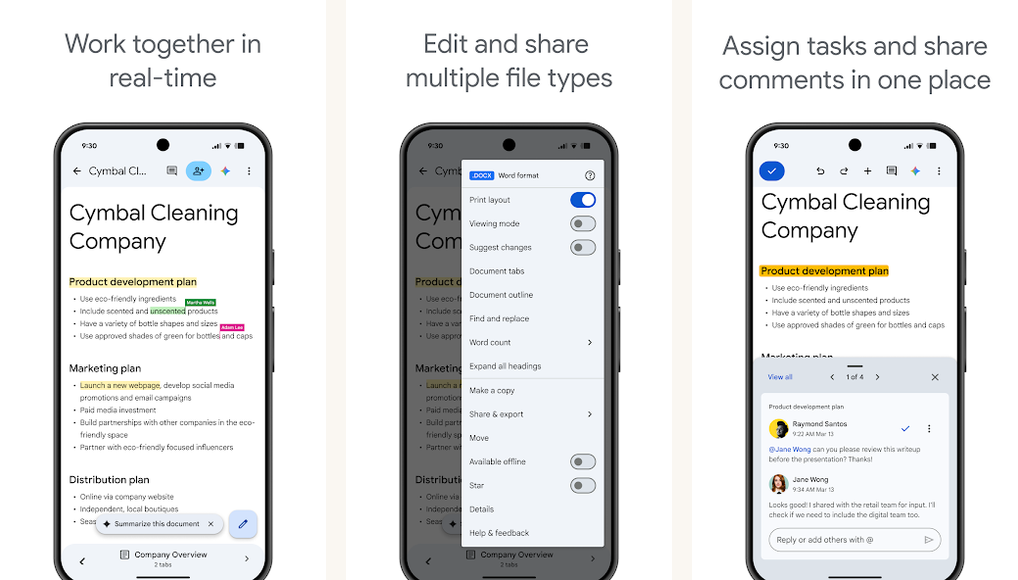
Google Docs has been the student default for over a decade, and the case against it has gotten weaker, not stronger. Voice typing finally works without sounding drunk. Offline mode survives campus dead zones. The free tier has no wall to hit: you can write an entire degree in it without paying a cent.
For most students, most of the time, this is the right answer. Real-time collaboration with a study group, a TA, or an advisor is genuinely good, and submitting straight into Google Classroom removes a step on a stressful morning.
The honest catch is citations. Native citation tools are weak, and the add-ons that fix that do not all work in the mobile app. Pair it with Zotero. Large documents, past 50 pages, also get sluggish on a phone, so draft a thesis on a laptop and use the phone to edit.
Highlights
- ⭐ Best for: almost every student who just needs the paper written and submitted.
- ⚠️ Watch out for: weak native citations and noticeable lag on very long documents.
- 💰 Pricing: free with any Google account.
Key features
- Real-time collaboration: write alongside a study group, a TA, or an advisor in the same document.
- Offline drafts: keep writing through a dead zone, and changes sync the moment you reconnect.
- Google Classroom integration: submit an assignment straight from the document.
- Voice typing: available in a long list of languages, useful for ESL writers and students with disabilities.
Get it on Google Play or the Apple App Store.
2. Microsoft Word

Here is the underrated part: Microsoft Word is free for most students. Microsoft 365 Education includes the full Word app, OneDrive, Outlook, Teams, and OneNote, free for students with a verified school email at most institutions. If you have been paying for Microsoft 365 Personal as a student, stop and check your school’s IT portal first.
Pick Word when your professor specifically wants .docx and tracked changes. Track changes survives the round trip from a professor’s markup intact, where Google Docs’ suggestion mode is fine but loses some fidelity. Native .docx also means no formatting surprises at submission.
Word on Android is genuinely good now. The honest catch: collaborative editing is still slower than Google Docs, and editing on larger screens needs a subscription if you are not on an Education plan. If your group already works in Word, great. If they do not, do not make them switch.
Highlights
- ⭐ Best for: students whose professors require .docx files and reliable tracked changes.
- ⚠️ Watch out for: slower collaboration than Google Docs, and a subscription for full editing without an Education plan.
- 💰 Pricing: free for eligible students through Microsoft 365 Education, otherwise a monthly subscription.
Key features
- Tracked changes: a professor’s edits come back to you with full fidelity intact.
- Native .docx: the format most departments still expect, with no conversion surprises.
- Education bundle: Word, OneNote, Outlook, Teams, and a large OneDrive allocation in one free package.
Get it on Google Play or the Apple App Store.
3. Notion
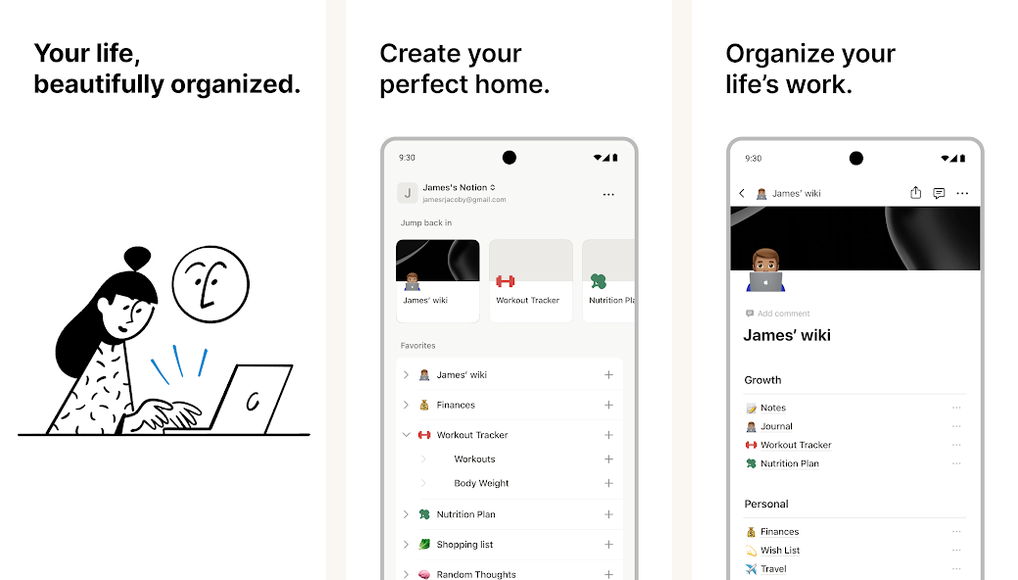
Notion runs one of the better deals in student software: a free upgraded plan for a verified school email. The Android app is solid now, and Notion’s pitch is that notes, writing, and databases live in one place instead of scattered across four apps.
Notion pays off when you commit to it across semesters, not for a single assignment. One page per course, with sub-pages for lectures, readings, and assignments, turns into a genuine command center by midterms. Templates exist for thesis tracking, study schedules, and reading lists.
The honest catch is setup time. Notion is overkill if you just need to write a paper, and the blank-canvas freedom is its own tax. Worth it across multiple semesters, not worth it the night before a deadline.
Highlights
- ⭐ Best for: students who want notes, writing, and course databases unified in one workspace.
- ⚠️ Watch out for: real setup time, and it is overkill for a single paper.
- 💰 Pricing: free personal plan, with a free upgraded plan for verified students.
Key features
- Course databases: one page per class, with linked sub-pages for assignments, lectures, and readings.
- Embedded blocks: math, code, callouts, and toggles drop straight into a note.
- Template ecosystem: ready-made setups for thesis tracking and study planning.
Get it on Google Play or the Apple App Store.
4. Zotero
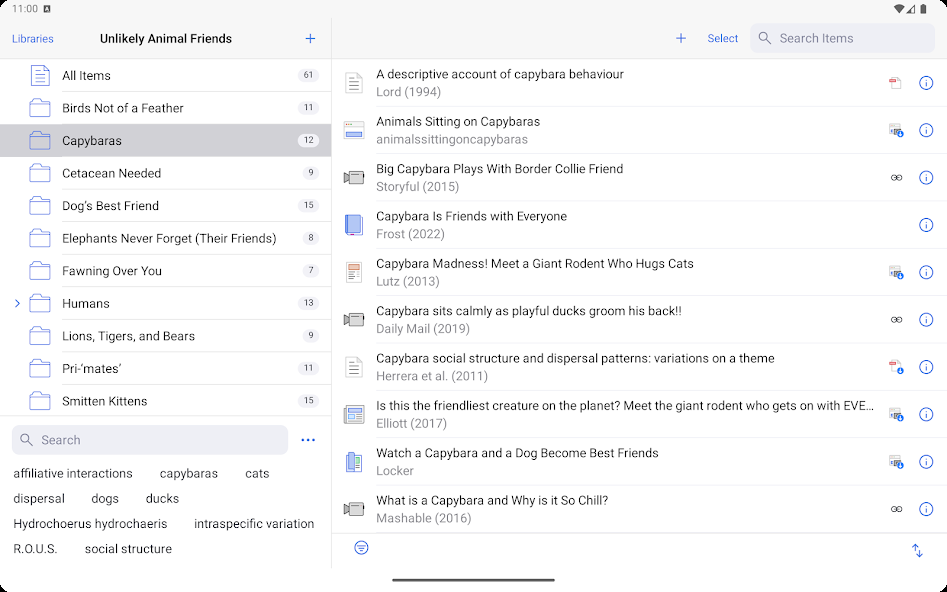
Zotero has an official Android app now, and it has matured fast. It is the citation pick for any serious academic writer: free, open source, and synced with the desktop library you already use. The browser extension grabs citations from PubMed, JSTOR, Google Scholar, and most journal databases automatically.
If your writing needs citations, this is the one non-negotiable install. One-click capture from any browser, including the mobile one, means the bibliography builds itself as you research instead of in a panic the night before.
The honest catch is that the mobile interface still leans toward library management over deep reading. For long PDF reading sessions, a dedicated reader pairs better. The free 300 MB of storage covers most undergrads; heavy users pay a modest yearly fee for more.
Highlights
- ⭐ Best for: anyone writing anything that needs a proper bibliography.
- ⚠️ Watch out for: a mobile app built for library management more than for deep PDF reading.
- 💰 Pricing: free app and 300 MB of storage, with paid storage upgrades.
Key features
- One-click capture: pull a full citation from any browser, including the mobile browser.
- Citation styles: APA, MLA, Chicago, IEEE, Vancouver, BibTeX, and thousands more.
- Synced PDF annotations: mark up a paper on one device and see the notes on another.
Get it on Google Play or the Apple App Store.
5. NotebookLM
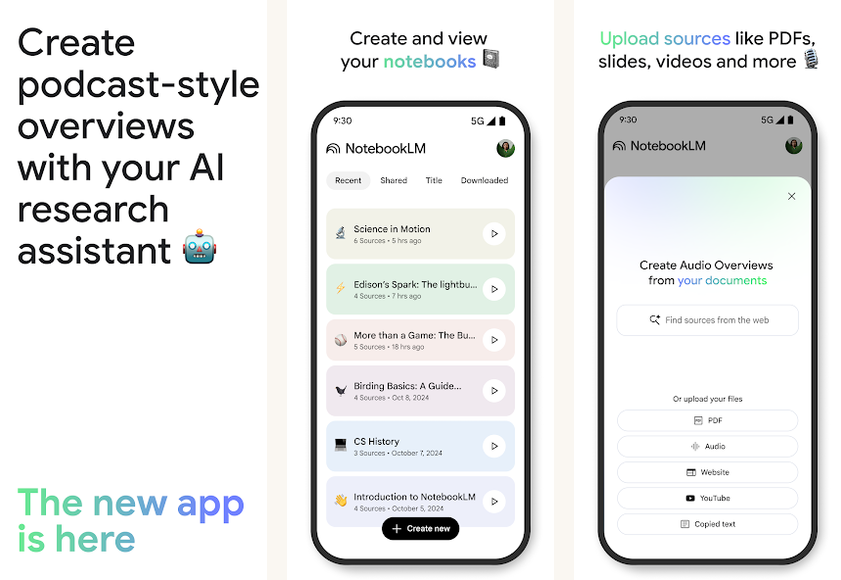
NotebookLM is the standout AI tool for student research, and it earns that by doing one thing other assistants do not: it stays grounded in your uploaded sources. Google now ships a dedicated NotebookLM Android app, so the research assistant is no longer browser-only. Drop in seven journal articles and three lecture transcripts, ask what they say about a topic, and the answer comes back with footnotes pointing to the exact source paragraph.
For a literature review, source-grounded answers are the whole point. Every claim links back to where in your material it came from, which makes it far harder to accidentally cite something the source never actually said.
The honest catch: it cannot search the open web. It only works with what you give it. That is a feature for academic integrity, not a bug, but it means you still need Claude or another assistant for general research questions.
Highlights
- ⭐ Best for: research synthesis grounded strictly in your own sources.
- ⚠️ Watch out for: no open-web search, so it only knows what you upload.
- 💰 Pricing: generous free tier, with a higher tier inside a Google AI subscription.
Key features
- Source-grounded answers: every response footnotes the exact paragraph it drew from.
- Audio Overview: turns your sources into a podcast-style summary for a study walk.
- Separate notebooks: keep different research projects cleanly isolated.
Get it on Google Play or the Apple App Store.
6. Grammarly

Grammarly‘s real advantage on Android is the keyboard. Set the Grammarly keyboard as your system keyboard and it proofreads everything you type: emails, chat messages, Google Docs, every text field on the phone. The Premium tier adds tone, clarity, and rephrase suggestions that go meaningfully beyond a basic spell-check.
Treat Grammarly as a final-pass proofreader, not a writing partner. Sentence-level rephrasing untangles the awkward construction you cannot quite fix yourself, and tone detection quietly flags an accidentally curt message to a TA before you send it.
The honest catch: the generative-AI features Grammarly has added are weaker than dedicated AI tools. Use it for what it is genuinely best at, tightening prose you already wrote. Premium carries a student discount, so check before paying full price.
Highlights
- ⭐ Best for: a final proofreading pass across every app you type in.
- ⚠️ Watch out for: generative-writing features that lag behind dedicated AI tools.
- 💰 Pricing: free spell-check tier, with a Premium subscription discounted for students.
Key features
- System-wide keyboard: proofreading follows you into every app, not just a document.
- Sentence rephrasing: a cleaner rewrite for the construction you cannot fix yourself.
- Plagiarism check: included on Premium, worth running before a submission tool sees the paper.
Get it on Google Play or the Apple App Store.
7. Claude

Claude has long been a favorite among serious writers, and the Android app is mature. In our testing, it produces longer, more analytically structured responses than most rivals, which suits thesis-chapter outlining, dialectical essays, and “argue both sides” study work.
Reach for Claude when prose quality and analytical depth matter. A large context window lets you paste in a full thesis chapter for feedback, and file uploads let you attach reading PDFs and ask comprehension questions about them.
The honest catch: the free tier hits its limits faster than some competitors, and those limits change often. The bigger catch is one of judgement, not features. Use Claude to outline, to get feedback on your own writing, and to explain hard concepts. Do not paste its paragraphs straight into a submission, because tools like Turnitin increasingly screen for AI-written text.
Highlights
- ⭐ Best for: thesis chapters and analytical essays where prose quality matters.
- ⚠️ Watch out for: a free tier that hits limits quickly, and the integrity line on generated text.
- 💰 Pricing: free with daily limits, with a Pro subscription for heavier use.
Key features
- Large context window: paste a full chapter and ask for structural feedback in one go.
- File uploads: attach reading PDFs and ask comprehension questions about them.
- Projects: the Pro tier keeps context consistent across a long run of conversations.
Get it on Google Play or the Apple App Store.
8. Otter.ai

Otter.ai is the lecture-transcription pick. The Android app captures audio, transcribes it in real time, and lets you search the transcript afterward. It earns its slot the first time a lecture moves faster than you can type.
This is the app for live lectures, group meetings, and journalism-style interviews. Searching inside a transcript to find the one definition a professor said three weeks ago turns a frantic notebook hunt into a five-second query.
The honest catch is the free tier. It covers only a few hundred minutes a month, roughly five lectures, so heavy users will need the paid plan. Treat transcription as a supplement to attention, not a replacement for it.
Highlights
- ⭐ Best for: live lecture and meeting transcription you can search later.
- ⚠️ Watch out for: a free tier capped at roughly five lectures a month.
- 💰 Pricing: limited free tier, with paid plans for regular use.
Key features
- Real-time transcription: a running transcript with speaker identification as the lecture happens.
- Searchable transcripts: jump to any term a speaker used, weeks after the fact.
- Summaries: a condensed overview of a long lecture or meeting.
Get it on Google Play or the Apple App Store.
9. JotterPad

JotterPad is the rare writing app that treats Android as a first-class platform instead of a port from desktop. The interface is clean, the typewriter mode keeps the active line centered on screen, and there are templates for novels, short stories, and screenplays.
Choose JotterPad for distraction-free creative writing on a phone or tablet. For a creative-writing student or anyone drafting long-form fiction on the move, the focused interface keeps the wordcount climbing instead of the menus.
The honest catch: it is a writing app, not a research app. You will still need Google Docs or Word for the formal, citation-heavy submission. Think of JotterPad as where the draft is born, not where it graduates.
Highlights
- ⭐ Best for: distraction-free novel and screenplay writing on Android.
- ⚠️ Watch out for: no research or citation tooling, so it cannot be your only app.
- 💰 Pricing: limited free tier, with a Pro subscription billed monthly or yearly.
Key features
- Typewriter mode: centers the active line and dims everything else.
- Screenplay export: output in Final Draft and Fountain formats.
- Cloud sync: the same draft across an Android phone and tablet.
Get it on Google Play or the Apple App Store.
10. Microsoft OneNote

Microsoft OneNote is the most underrated app on this list, especially for handwritten notes. On a stylus-capable tablet it turns into a free, infinite-canvas notebook, and it is part of the same free Microsoft 365 Education bundle that includes Word.
OneNote is the natural pick for lecture notes if you write by hand. Handwriting and typed text sit side by side on the same page, notebooks organize cleanly by course, and a recording can be attached so you can replay the audio next to what you scrawled.
The honest catch is structure. OneNote’s free-form pages are flexible to a fault: without a little discipline a notebook turns into a sprawl. It also works best when you are already inside the Microsoft ecosystem for the rest of your coursework.
Highlights
- ⭐ Best for: handwritten lecture notes on a stylus-capable tablet.
- ⚠️ Watch out for: free-form pages that sprawl without some organizing discipline.
- 💰 Pricing: free, and included in the Microsoft 365 Education bundle.
Key features
- Ink and text together: handwriting and typed notes share the same page.
- Notebook structure: notebooks, sections, and pages keep each course separate.
- Audio attachments: record a lecture and replay it next to your notes.
Get it on Google Play or the Apple App Store.
11. Obsidian
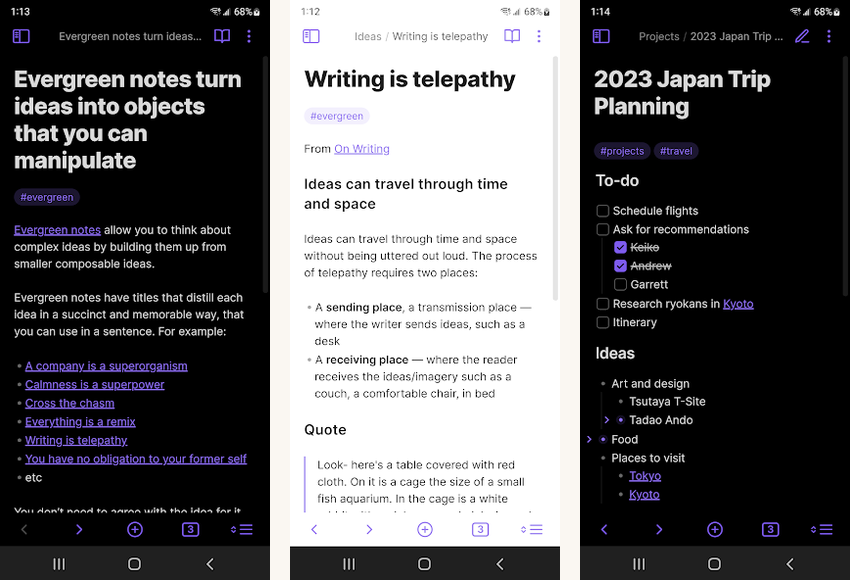
Obsidian is the closest thing to a personal knowledge graph on Android, if you are willing to learn the link-everything workflow. The Android app is mature, the plugin ecosystem is enormous, and your notes live as plain Markdown files you own outright.
Obsidian rewards the long game: pick it the semester before a thesis, not the night before a paper. Bidirectional links between notes mean a reading from one course can connect to a lecture in another, and over time that web becomes a genuine thinking tool.
The honest catch is the same as Notion’s: setup time is real, and the freedom can stall a beginner. The payoff is ownership. Because the notes are local Markdown files, there is no lock-in and no app can hold your degree’s worth of notes hostage.
Highlights
- ⭐ Best for: building a linked knowledge base across courses and a thesis.
- ⚠️ Watch out for: a real learning curve that does not suit a last-minute deadline.
- 💰 Pricing: free for personal use, with optional paid sync across devices.
Key features
- Bidirectional linking: any note can connect to any other, building a course-wide web.
- Local Markdown files: your notes are plain .md files in a folder you control.
- Plugin ecosystem: citation managers, kanban boards, and daily notes extend the app.
Get it on Google Play or the Apple App Store.
12. WPS Office

WPS Office is the practical pick for a broke student who needs Word-class output without paying for Word. It is a full office suite with strong .docx fidelity, so a document opens and saves cleanly when a professor expects a Microsoft format.
Use WPS Office when you need reliable .docx handling and have no .edu email for the free Microsoft bundle. The free tier genuinely covers normal coursework: documents, spreadsheets, presentations, and PDF tools in one app.
The honest catch is the ads. The free tier is ad-supported, and the prompts can get pushy. If your school qualifies for Microsoft 365 Education, Word is the cleaner free route. WPS is the fallback when it does not.
Highlights
- ⭐ Best for: students who need free, reliable .docx handling without a school subscription.
- ⚠️ Watch out for: an ad-supported free tier with pushy upgrade prompts.
- 💰 Pricing: free with ads, with an optional subscription to remove them.
Key features
- .docx fidelity: Microsoft-format documents open and save without layout surprises.
- Full suite: documents, spreadsheets, slides, and PDF tools in one app.
- Cloud storage: a built-in account syncs files across your devices.
Get it on Google Play or the Apple App Store.
Honorable mentions

These did not earn a numbered slot, but each is worth knowing for a specific student.
- Logseq: an outliner-based alternative to Obsidian, free and open source, for students who think in bullet points rather than pages.
- Cite This For Me: a free tier that handles one-off MLA, APA, and Chicago citations. Skip the paid plan if you already run Zotero.
- Notta: an Otter alternative with stronger multilingual support, useful for ESL students and language courses.
- Markor: a clean open-source Markdown editor for CS and STEM students, distributed through F-Droid rather than the Play Store, so it needs sideloading.
For a wider productivity setup beyond writing, our roundup of the best productivity apps for Android covers the calendar, task, and focus tools that pair well with this stack.
Apps to skip
A few popular names look like a fit but are not, at least not for a student in the current pricing climate.
| App | Why to skip it |
|---|---|
| Evernote | Pricing climbed and the free tier was cut hard after the Bending Spoons acquisition. Stay only if you have years of legacy notes locked inside; do not start fresh here. |
| EasyBib | Chegg-owned, ad-heavy, and built to push Chegg subscriptions. Zotero does the same citation job better, for free. |
| “Humanize my AI text” tools | Paraphrasers that exist to slip generated text past a detector. The risk is real and one-directional: use them as paraphrasing aids on your own writing, never as a way to launder AI output. |
| Jasper AI | Built for marketers and priced for marketers. There is no genuine student angle at that cost. |
Apps that are not on Android

To save you the search: a few writing apps students often ask about have no Android version at all.
- Scrivener: desktop only. Long-form writers on Android approximate it by pairing Obsidian or Notion for outlining with Google Docs for the prose.
- iA Writer: available on Apple platforms and Windows, but it has no Android app. JotterPad is the closest Android equivalent for clean, focused writing.
- Apple Pages, Bear, and Ulysses: Apple ecosystem only.
- Dabble and Reedsy Studio: web only. They run in a mobile browser but have no native Android app.
Common mistakes to avoid
| Mistake | Why it bites | Better move |
|---|---|---|
| Paying for Microsoft 365 as a student | Most schools offer the full Education bundle free, so you may be paying for something you already qualify to get. | Check your school’s IT portal before any subscription renews. |
| Switching apps the night before a deadline | Notion and Obsidian both need setup time you do not have at 11 PM. | Adopt a new tool between assignments, not during one. |
| Pasting AI-generated paragraphs into a paper | Detectors flag raw and paraphrased AI text, and an integrity case outweighs a low grade. | Use AI for outlines and feedback, then write the prose yourself. |
| Leaving citations until the end | A panic bibliography at 3 AM is where formatting errors and missed sources happen. | Capture every source into Zotero as you read it. |
| Trusting campus Wi-Fi | A web-only editor with no offline mode can lock you out of your own draft. | Use an app with real offline support and confirm it before deadline week. |
If your needs lean more toward revision and exam prep than drafting, our guide to the best study apps for students on Android covers flashcards, spaced repetition, and focus timers. For research-heavy degrees, the apps built for thesis and assignment writing go deeper on long-form workflows.
The verdict
The verdict
Bottom line: install Google Docs, Zotero, and the Grammarly keyboard. Free, universal, offline-safe, and enough to get almost any assignment written and submitted.
Writing a thesis: add Claude for analytical prose and NotebookLM for grounded source synthesis, and use Obsidian or Notion to outline your chapters.
Taking heavy lecture notes: add OneNote with a stylus, or Otter.ai if you would rather transcribe than write by hand.
Skip: Evernote, EasyBib, and any tool that promises to “humanize” AI text past a detector.
For a broader picture of the apps that get a student through a semester, from notes to time management to budgeting, see our companion roundup of the best Android apps for students and our list of essay writing apps for Android.
Questions students actually ask
- What is the best free writing app for Android students?
Google Docs. It is free with any Google account, has a full Android app, supports offline drafting, and submits straight into Google Classroom. Pair it with Zotero, also free, for citations and you have a complete academic stack at no cost. - Is Microsoft 365 really free for students?
At most universities, yes. Microsoft 365 Education includes Word, OneNote, Outlook, Teams, and a large OneDrive allocation, free for students with a verified school email. Check your university’s IT portal for the activation link, since eligibility varies by institution. - Will my professor know if I use ChatGPT or Claude?
Probably, if you submit generated text directly. Detection tools flag both raw AI output and paraphrased AI text, though they are imperfect. The safe use is letting AI help you outline, give feedback on your own writing, or explain concepts. Policies differ by school, so check yours before relying on anything. - Is Zotero better than Mendeley for students?
For most students, yes. Zotero is open source, has a polished Android app, and its browser extension captures citations from nearly every academic source automatically. Mendeley is still a competent, Elsevier-backed option, but it has lost ground among power users. - Why is Evernote on the skip list?
After the Bending Spoons acquisition, Evernote raised pricing and capped its free tier sharply. For students, Notion (free for verified students) or OneNote (genuinely free) cover the same note-taking ground without the squeeze. - Is there a Scrivener for Android?
No native Scrivener app exists on Android. Writers who want its outline-plus-research workflow usually pair Obsidian or Notion for chapter outlining with Google Docs for the actual prose.
How we tested
How we tested
Every app here was used for at least one real writing task: a 2,500-word essay, a chapter outline, a transcribed lecture, or a citation-heavy research summary. Testing ran across two Android phones (a Pixel 9 Pro on Android 16 and a Galaxy S25 Ultra on One UI 8) and one stylus-capable tablet (a Galaxy Tab S10) over a three-week window.
Scoring weighed Android app quality over thin web ports, free-tier viability for genuine coursework, student-discount availability, academic-integrity considerations, offline functionality, and integration with university systems like Google Classroom and Microsoft Teams. Pricing was verified against each app’s own website at the time of writing and can change, so confirm current prices before you subscribe.