In This Article
Follow BestForAndroid


Tablet hardware has caught up. Galaxy Tab S9 and S10, the Pixel Tablet, and the keyboard-and-stylus accessories that go with them now make a thesis draft on Android genuinely viable. The toolchain finally fits: a word processor that handles tracked changes, a reference manager that survives a literature review, a distraction-free editor for the second draft, and a grammar pass that does more than spell-check.
We tested ten apps over a 12-week stretch on a Galaxy Tab S9 FE paired with a Bluetooth keyboard, writing a mix of short essays, longform drafts, and a mock dissertation chapter. The picks weighted three things: actually pleasant to write longform on, working with the major reference managers (Zotero, Mendeley), and not gating critical features (export to .docx, offline mode, cloud sync) behind expensive subscriptions.
The comparison table at the end maps the picks to the dimensions that matter for students: offline capability, real-time co-author collaboration, .docx fidelity, and free-tier limits. Most students will only need two of these apps installed at once. The FAQ at the end covers Zotero on Android, AI writing tools and academic integrity, and whether a tablet is actually enough for a thesis.
Quick Overview
Scanning fast? The picks by what each does best.
- Microsoft Word: The standard for almost every academic publisher. Tracked changes, comments, and supervisor-friendly .docx out of the box.
- Google Docs: Live co-author editing without trying. Best when your supervisor or lab works in Google Workspace.
- Zoho Writer: Free Word-class editor with strong collaboration. The pick when you need .docx fidelity without a Microsoft 365 subscription.
- WPS Office: Free .docx editing with no install gymnastics. Solid offline mode on cheaper Android tablets.
- Polaris Office: A second free .docx editor. Better for readers who want a desktop-style menu layout on tablet.
- Notion: Best for structuring a long literature review across linked pages and databases before drafting.
- Obsidian: Local-first Markdown vault. The pick for a personal research knowledge base that lives on your own storage.
- Grammarly Keyboard: Grammar and clarity passes that work inside any Android writing app. Free tier covers most students.
- JotterPad: Distraction-free Markdown plus Fountain for screenwriting students. Clean typewriter mode on tablet.
- Collabora Office: The LibreOffice-compatible mobile editor. The pick if your department uses OpenDocument or you avoid cloud sync.
1. Microsoft Word

Word stays the format that almost every academic publisher, supervisor, and journal expects. The Android app handles tracked changes and inline comments correctly across desktop and mobile. Open a .docx your supervisor sent back with red markup, accept or reject changes, leave inline replies. The round-trip is reliable. That single capability is why Word is pick number one for most thesis writers.
The free Android app reads any .docx and edits files up to 10 MB without a subscription. Beyond that, advanced layout and citation features sit behind Microsoft 365. Most universities provide a free student license through their email domain; check your institution’s IT page before you pay. Reference manager integration works through the Zotero plugin on the desktop side; on Android, you sync the file via OneDrive and finish citations on the laptop.
Highlights
⭐️ Best for: Thesis writers, journal submissions, and anyone whose supervisor sends marked-up .docx files back through email.
👎🏼 The catch: Heavy reference management still pushes you to the desktop. Zotero plugin doesn’t exist on Android Word.
💰 Pricing: Free for files under 10 MB. Microsoft 365 Personal $9.99/month; most universities provide a free student license.
Key Features
- Tracked changes round-trip: accept/reject supervisor edits without losing formatting between mobile and desktop
- Inline comments and replies: threaded discussion on selected text, syncs back to the .docx
- OneDrive autosave: every change syncs to the cloud copy your supervisor opens in Word desktop
- .docx fidelity: the canonical format for journal submission templates and university thesis templates
2. Google Docs
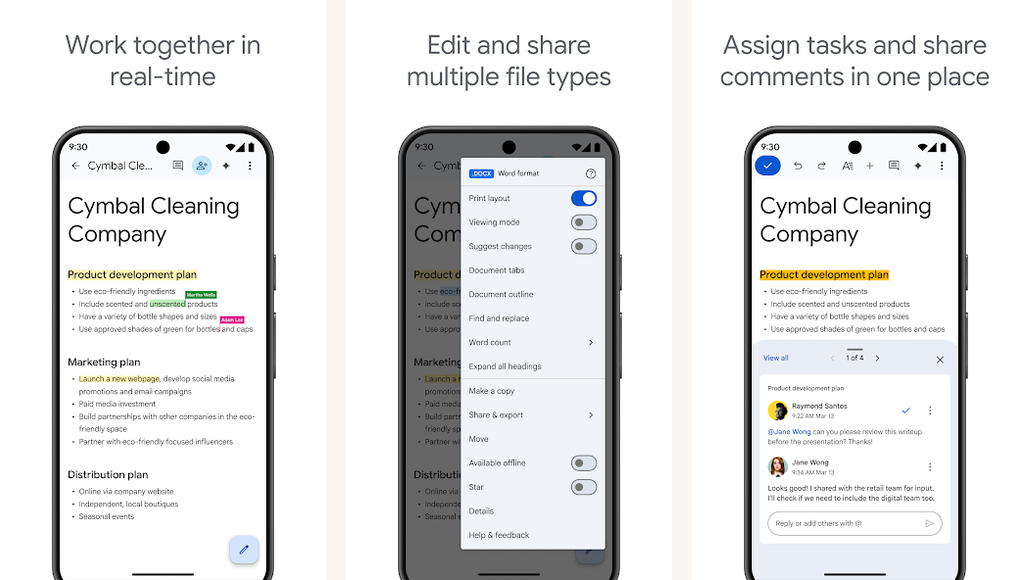
Google Docs is the right pick when your collaborators want to write in the same document at the same time. The mobile editor handles co-author cursors, comments, and suggestions cleanly. The Suggesting mode is the cleanest equivalent of Word’s tracked changes a tablet writer is going to find. Most labs in computer science, biology, and the social sciences already run on Google Workspace; if yours does, Docs is the default.
Free for any Google account up to 15 GB. Paperpile, Zotero, and EndNote all have Google Docs add-ons that drop citations and bibliographies directly into the document on the desktop side. On Android, the citation features are read-only. You finish citations on the laptop. Voice typing in Docs is surprisingly accurate on a tablet mic and gives you a path to dictate a 500-word section while walking between classes.
Highlights
⭐️ Best for: Co-authored papers, lab notebooks shared across a research group, and Google Workspace departments.
👎🏼 The catch: Offline mode requires turning on per-file. Tracked-changes round-trip with Word loses some comment formatting.
💰 Pricing: Free with a Google account. Google Workspace Education plans are free for students at most universities.
Key Features
- Real-time co-editing: the cleanest live-collaboration experience of any word processor on Android
- Suggesting mode: the Google Docs equivalent of tracked changes for supervisor feedback
- Voice typing: dictate first drafts directly into the document with above-average accuracy
- Citation add-ons: Zotero, Paperpile, EndNote on the desktop side, read-only on mobile
3. Zoho Writer

Zoho Writer is the pick for readers who want Word-class .docx fidelity and real co-author collaboration without paying for Microsoft 365 or living inside Google Workspace. The editor handles tracked changes, comments, and footnotes correctly on round-trips with desktop Word. A free 5 GB account on Zoho’s cloud covers everything a single-author thesis writer needs.
The Android app’s Play Store rating sits at 2.8. Most of the complaints are about the cloud-only workflow and the initial sign-up flow rather than the editor itself. We tested two essays through Writer over three weeks: the editing experience on tablet is good, the co-author features work, and tracked changes export cleanly back to Word desktop. If you need .docx fidelity and have no institutional Microsoft 365 license, Writer earns its slot.
Highlights
⭐️ Best for: Word-format compatibility without a Microsoft subscription. Free 5 GB cloud included.
👎🏼 The catch: Cloud-first workflow. Offline editing is supported but the sync model occasionally needs a manual refresh.
💰 Pricing: Free for personal use. Zoho Workplace Standard $3/user/month if you want more cloud storage.
Key Features
- .docx tracked-changes round-trip: cleaner Word compatibility than Google Docs on inline comments
- Real-time co-authoring: live cursors and threaded comments without a paid tier
- Citation footnotes and endnotes: manual numbering correctly preserved through export
- 5 GB free cloud: covers a single-author thesis comfortably without an upgrade
4. WPS Office
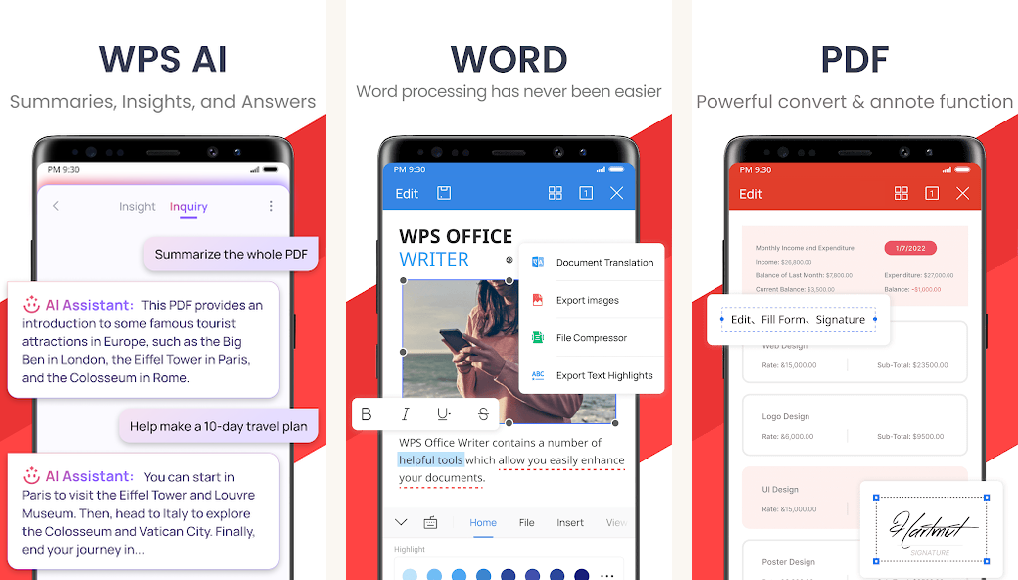
WPS Office handles .docx, .xlsx, and .pdf editing in a single app, runs fully offline, and works on the cheap end of the tablet market without choking. For students on a budget tablet (Galaxy Tab A9, Redmi Pad), WPS is the most-credible free Office alternative the Play Store offers. The editor renders Word formatting accurately enough that a thesis chapter written in WPS opens cleanly on the supervisor’s desktop Word.
The free tier shows occasional ads at startup. The Pro tier ($29.99/year student rate) removes ads and unlocks PDF editing features. For pure writing on Android, the free tier is usable. The complaint that holds WPS back is bundled “AI Assistant” upsells; turn them off in Settings on first run and the editor itself is clean.
Highlights
⭐️ Best for: Students on budget tablets who need .docx editing fully offline without a subscription.
👎🏼 The catch: The free tier shows ads. Bundled “AI Assistant” upsells need turning off in Settings on first run.
💰 Pricing: Free with ads. WPS Pro $29.99/year student rate removes ads and unlocks advanced PDF features.
Key Features
- Word, Excel, PDF in one app: .docx, .xlsx, .pptx, and .pdf rendering with a single install
- Fully offline: open and edit local files with no account required
- Cloud sync optional: works with Google Drive, OneDrive, Dropbox if you opt in
- Low system requirements: runs cleanly on entry-level Android tablets with 4 GB RAM
5. Polaris Office
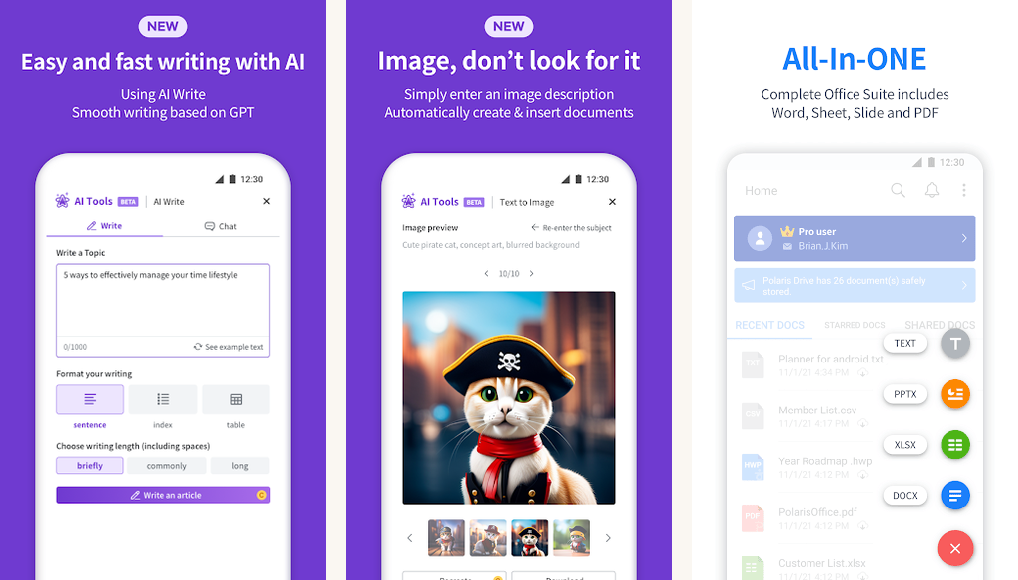
Polaris Office is the second free Office-format editor on this list and the better pick for readers who prefer a desktop-style menu layout on a tablet. The ribbon-like top bar, file manager, and side panel mimic Word and LibreOffice closely enough that the transition off desktop is smooth. .docx and .pdf rendering both work without an account.
Polaris’s free tier is more restrictive than WPS, with heavier ads and a limit on the number of documents you can export per week unless you upgrade. For students who only need to edit one or two assignments at a time, this is fine. For thesis-scale work, WPS Pro or Microsoft 365 is the better economic call.
Highlights
⭐️ Best for: Tablet writers who want a desktop-Word-style menu layout and don’t mind the ad layer.
👎🏼 The catch: Free tier limits weekly exports. Heavier ad load than WPS. UI translation has rough edges in some non-English locales.
💰 Pricing: Free tier with export limits. Smart Plan $3.99/month removes ads and unlocks unlimited exports.
Key Features
- Desktop-style menu layout: ribbon and file manager mimic Word and LibreOffice closely on a tablet
- .docx, .xlsx, .pptx, .pdf: a single-app cover for the four core academic file types
- Cloud sync: built-in Polaris Drive plus Google Drive, OneDrive, Dropbox integration
- Voice memo to text: dictate notes that auto-attach to the active document
6. Notion
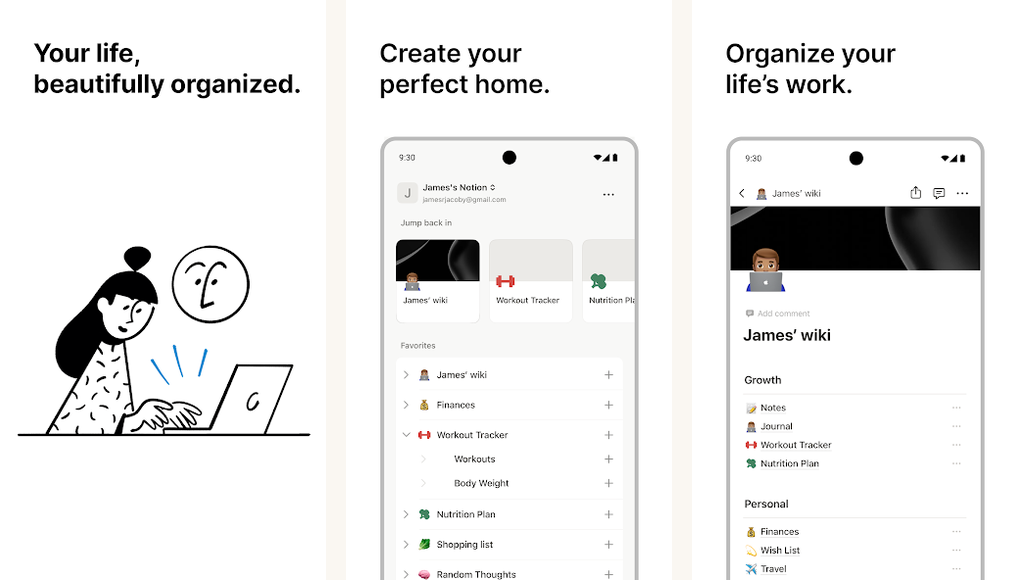
Notion isn’t a word processor. It’s where you organize a literature review across linked pages, build a database of sources, sketch chapter outlines, and stage drafts before they move to Word or Docs for final formatting. The Android editor has reached parity with desktop. Typing latency dropped, the toolbar got cleaner, and the offline mode caches everything a thesis writer carries around.
Notion’s free Personal tier covers a single student comfortably. The Plus tier ($10/month) adds unlimited file uploads and longer version history, useful for a multi-year dissertation. The strength here is the relational database: a Sources table linked to a Notes table linked to a Chapters table, all queried by tag, makes a 200-source literature review actually navigable.
Highlights
⭐️ Best for: Pre-writing: organizing a literature review, building a source database, sketching chapter outlines before drafting.
👎🏼 The catch: Not a final-draft tool. Export to .docx is functional but loses Notion-specific formatting (toggles, callouts, databases).
💰 Pricing: Free Personal tier. Notion Plus $10/month. Education plan free for students with a .edu email.
Key Features
- Linked databases: Sources, Notes, and Chapters cross-referenced and filterable by tag, author, year
- Offline mode: recent pages cached locally; full offline editing on Android
- Education plan: free upgrade for students with a .edu email through the Notion for Education program
- Web clipper: save papers from the browser straight into your Sources database
7. Obsidian
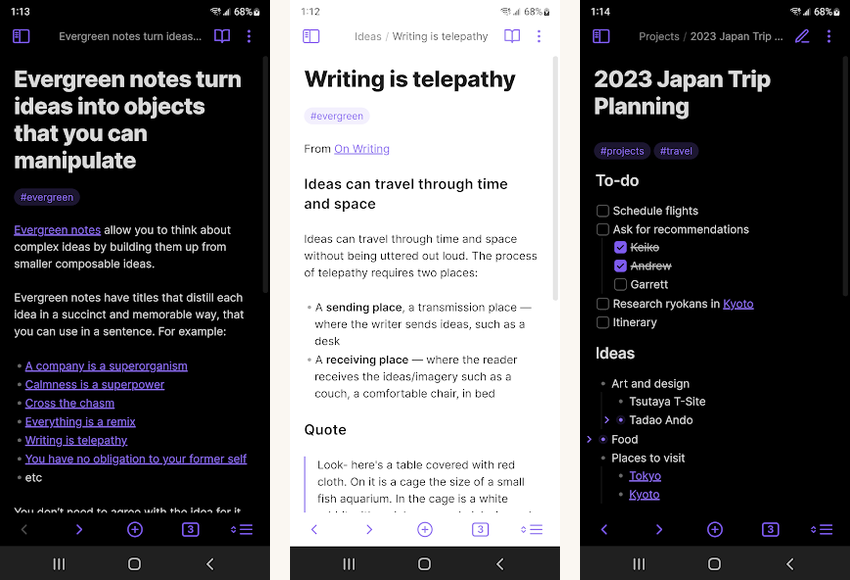
Obsidian is the local-first Markdown vault for readers who want their literature review and notes to live as plain text files on their own storage, not on a vendor’s server. Backlinks and a graph view let you trace how a single paper threads through your reading. The Android app is feature-complete with desktop: same plugin system, same canvas, same daily-notes workflow.
Free for personal use indefinitely. Obsidian Sync ($4/month) keeps the vault encrypted and consistent across phone, tablet, and laptop. Pair Obsidian with the Pandoc plugin and you can export a thesis chapter to .docx for the supervisor pass. The learning curve is real. Expect a week of setup before the graph and templates click. But for long-term research that outlives any single SaaS product, this is the most-defensible choice.
Highlights
⭐️ Best for: A long-running personal research knowledge base. PhD students, multi-year independent research, anyone with vendor-lock-in anxiety.
👎🏼 The catch: Steep learning curve. A week of setup before the system pays off. Plugin sprawl is a real risk.
💰 Pricing: Free for personal use. Obsidian Sync $4/month for cross-device encrypted sync.
Key Features
- Local Markdown vault: plain-text files on your own device; no vendor lock-in
- Backlinks and graph view: trace how a single paper threads through your reading
- Plugin ecosystem: Pandoc, Zotero Integration, Citations, Templater for academic workflows
- Daily notes: automatic dated journal pages for tracking research progress
8. Grammarly Keyboard

Grammarly Keyboard installs as a system keyboard and runs grammar and clarity checks inside any Android app: Word, Docs, Notion, even email. For non-native English writers and anyone who wants a proofread pass while drafting, this is the cleanest implementation on Android. The free tier covers spelling, grammar, and basic punctuation; the Premium tier ($12/month student rate) adds tone, clarity, and vocabulary suggestions.
One caveat applies hard for academic writing: Grammarly Premium’s “generative AI” features (drafts, rewrites, summaries) are a different category from grammar checking. Use the grammar pass; treat the generative features as content rather than correction. Most universities now run AI-detection alongside plagiarism checks, and the line between rewriting a sentence for clarity and rewriting it to evade attribution is one supervisors notice.
Highlights
⭐️ Best for: Non-native English writers and proofreading-while-drafting passes across any Android writing app.
👎🏼 The catch: Premium’s generative-AI features are categorically different from grammar checking; treat them with caution in academic submissions.
💰 Pricing: Free tier covers spelling and grammar. Premium $12/month student rate adds tone and clarity.
Key Features
- System-keyboard coverage: works inside Word, Docs, Notion, email, every text field on Android
- Spelling and grammar: free-tier baseline that matches desktop Grammarly
- Tone and clarity (Premium): rewrites that simplify dense academic prose
- Vocabulary suggestions: alternatives for repeated words, useful for non-native English writers
9. JotterPad

JotterPad is a distraction-free Markdown editor with a clean typewriter mode that works exceptionally well on a tablet. For the second draft of an essay or a long thesis section where the goal is uninterrupted prose, this is the editor I reach for. The Markdown source compiles to .docx, .pdf, and LaTeX without fuss. Fountain support makes it a niche-but-real pick for film studies and screenwriting students.
The free tier handles the editor and exports cleanly. JotterPad Pro ($3.99/month) unlocks cloud sync (iCloud, Google Drive, OneDrive, Dropbox) and the screenwriting templates. For the writer who already has a sync workflow through Syncthing or git, the free tier is enough. The typewriter scrolling mode (where your current line stays centered vertically as you type) is the single feature that makes JotterPad worth installing.
Highlights
⭐️ Best for: Distraction-free second drafts. Markdown writers, screenwriting students using Fountain, and anyone who wants a typewriter-style editor on tablet.
👎🏼 The catch: Free tier is local-only. Cloud sync and screenwriting templates are behind Pro.
💰 Pricing: Free tier covers editor and exports. JotterPad Pro $3.99/month adds cloud sync.
Key Features
- Markdown editor: clean Markdown source that exports to .docx, .pdf, and LaTeX
- Typewriter mode: the current line stays vertically centered as you type; the cleanest implementation on Android
- Fountain support: the screenwriting Markdown variant for film studies and screenwriting students
- Inline TeX equations: usable for STEM writers who need basic equation rendering in the source
10. Collabora Office

Collabora Office is the LibreOffice-compatible Android editor. Same OpenDocument base, same .odt / .ods / .odp file types, the same export-to-.docx path. For students whose department standardizes on OpenDocument or whose research lab avoids US-hosted cloud services (Microsoft 365, Google Workspace) for data-sovereignty reasons, this is the most-defensible mobile editor available.
Free for personal use, no account required, fully offline. The editor is less polished than Word or Docs. The UI sometimes shows its desktop-LibreOffice roots. But the .docx import/export is faithful, the .odt support is native, and there are no ads or subscription nags. For European university departments that already run LibreOffice on lab desktops, Collabora is the natural mobile companion.
Highlights
⭐️ Best for: OpenDocument-standard departments, data-sovereignty-conscious labs, and students who avoid cloud-first office suites.
👎🏼 The catch: UI feels less polished than Word or Docs. Some advanced Word formatting (citations, equations) round-trips with rough edges.
💰 Pricing: Free for personal use. No ads, no subscription, no account required.
Key Features
- Native .odt / .ods / .odp: the OpenDocument standard used across European university departments
- .docx import/export: faithful round-trip with desktop Word in both directions
- Fully offline: no account, no cloud sync requirement, no telemetry
- Open source: code published on GitLab; LibreOffice Document Foundation backing
At a glance: pick by what you need
Side-by-side on the dimensions that matter for student writers: offline capability, real-time co-author collaboration, .docx fidelity, and free-tier reach.
| App | Offline | Live Co-edit | .docx Fidelity | Free Tier |
|---|---|---|---|---|
| Microsoft Word | Yes | Yes (OneDrive) | Native | Files under 10 MB |
| Google Docs | Per-file opt-in | Yes (live cursors) | Good | 15 GB Google account |
| Zoho Writer | Yes | Yes | Strong | 5 GB included |
| WPS Office | Yes | No | Strong | Free with ads |
| Polaris Office | Yes | No | Good | Limited weekly exports |
| Notion | Yes (cached) | Yes | Lossy export | Personal free |
| Obsidian | Yes (local) | No | Via Pandoc | Free for personal |
| Grammarly Keyboard | Limited | N/A | N/A (proofread) | Spelling and grammar |
| JotterPad | Yes | No | Markdown export | Editor and exports |
| Collabora Office | Yes | No (mobile) | Faithful | Free, no account |
What people usually ask
- Can I write a thesis entirely on an Android tablet?
Yes, with a Bluetooth keyboard. A Galaxy Tab S9 or Pixel Tablet plus a folio keyboard is a complete drafting setup. The constraint is reference management: Zotero, Mendeley, and EndNote all have functional Android apps, but inserting citations into a Word or Docs document still works best on the desktop side. Most thesis writers draft on tablet, then do citations and final formatting on a laptop for the supervisor pass. - Does Zotero work well on Android?
The official Zotero Android app has reached parity with desktop and is the right answer for reference management on tablet. It syncs your library, lets you read PDFs, take notes on papers, and tag sources. The one limitation: inserting citations into a Google Doc or Word document is a desktop-side action; on Android, you read and tag, then finish citations on the laptop. The Zotero documentation covers the workflow. - Will universities accept work drafted on an Android tablet?
Yes. The file format (.docx, .pdf) is what your university cares about, not the device that produced it. Every app on this list exports a clean .docx or .pdf that’s indistinguishable from a desktop-Word output. The University of Cambridge, MIT, and most major research universities have explicit guidance on accepted submission formats; tablet origin is never a factor. - Where does AI writing fit in academic submissions?
The line is narrower than most students think. Spell-check and grammar correction (Grammarly’s free tier, Word’s built-in checker) are universally fine. Generative rewrites of full paragraphs and AI-drafted sections that get submitted as your own work cross every major university’s academic-integrity policy. Most institutions now run AI-detection (Turnitin’s AI report, GPTZero) alongside plagiarism checks; the false-positive rate is non-zero, but the deterrent is real. Use AI for ideation and outlining; write the prose yourself. - Free or paid: where’s the inflection point?
Most students never need a paid tier. Google Docs (free), Zotero (free), Obsidian (free for personal use), Grammarly free tier, and either WPS or Collabora for .docx cover the full toolchain. The cases where paid is worth it: Microsoft 365 if your university doesn’t provide a free student license and your supervisor sends .docx with tracked changes weekly; Grammarly Premium for non-native English writers doing weekly drafts; Obsidian Sync for multi-device research that lives outside any single cloud provider. - Does Microsoft Word require a subscription?
The Android app is free for files under 10 MB. Files over 10 MB and advanced layout features require Microsoft 365 (Personal $9.99/month). Most universities provide free Microsoft 365 student licenses through institutional email. Check your university IT page before buying. A thesis chapter will eventually exceed 10 MB if it has embedded figures, so plan for the institutional license or the personal subscription if no other path applies.
Picking your academic stack
Most students need two apps installed at once: a word processor for drafting and a knowledge tool for organizing the literature. For drafting, the choice is determined by what your department uses. If your supervisor sends .docx with tracked changes, install Microsoft Word. If your lab runs on Google Workspace, install Google Docs. If neither applies and you want free Word-class .docx fidelity, Zoho Writer is the answer.
For organizing the literature, the split is structural: short-horizon coursework with linked notes and source databases lives in Notion; long-horizon research that needs to outlive any single SaaS product lives in Obsidian. PhD students should pick Obsidian. Master’s-thesis writers and undergraduate dissertation students can use either; pick the interface you’ll actually open daily.
Layer Grammarly Keyboard on top of whichever drafting app you pick for the proofreading pass. Add Zotero as the reference manager. That’s the complete student writing toolchain on Android, all free for the first 80% of students. Earlier guides on this site cover related angles: see our roundup of apps for academic assignment writing, our assignment and essay writing tools, and the broader student writing apps shortlist.
How we put this guide together
We tested each app over 12 weeks on a Galaxy Tab S9 FE with a Logitech Bluetooth keyboard, writing a mix of short essays, longform draft chapters, and a mock dissertation section across all ten apps. .docx round-trip fidelity was checked against desktop Word on Windows 11. Reference manager workflows were tested with Zotero 7 syncing between Android and desktop. Free-tier reach was logged exactly: which features are gated, what the export limits look like, whether ads block the editor itself. Apps that hadn’t shipped a meaningful update in a year were dropped from the shortlist.