In This Article
Follow BestForAndroid


Your keyboard sees every password, every private message, every search you type. Picking the right one is part typing comfort, part deciding who you trust with that stream.
Android keyboards split into three honest camps. AI-assisted keyboards like Gboard and SwiftKey draft text for you and sync across devices, at the cost of sending context to a company server. Privacy-first keyboards keep prediction on the phone. Free and open-source options give you a clean, no-telemetry typing experience with no account at all.
The real question is not which keyboard wins. It is which camp fits your priorities. We tested ten across email, messaging, and code-style typing on a Pixel 8, a Galaxy S24, and a OnePlus 12. Each pick below names the one job it does best, and is straight about what it can see.
Quick answer
Most people should stay on Gboard. It is free, fast, and its Gemini smart-compose is now genuinely useful. If you want your typing to stay on your phone, use FUTO Keyboard for a polished offline option, or HeliBoard if you prefer fully open-source software. Galaxy and Pixel owners can usually keep the keyboard their phone shipped with. Remember: any keyboard you install can read everything you type, so install only from a developer you trust.
Best keyboard for most people

For the broadest set of Android users, the answer is still Gboard. It is free and pre-installed on most non-Samsung phones, gesture typing is reliable, the language coverage is the widest of any keyboard here, and the Gemini features have moved from gimmick to useful.
The trade-off is data flow. Gboard ties into your Google account and sends some typing context to Google to sharpen predictions. If that bothers you, the privacy-first and open-source picks lower in this list keep everything on the device. The at-a-glance table maps each keyboard to the reader it suits.
At a glance
| Keyboard | Best for | AI typing | Where typing data goes | Pricing |
|---|---|---|---|---|
| Gboard | Most Android users | Gemini | Google servers | Free |
| SwiftKey | Microsoft Copilot users | Copilot | Microsoft servers | Free |
| FUTO Keyboard | Privacy without giving up polish | None | Stays on device | Free |
| HeliBoard | Open-source purists | None | Stays on device | Free |
| Florisboard | Material You fans on FOSS | None | Stays on device | Free |
| Samsung Keyboard | Galaxy owners and S Pen users | Galaxy AI | Mixed, by setting | Bundled |
| Pixel Keyboard | Pixel owners | On-device | Mostly on device | Bundled |
| Typewise | Cutting your typo rate | None | Stays on device | Free / Pro |
| Grammarly Keyboard | Polished, error-free writing | Grammar and tone | Grammarly servers | Free / Premium |
| AnySoftKeyboard | Rare languages and scripts | None | Stays on device | Free |
How to pick the right keyboard

Start with one question: do you want help writing, or do you want your typing kept private? You rarely get both at full strength. AI keyboards draft replies and fix tone because they process your text in the cloud. Privacy keyboards keep everything local, so they predict words but will not write paragraphs for you.
Three quick rules sort most people. If you want the least friction, keep the keyboard your phone already has. If you live in Google or Microsoft tools, an AI keyboard from the same company pays off. If you would rather no company saw your messages, pick an on-device or open-source option and accept that you lose smart-compose.
One thing applies to every keyboard. Android warns you, on purpose, that an input method can collect all the text you type, including passwords and card numbers. That warning is not boilerplate. Treat keyboard choice as a trust decision, and install only from a developer with a clear privacy policy and a track record. The same care applies to voice typing and dictation apps, which see the same private text.
1. Gboard (Google)

Gboard is the keyboard most Android phones ship with, and the one most people should keep. Gesture typing is quick and accurate, the autocorrect is forgiving without being pushy, and Google’s language and emoji coverage is the widest in this list.
The recent Gemini update is the real change. Smart-compose suggests the rest of a sentence, smart-reply drafts short answers, and proofreading cleans up a finished message. On Pixel phones with a Tensor chip, voice-to-text runs on the device. On other phones, voice typing uses Google’s cloud.
Here is the honest catch. Gboard’s smart features lean on your Google account, and Google receives typing context to improve them. Gboard does not sell what you type, but if you want nothing leaving the phone, this is not your keyboard. For most users, the convenience is worth it.
Highlights
- ⭐ Best for: the broadest set of Android users who want a fast, capable default.
- ⚠️ Watch out for: smart features tie into your Google account and send typing context to Google.
- 💰 Pricing: free, with no ads.
Key features
- Gemini smart-compose: sentence completion, smart-reply, and proofreading inside the keyboard.
- On-device voice typing: runs locally on Pixel phones with Tensor, and in the cloud elsewhere.
- Language coverage: hundreds of languages, glide typing, and a deep emoji and sticker set.
2. Microsoft SwiftKey

Microsoft SwiftKey was the prediction benchmark for years, and it still types well. The reason to choose it now is Copilot. SwiftKey can trigger Microsoft’s AI text generation from inside any text field, so you can draft or rewrite a message without leaving the app you are in.
For anyone already inside Microsoft 365, Outlook, or Teams, that saves a real copy-paste round trip. Cross-device sync runs through a Microsoft account, the emoji history is generous, and themes are plentiful.
The catch is the same shape as Gboard’s. SwiftKey routes typing context to Microsoft, and the most useful Copilot features expect a Microsoft account, with some sitting behind a paid Copilot plan. If you do not use Microsoft tools, SwiftKey gives up its main advantage.
Highlights
- ⭐ Best for: people who live in Microsoft 365 and want Copilot inside the keyboard.
- ⚠️ Watch out for: typing context goes to Microsoft, and full Copilot features expect a paid plan.
- 💰 Pricing: free, with an optional Microsoft 365 Copilot subscription.
Key features
- Copilot in any field: draft and rewrite text without switching to a separate AI app.
- Cross-device sync: your learned words and settings follow a Microsoft account.
- Strong emoji and themes: a deep emoji history and a large theme catalog.
3. FUTO Keyboard

FUTO Keyboard is the pick for anyone who wants a private keyboard without dropping back to a bare-bones one. It is built offline-first: prediction runs on the phone, and the keyboard does not connect to the internet for normal typing.
What makes FUTO stand out is its voice input. Most keyboards send your voice to a server to transcribe it. FUTO runs speech-to-text on the device, so dictation works with no signal and nothing leaving your phone. The layout is practical, with a number row and arrow keys, and the typing experience feels close to Gboard rather than to a stripped-down FOSS app.
The honest limits: there is no smart-compose and no cloud sync, because both would mean sending your text away. The FUTO team has also been open about removing permissions that earlier raised community concern, which is the right instinct for a privacy keyboard.
Highlights
- ⭐ Best for: a private, offline keyboard that still feels polished to type on.
- ⚠️ Watch out for: no AI smart-compose and no cross-device sync, by design.
- 💰 Pricing: free.
Key features
- On-device voice input: dictation runs locally and works with no internet connection.
- Offline-first design: prediction stays on the phone, with no account required.
- Practical layout: a top number row and arrow keys for easier editing.
4. HeliBoard

HeliBoard is the open-source keyboard to install today. It is the actively maintained successor to OpenBoard, a once-popular FOSS keyboard whose development quietly stopped years ago. HeliBoard picked up the project and has kept it current.
It does not request internet permission at all, so it cannot phone home even if it wanted to. You get themes, multilingual typing, glide input through an add-on library, and clipboard history. The code is open under the GPL, and F-Droid builds are reproducible, which means the app you install matches the published source.
The trade-offs are the usual FOSS ones. There is no AI assistance, the dictionaries are smaller than Gboard’s, and gesture typing needs an extra library because the swipe component is not open-source. HeliBoard is distributed through F-Droid rather than the Play Store.
Highlights
- ⭐ Best for: open-source purists who want a maintained, no-telemetry keyboard.
- ⚠️ Watch out for: F-Droid only, smaller dictionaries, and glide typing needs an add-on.
- 💰 Pricing: free and open-source.
Key features
- No internet permission: the app cannot send data off the device.
- Reproducible builds: the F-Droid app verifiably matches the public source code.
- Customisation: themes, layouts, multilingual typing, and clipboard history.
5. Florisboard
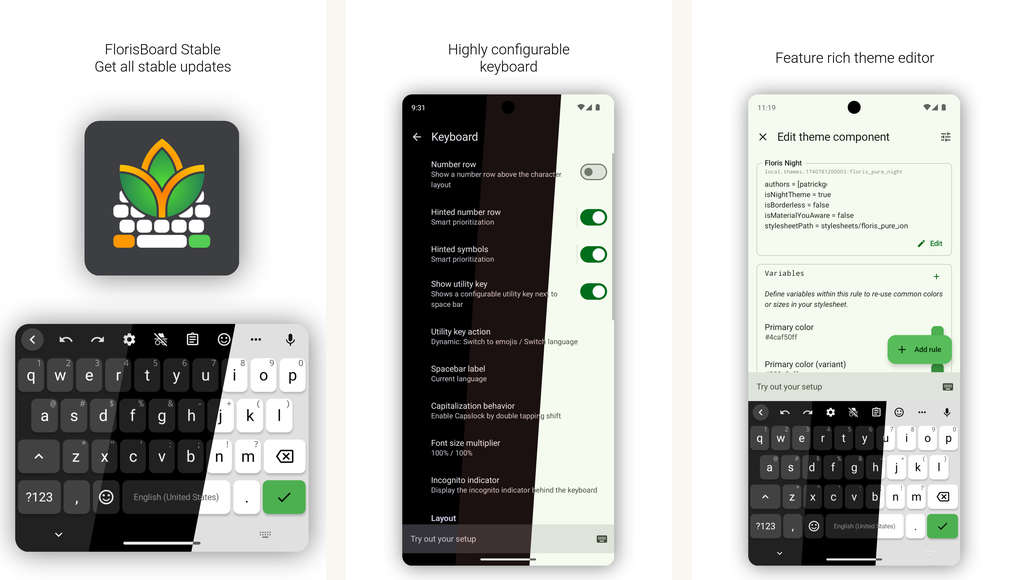
Florisboard is the open-source keyboard for people who want a modern look. Where HeliBoard descends from the older AOSP keyboard, Florisboard was built fresh, with Material You theming and a clean, current design.
It keeps everything on the device, has no ads and no tracking, and supports glide typing, full emoji and unicode input, and a clipboard manager. Development has been steady for years, and the project is donation-supported.
Be aware that Florisboard is still labelled beta. In our testing it was stable for daily use on recent Android, but a few rough edges remain, and you may hit the occasional bug on older devices. For most people HeliBoard is the safer FOSS pick, with Florisboard a strong choice if the design matters to you.
Highlights
- ⭐ Best for: FOSS users who want a modern Material You design.
- ⚠️ Watch out for: still beta, so expect occasional rough edges, mostly on older Android.
- 💰 Pricing: free and open-source, donation-supported.
Key features
- Material You theming: a modern design that matches your system colors.
- Fully on-device: no tracking, no ads, and no account.
- Glide typing and clipboard: swipe input plus a built-in clipboard manager.
6. Samsung Keyboard

If you own a Galaxy phone, the Samsung Keyboard is already there, and for most Galaxy owners switching away from it costs more than it gains. It is woven into One UI, so it handles Samsung-specific things no third-party keyboard can.
The standout is S Pen handwriting. On a Galaxy with a stylus, you can scribble into any text field and watch it convert to typed text, and it is the strongest handwriting-to-text we have used on Android. One UI also adds Galaxy AI writing tools, a redesigned emoji picker, and AR Emoji stickers.
The limits are clear. It is Samsung-only, so it does not follow you to another brand, and its AI writing features still trail Gboard’s Gemini. Privacy depends on which Galaxy AI and prediction settings you turn on, so it is worth a look through the keyboard settings.
Highlights
- ⭐ Best for: Galaxy owners, especially anyone who uses the S Pen.
- ⚠️ Watch out for: Samsung-only, and privacy varies with the Galaxy AI settings you enable.
- 💰 Pricing: free, bundled with Galaxy phones.
Key features
- S Pen handwriting: convert handwriting to text in any field on a stylus Galaxy.
- Galaxy AI tools: writing assistance and translation built into One UI.
- Deep One UI integration: emoji picker, AR Emoji stickers, and system-wide consistency.
Samsung Keyboard is not a separate Play Store download. It updates through Galaxy phones and the Galaxy Store as part of One UI.
7. Pixel Keyboard

The Pixel Keyboard is the version of Gboard that Google ships on Pixel phones, tuned to the Tensor chip. If you own a Pixel, this is already your keyboard, and most Pixel owners do not need anything else.
The Pixel build leans on on-device hardware. Voice typing runs locally and is fast and accurate, the same engine that powers Pixel features like Live Transcribe. Magic Compose can rework the tone of a message inside Google Messages. Under the hood it is the Gboard core, so language and emoji coverage match the standard app.
The honest note is that it is Pixel-only, and the gap with regular Gboard narrows over time, since Pixel-first features tend to reach all phones eventually. As with Gboard, the AI extras that touch the cloud send context to Google.
Highlights
- ⭐ Best for: Pixel owners who want the fastest on-device voice typing.
- ⚠️ Watch out for: Pixel-only, and cloud-side AI features still send context to Google.
- 💰 Pricing: free, bundled with Pixel phones.
Key features
- On-device voice typing: Tensor-accelerated dictation that runs locally.
- Magic Compose: rework the tone of a message inside Google Messages.
- Gboard core: the same wide language and emoji support, Pixel-tuned.
The Pixel Keyboard is not a standalone listing. It ships with Pixel phones and updates as part of Gboard and Pixel feature drops.
8. Typewise

Typewise is the experiment worth trying if mis-taps drive you up the wall. It drops QWERTY for a honeycomb of hexagonal keys. Each key is larger, with less wasted space between them, so your thumb has a bigger target to hit.
Typewise says the larger keys cut typos noticeably, and its autocorrect was co-developed with engineers from ETH Zurich in Switzerland. In our testing the accuracy gain was real once the layout clicked, and prediction stays on the device, so it is a privacy-friendly choice.
The cost is the learning curve. Plan on a week or two before the hexagonal layout feels natural, and expect typing on a normal QWERTY keyboard to feel odd for a while afterward. A Pro tier adds extras like a built-in translator. It is a strong fit for the curious, a poor fit if you need to be fast today.
Highlights
- ⭐ Best for: people willing to relearn typing to cut their mis-tap rate.
- ⚠️ Watch out for: a one to two week learning curve before the layout feels natural.
- 💰 Pricing: free, with an optional Pro subscription.
Key features
- Hexagonal layout: larger keys with less dead space to reduce mis-taps.
- On-device prediction: autocorrect runs locally, with no keystroke uploads.
- Built-in translator: available with the Pro tier.
9. Grammarly Keyboard

The Grammarly Keyboard is less about typing speed and more about output. It checks grammar, spelling, clarity, and tone as you write, bringing the suggestions from Grammarly’s desktop and browser tools into every text field on your phone.
It earns its place for long-form writing on a phone: a careful work email, a cover letter, a message where a clumsy sentence would land badly. The free tier catches a useful amount on its own. Premium adds tone rewrites and fuller suggestions.
Be clear-eyed about the trade. To check your writing, Grammarly processes your text on its servers, so this is a cloud keyboard, and you are trusting Grammarly with what you type. Emoji and stickers are an afterthought, and Premium is the priciest subscription in this list. For casual chat, it is overkill. For writing that matters, it is worth it.
Highlights
- ⭐ Best for: polished, error-free long-form writing on a phone.
- ⚠️ Watch out for: your text is processed on Grammarly’s servers, and Premium is pricey.
- 💰 Pricing: free, with an optional Premium subscription.
Key features
- Live writing checks: grammar, spelling, and clarity suggestions as you type.
- Tone feedback: see how a message reads, with rewrites on Premium.
- Cross-device account: the same dictionary and settings as Grammarly on desktop.
10. AnySoftKeyboard
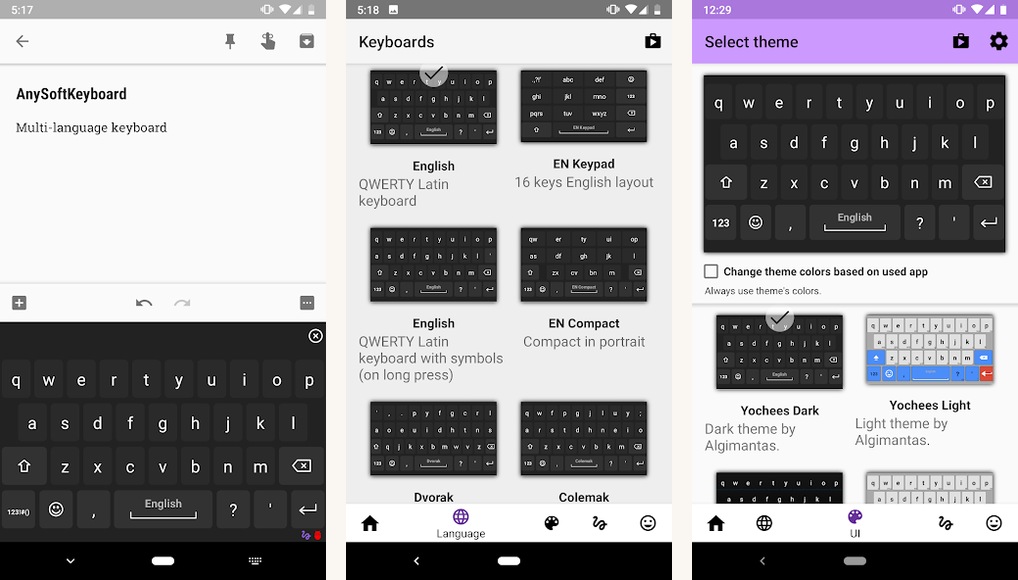
AnySoftKeyboard is the specialist on this list. It is an open-source keyboard built around one strength: language coverage. If you type in a script that mainstream keyboards ignore, this is often the only option that handles it well.
Languages load as separate add-on packs, covering well over 200 languages, including small and historic scripts. The keyboard itself stays light, you install only the languages you need, and it is open-source with no tracking, so it suits privacy-minded multilingual typists.
The honest weakness is polish. The interface looks dated next to Gboard, and switching languages takes a few more taps than the smoother mainstream keyboards. If you need broad, unusual language support, that is a fair price. If you only type in common languages, the keyboards higher in this list will feel better.
Highlights
- ⭐ Best for: multilingual typists who need rare languages and scripts.
- ⚠️ Watch out for: a dated interface and more taps to switch languages.
- 💰 Pricing: free and open-source.
Key features
- 200+ languages: downloadable packs covering small and historic scripts.
- Open-source and private: no tracking, with the code published openly.
- Lightweight core: install only the language packs you actually use.
Common mistakes to avoid
| Mistake | Why it matters | Better move |
|---|---|---|
| Installing a keyboard from an unknown developer | An input method can read everything you type, including passwords and card numbers. | Stick to keyboards with a clear privacy policy and a real track record. |
| Tapping through the “full access” prompt without reading it | Android warns you on purpose that the keyboard can collect all your text. | Read the prompt, and only grant it to a keyboard you trust. |
| Expecting a privacy keyboard to write for you | Smart-compose needs cloud processing, so on-device keyboards cannot do it. | Decide first: AI help, or private typing. Pick the keyboard for that goal. |
| Switching keyboards and expecting instant accuracy | Each keyboard learns your habits separately, so predictions start cold. | Give a new keyboard a week of normal use before judging it. |
| Forgetting to move your personal dictionary | Your saved words and shortcuts do not transfer automatically. | Export the dictionary from the old keyboard and import it into the new one. |
Privacy: what your keyboard can see
This is the part most keyboard roundups skip. A keyboard is the one app that sees everything you type. Passwords, private messages, search terms, card numbers when you fill a form. Android shows a blunt warning when you enable any keyboard for exactly this reason.
That does not make cloud keyboards unsafe. Gboard, SwiftKey, and Grammarly are run by large companies with public privacy policies, and none of them is selling your messages. But by design they send some of your text to a server, because that is how smart-compose and tone checking work. You are trusting Google, Microsoft, or Grammarly with that stream.
On-device and open-source keyboards make a different promise: your typing stays on the phone. FUTO Keyboard runs even its voice input locally. HeliBoard requests no internet permission at all. The trade is real, you give up AI drafting, but if privacy is your priority, that is the camp to choose.
Before you install
Avoid free keyboards from unknown developers, especially ones promising endless themes or stickers. A keyboard that wants broad permissions and shows ads has a business model, and your keystrokes can be part of it. When in doubt, stay with the keyboard your phone shipped with, or pick one of the named options above.
One practical habit helps on any keyboard. Many phones let you switch to a simple, separate input method for sensitive fields, and some keyboards offer an incognito mode that pauses learning. If you want a deeper look at related tools, our guide to private and mainstream email apps covers the same trust trade-off for your inbox.
The verdict
The verdict
Bottom line: most people should keep Gboard. It is free, fast, and its Gemini features are now genuinely helpful for everyday writing.
If you want your typing to stay on your phone, FUTO Keyboard is the polished private option, and HeliBoard is the choice for open-source purists. Galaxy and Pixel owners can usually keep the keyboard their phone shipped with, since the gain from switching is small. Reach for SwiftKey if you live in Microsoft tools, Grammarly when a message has to read perfectly, Typewise if mis-taps frustrate you, and AnySoftKeyboard for rare languages. Whichever you pick, choose it like a trust decision, because your keyboard sees every word.
Questions people actually ask
- Is Gboard really better than SwiftKey?
For most Android users, yes, by a small margin. Gboard’s Gemini features are the strongest AI baseline, and its language and emoji support is the broadest. SwiftKey wins specifically for people inside the Microsoft ecosystem who want Copilot in the keyboard. - Do open-source keyboards have spell-check and autocorrect?
Yes. HeliBoard and Florisboard both ship with spell-check and autocorrect. The dictionaries are smaller than Gboard’s, and that is the trade-off for keeping everything on the device with no cloud sync. - What does on-device typing actually mean?
Prediction, autocomplete, and on some keyboards voice input run on your phone’s own hardware, so nothing leaves the device. Cloud-tied keyboards send some typing context to a company server to improve suggestions, and how much depends on your settings. - Can I install two keyboards and switch between them?
Yes. Android lets you enable several keyboards and switch with a small icon near the navigation bar. Many people keep a private keyboard for sensitive fields and a feature-rich one for everyday typing. - Will my learned words transfer if I switch keyboards?
Not automatically. Keyboards like Gboard and SwiftKey can export your personal dictionary, but the prediction model itself does not move. Expect a new keyboard to feel cold for about a week while it learns your habits.
How we tested
How we tested
We used each keyboard for at least two weeks on a Pixel 8, a Galaxy S24, and a OnePlus 12, across email, messaging, and short-form social typing. We measured typing speed against a standard passage and judged autocorrect on real, messy input. Privacy posture was cross-referenced against each provider’s privacy policy and, for the open-source picks, against the published source code. Store listings and package IDs were verified at the time of writing.